Database errors
Database errors can occur in the CCure Administration Station client after installing or upgrading the integration, and they can prevent adding new servers or cameras to the system. The error messages indicate that the system cannot access the SQL database or that there is an error interacting with objects in the database. The exact error messages we have documented in multiple support cases are listed below:
Invalid object name.
A database object error occurred processing the current request. Please check the server's event log for more information.
These errors require different solutions, which are listed individually below.
Invalid object name
The invalid object name ACVSCore.Access.MiSwhVideoCamera error happens when trying to connect to MilestoneXProtect in the CCure Administration Station client, and it prevents adding a Recording Server to CCure. The error is caused when two tables are not created in the AVCSCore SQL database during the installation of the integration. The missing tables are MiSwhVideoCamera and MiSwhVideoServer. If these tables are missing, the Milestone Video Driver service is designed to create them. However, without a connection, or the correct permissions, the service cannot access the SQL database.
Verify the Milestone XProtect Corporate Video Driver Service is running under a Windows user account with sysadmin privileges to the AVCSCore database. The required tables are created by this service, so it needs permissions to do so.
Verify in the CCure Server Configuration Application database tab that the Connection String for Milestone.SwhIntegration.Common.MiSwhVideoObjects is correct and shown as VALID.
Open the Windows Registry Editor and navigate to: HKEY_LOCAL_MACHINE\SOFTWARE\Wow6432Node\Sensormatic Electronics Corporation\SWHSystem\Setup
Modify the WixDBIsLocal value to 0.
On the Server Components tab of the Server Configuration Application, stop the Milestone.SwhIntegration.Server.MiSwhVideoServerComponent, then start it again.
Note
Assuming this resolves the reported issue, modify the WixDBisLocal value back to 1.
A database object error occurred
General database object errors happen when the services on the CCure system cannot connect to the SQL database.
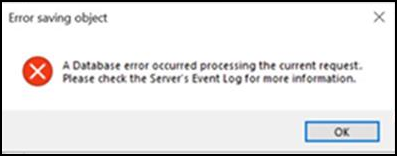
This error can happen when trying to access cameras, add new cameras, change Recording Server configurations or add new Recording Servers. To fix this error change the default service account (Local System) that is logged on and running the following services to a Windows user account that has administrative access (sysadmin) to the SQL server database used for CCure 9000.
Milestone XProtect Corporate Video Driver Service
CrossFire Framework Service CrossFire Server
Component Framework Service
Open
services.mscon the CCure 9000 host server. And find the three services on the list.Right-click on each service and select Properties from the shortcut menu.
Switch to the Log On tab and choose an account that has the proper privileges.
Restart the services after changing the service that they will “run-as.” It should be fixed.