BriefCam Proximity White Paper
The proximity between two people is an important metric that can be used for various use cases.
Most obviously, it can be used for monitoring social distancing – determining if two or more people were closer than a predefined distance for more than a predefined duration.
Scene Geometry
For proximity measurements to be available, we must locate the ground plane and understand the perspective of the camera (or the geometry of the scene – as seen by the camera).
BriefCam does this by analyzing the scene makeup, such as the horizon, and taking into account depth perception by analyzing the changes in the sizes of people as they move across the scene.
BriefCam then transforms the scene into a top-down view, giving each person and vehicle an X-Y location – based on which proximity is calculated.
The geometry takes a bit of time to be learned (it is more about how quickly we capture people and vehicles that move across the scene unconcluded than the actual time that passes), and during that time, no X-Y location information is saved.
It is recommended to start the processing approximately 30 minutes before the time of interest in order to give the system time to analyze the objects passing through the frame. The geometry algorithm requires several people or vehicles, with their whole body visible, to pass through different areas of the frame in order to establish an approximation of the scene geometry.
If the saved geometry needs to be reset, the administrator can turn this off by changing the Processing.SaveSceneGeometry environment setting to False. For example, if one of the cameras is moved, the saved geometry should be reset since there is currently no mechanism to detect that the field of view (FOV) has changed.
X-Y Location Sampling Rate
There is an environment setting named XYLocations.SampleRate that lets the administrator change how often (in seconds) a person’s XY location is sampled. The valid input for this setting is 1-900. For Proximity detection, set the sampling interval so that is small enough to ensure that there is continuous proximity – but not too small as to waste CPU resources unnecessarily. For example, if you would like to detect proximities of 5 minutes, changing the sampling rate to 2 minutes might be too slow as perhaps during these 2 minutes objects moved further away from each other. A 30-60 second sampling rate might be adequate, but a sampling rate of every second might be excessive. In general, for proximities of 5-15 minutes, in order to utilize minimal system resources, it is recommended to set this setting to 10-60 seconds per sample.
Proximity Filter in REVIEW
The Proximity filter in the REVIEW module can be used for several applications, including contact tracing.
Another use case is finding associates of individuals, such as ones who can be an accomplice in a crime.
The filter is made up of slots where we include and select people who we want to measure proximity from – and parameters, which define the conditions of proximity.
Note that only objects classified as people can be added to the Proximity filter. In addition, only people that appear concurrently in the scene are considered when measuring proximity.
For more information, see the Proximity section in the BriefCam User Guide.
The recommended steps for using the Proximity filter (with the help of the Face Recognition and Appearance Similarity filters) are:
Use the Face Recognition filter to find the person of interest and all of this person’s appearances across all cameras and times (where the face is showing).
Add these appearances to the Proximity filter. (The selection will not reset – so that you can also add the selection to the Appearance Similarity filter.)
Repeat steps 1 and 2 with the Appearance Similarity filter.
Perform contact tracing for this individual by setting proximity thresholds and reviewing the resulting people who were in proximity.
Note that BriefCam allows, via the Max. Duration setting, the disregarding of groups of people whose walking pattern suggests that close proximity is not an issue for them, such as families.
Proximity Filter in RESPOND
In the RESPOND module, the Proximity filter includes only the proximity parameters which you can set (without the slots that allow adding specific people to it that exist in REVIEW).
The RESPOND module then alerts on any couple or group that has been in proximity with each other. An alert will be sent once per group of people. Note that only people that appear concurrently in the scene are considered.
Usually, if person A has been in proximity with person B, and person A has also been in proximity with person C – BriefCam will raise a single alert that includes all three persons (instead of raising two separate alerts).
Proximity can be configured only as a Smart Alert rule.
In the RESPOND module, the Proximity filter can be used together with any of the other filters (except for the License Plate Recognition and Count filters).
When another filter is used in conjunction with the Proximity filter, BriefCam will detect proximities where at least one of the people match the other filters. For example, if you select the Proximity filter and red upper wear, BriefCam will look for groups in proximity where at least one person is wearing a red shirt (not necessarily the person who will appear in the alert thumbnail). When using a scene filter (Area, Path, or Line Crossing) with the Proximity filter, the proximity events are not limited to people detected in the scene filter. BriefCam will take all the people who triggered the scene filter and see if they were in proximity with other people anywhere in the entire scene.
Proximity Filter in RESEARCH
The Proximity feature in the RESEARCH module is disabled by default.
When the RESEARCHProximityEnabled environment setting is set to true, and when data is imported into the RESEARCH module by BriefCam’s BI service, proximity measurements are calculated for all the people. Each person’s minimum and maximum distance to another person (out of all the people in the scene with that person) is noted as well as the number of proximity violation contacts, meaning the number of people who have passed the proximity threshold with the selected person. This information can be readily used in dashboards.
In addition, there is an out-of-the-box dashboard dedicated to the COVID-19 use cases, which includes useful proximity analytics charts.
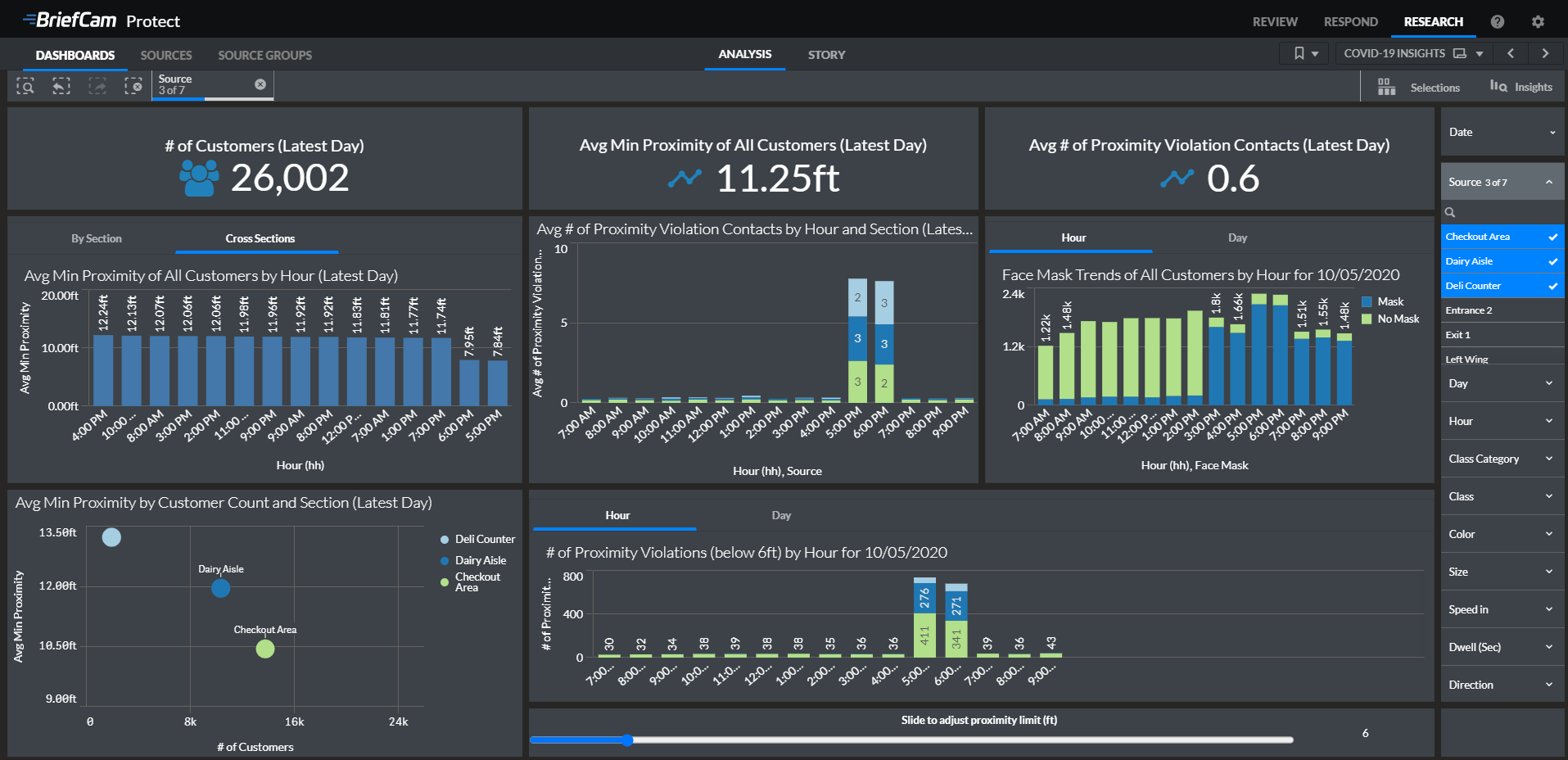
Note that there are a number of RESEARCH Proximity settings that the administrator can set in the BriefCam Administrator Console, including:
Enable/disable proximity calculation in RESEARCH
Minimum duration time (in seconds) that counts as actual exposure between two people
Minimum proximity (in centimeters) that counts as exposure
Maximum proximity duration percentage to consider two people as associated and should be ignored for the proximity calculations. This is helpful for excluding couples and families from contact-tracing analytics.
Note that while scene filters (custom dimensions: Area, Path, and Line Crossing) are not available with Proximity, objects farther than 100m from the center of the frame are filtered out and disregarded when evaluating proximity statistics.
CPU Consumption
CPU consumption when applying proximity in RESPOND is usually higher than the CPU consumption in REVIEW. This is because, in REVIEW, we usually compare the proximities between a few persons of interest to a lot of persons – in the order of n. In RESPOND, we compare the proximities of all people with all other people, for complexity in the order of n2.
Scene Filters
Scene filters (Area, Path, and Line Crossing filters) are available in REVIEW and RESPOND – but they filter people who adhere to those scene filters, regardless of where the actual proximities occur.
Scene filters are not available in conjunction with Proximity in RESEARCH.
Camera Considerations
For geometry learning to be possible, the camera must be placed at an angle of 10-80 degrees to the ground (not looking straight forward or downward) – optimal geometry performance will be achieved at camera angles of 30-45 degrees.
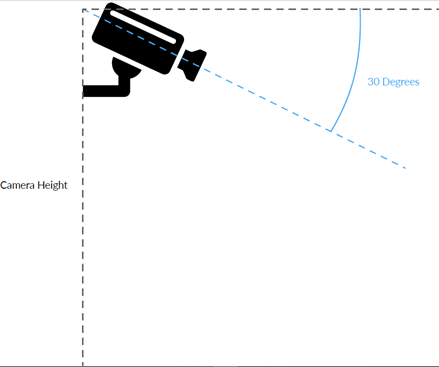
The camera should be placed 2.5-3 meters above the ground. If the camera is indoors, it should be placed close to the ceiling.
Overhead cameras (looking straight downwards at 90 degrees, usually with a fisheye lens) will probably have geometry convergence problems and will give off bad results - if any. When setting a camera as “overhead” (in the Camera Management section of the BriefCam Administrator Console), geometry is disabled and persons cannot be added to the Proximity filter or considered for proximity.
Fish-eye and other distorting lenses will also prevent the geometry from converging – as they alter the planarity of the scene. In addition, the resolution needs to be good enough for human pose detection.
Limitations
Objects at the beginning of a new source of video do not have real-world coordinate information. This is because the geometry modeling algorithm needs to analyze a certain number of objects before real-world coordinates are available. These objects (without real-world coordinates) cannot be added to the Proximity filter (and will not show up in the Proximity filter results). To circumvent this, when there is a new source, fetch a video time range with a margin at the beginning.
BriefCam cannot extract geometries for scenes that are too crowded (where objects are not separable and trackable).
The scene-geometry algorithm assumes a single ground-plane, and therefore will not converge in scenes with multiple floor levels or large staircases.
For approximating the distance between people, we take the bottom of the person’s bounding box – which is supposed to represent the person’s feet. In a case where the person’s feet are occluded, the bottom of the bounding box might end at the person’s torso – which is projected onto the ground plane, skewing distance measurements to this person.
Tracking “splits” may occur, where the system loses track of an object – and then detects and starts tracking it again, considering it as a different object. Another scenario that can happen is where the system briefly tracks an object (or different parts of an object) twice or more – considering it as two or more separate objects.
This usually happens in challenging scenes, for example, scenes with occlusions or video with variable FPS – but might also happen in regular scenes. Proximity filtering might exacerbate this problem – showing results of a person’s proximity with himself/herself in the case of such “splits” – especially if the minimum duration is very short.
Shorter minimum durations are, however, suggested in cases where – for example, a minimum duration of 15 minutes is filtered for, it is recommended to use a shorter minimum duration (such as 4 minutes) in order to mitigate cases of “splits” where long tracks (and long proximities) might split and break into shorter tracks (and proximities).
Objects that are located near the scene horizon might have large geometry errors – as that area is close to being infinitely far. This happens mostly when the camera POV is more parallel to the ground. To ignore these objects, it is recommended to use an Area filter in the REVIEW module to filter out people who are moving in the far away area and do not come near the center of the frame.
In the RESEARCH module, objects that are farther away than 100m (in real-world coordinates) from the image center are filtered out.
The Proximity filter triggers an alert when a person violates the proximity thresholds. If two people who have already violated the proximity thresholds violate the thresholds again with one another – an alert will not be triggered.
In scenarios where the people do remain in proximity inside the camera’s FOV (field-of-view) for longer than 15 minutes, there is a chance that they will be static – and therefore, our classic algorithm will lose track of them.
To avoid this problem with static people, enable the static people tracking variable OX.StaticPeopleTracking in the BriefCam Administrator Console’s Environment Settings screen. The OX.StaticPeopleTracking setting will take effect on all subsequent processing tasks.
This setting is not recommended for regular (non-contact tracing) use as it might reduce the accuracy of tracking in use cases, such as people counting.
The Proximity filter in the RESPOND module cannot be used in conjunction with the count-based filters or the Scene filters (area, path, line crossing).
The scene-geometry algorithm assumes a single ground-plane, and therefore will not converge in scenes with multiple floor levels and large staircases or escalators.
Best Practices
REVIEW
It is important to understand that the Proximity filter is an investigative tool meant to shorten the length of time needed for a contact-tracing investigation (along with other tools including the Face Recognition and Appearance Similarity filters). There are only a few scenarios where the contact tracing is a “press of a button” automatic flow – such as a school-yard or a camera overlooking a retail store.
The recommended flow for contact tracing is:
Upload a facial image of the infected person – or find an occurrence of the person in the video and extract the face into the Face Recognition filter.
Use the Face Recognition filter to find more occurrences of that person in the face recognition-quality cameras.
Add those occurrences to the Proximity filter and also to the Appearance Similarity filter.
Use the Appearance Similarity filter to find more occurrences of the infected person (in non-FR-quality cameras) and add them to the Proximity filter as well.
Once all occurrences of the infected person are loaded into the Proximity filter – apply the Proximity filter.
Review the proximity results. For example, skim the original video of the proximity events.
Save the proximity results as a preset – so you can continue to investigate people in the proximity events without the Proximity filter engaged – and then easily return to the proximity results.
When performing contact tracing, and looking for occurrences of the infected person to add to the Proximity filter, use the Loose tolerance so you will be able to capture all instances.
Long proximity times: CDC regulations during the COVID pandemic called for detection of proximity times that are longer than 15 minutes. This is a very long time with regards to surveillance via cameras and can be challenging to detect without a human-in-the-loop during the contact-tracing investigation.
The first challenge is that a person may exit and re-enter the camera’s field of view, or that the analytics will lose track of a person. Therefore, although that person may have been in proximity for an aggregated time that is longer than 15 minutes, it will be split into several shorter instances (see the information about “splits” in the Limitations section). This is because the algorithm does not know that those separate occurrences are of the same person.
Tracking for such long periods is also a challenge when the person stays in the frame – especially when there are other people in the scene, and tracking “splits” and “hijacks” (the jumping of tracking between persons) may occur.
The third challenge is that BriefCam’s current engine that does not track long static behavior as well as normal dynamic behavior – and may therefore create more “splits” in these cases.
Therefore, when searching for long proximity events – use a shorter minimum duration in order to catch “split” fragments. For example, use a minimum duration of 3-4 minutes – which is a good balance between a manageable amount of proximity events to review (by sampling the original video) and the assurance that long proximity durations will not be missed due to them being split into several fragments.
The Above distance in the Proximity filter is meant for specific use cases only. You do not need to activate it for contact tracing.
The person’s close-up clip focuses on the person and the person’s track in the scene – and not on the specific proximity event. Sometimes, the other people in proximity to the person may not show in the close-up clip. It is therefore recommended to view the original video and investigate the proximity event by scrubbing (fast-forwarding select sections of the time range) through the original footage.
RESPOND
The Scene filters (Area, Path, and Line Crossing) are available with the Proximity filter but act as separate filters. For example, if an Area Scene filter is used with the Proximity filter, BriefCam will alert on proximities that happen anywhere as long as at least one person triggered the Area filter sometime in that person's path.