Digifort Integration
Integration Summary
VMS Partner | Product | Version | Last Tested BriefCam Version | Integration Level | H.265 Support |
Digifort | Digifort Enterprise | 7.4.0.4 | 2024 M1 | Real time alerts integration (L2a) | Yes |
Initial Setup
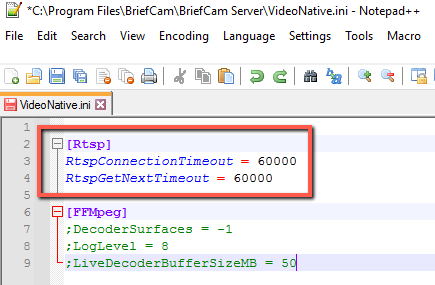
In the VideoNative.ini file (located at C:\Program Files\BriefCam\BriefCam Server), change both the RtspConnectionTimeout and the RtspGetNextTimeout parameters to 60000 and remove the semicolons from the beginning of these rows (as shown in the image below).
Sending Alerts to Digifort
Alerts can be sent to Digifort. To enable this functionality, carry out the steps below.
BriefCam Configuration
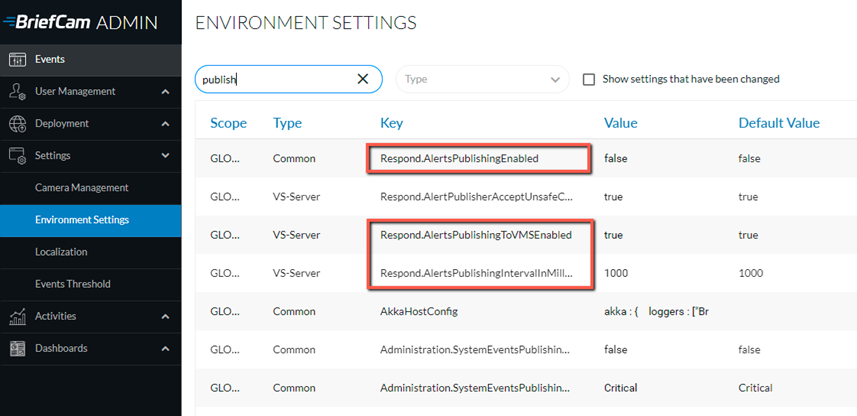
In the Environment Settings section, there are three settings relevant for sending alerts outside of BriefCam (see the image below):
To send alerts outside of BriefCam, set the Respond.AlertsPublishingEnabled setting to true.
To send alerts to a VMS, check that the Respond.AlertsPublishingToVMSEnabled setting is set to true.
To change the polling interval, use the Respond.AlertsPublishingIntervalInMilliseconds setting.
If you make changes to the settings, you need to restart or start the VSServer service.
Digifort Configuration
The preferable method is to configure every camera separately as follows:
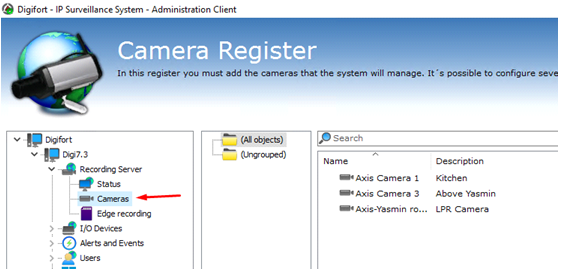
Open the Digifort Administration Client and navigate to Recording Server -> Cameras tab.
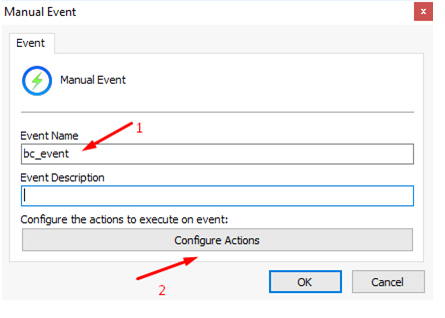
Double-click on the camera name and go to the Manual Events configuration tab. Click Add to create a new event.
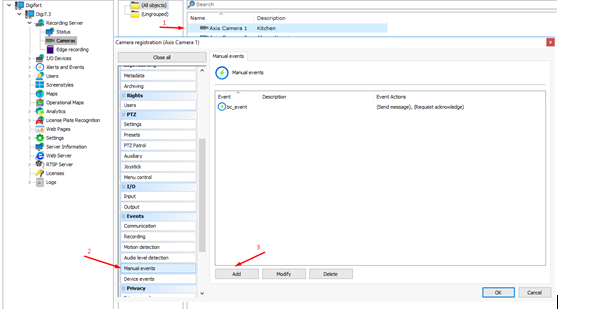
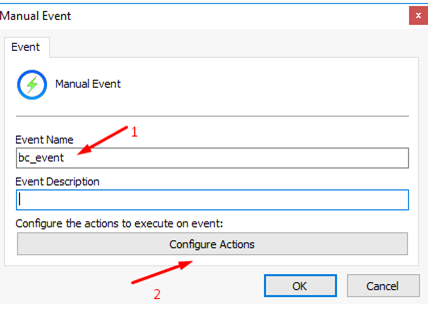
The default event name is
bc_event. The name can be changed in the Digifort plugin configuration file.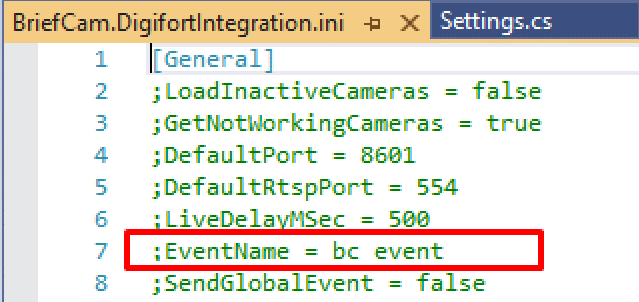
Click Configure Actions.
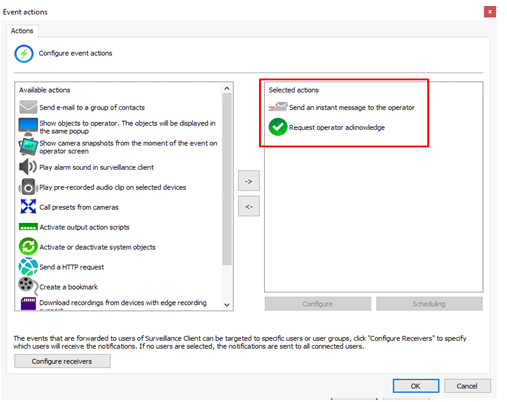
Select event actions. Usually, the Send an instant message to the operator and Request operator acknowledge event actions are used.
Note
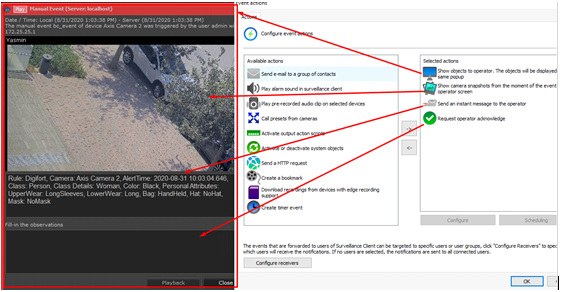
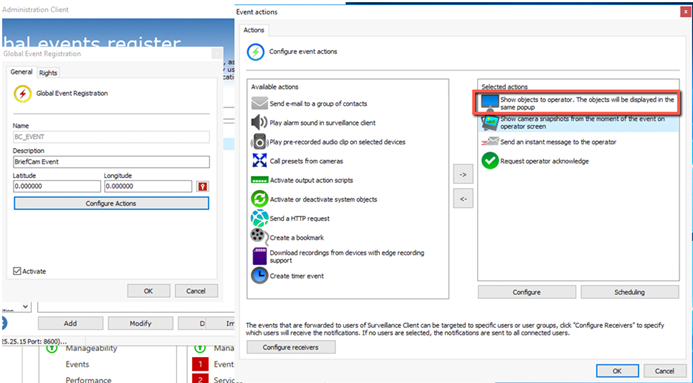
The Show objects to operator event action opens a new live stream player for every new alert, which leads to CPU overload. Make sure that this action is disabled.
Every new Alert window will now appear in the Digifort client.
Alternatively, you can configure one global event that will be triggered for all the cameras. However, this method has some restrictions.
To enable global event sending, set the plugin configuration file's
SendGlobalEventoption totrue.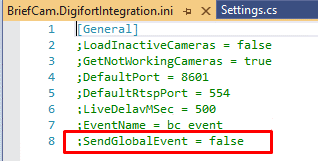
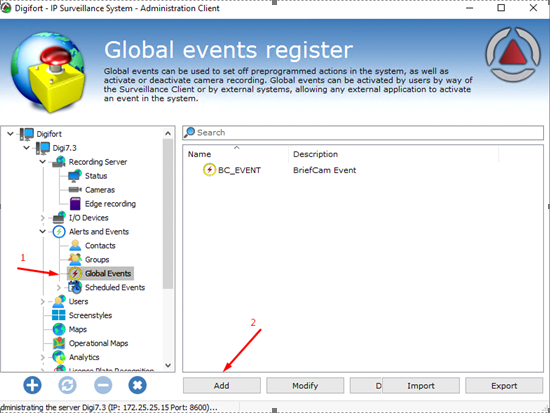
Open the Digifort Administration Client and navigate to Alerts And Events -> Global Events tab.
Click Add to create a new event.
Click Configure Actions.
Select event actions.
Check that the Show objects to operator action is disabled.
Known Limitations
Bounding boxes when playing the original video are not supported.
Live timestamps are inaccurate because of time differences. To solve this issue, set both BriefCam and Digifort to the same NTP.
BriefCam's alerts are presented in Digifort without an image due to Digifort's SDK limitations.
Once every few hours, the real-time stream disconnects for 10 seconds and then reconnects again automatically.
In real-time alerts, recorded video saves the timestamp with a short lag.