Video Player
When playing a video, you can use any of the standard playback controls provided.
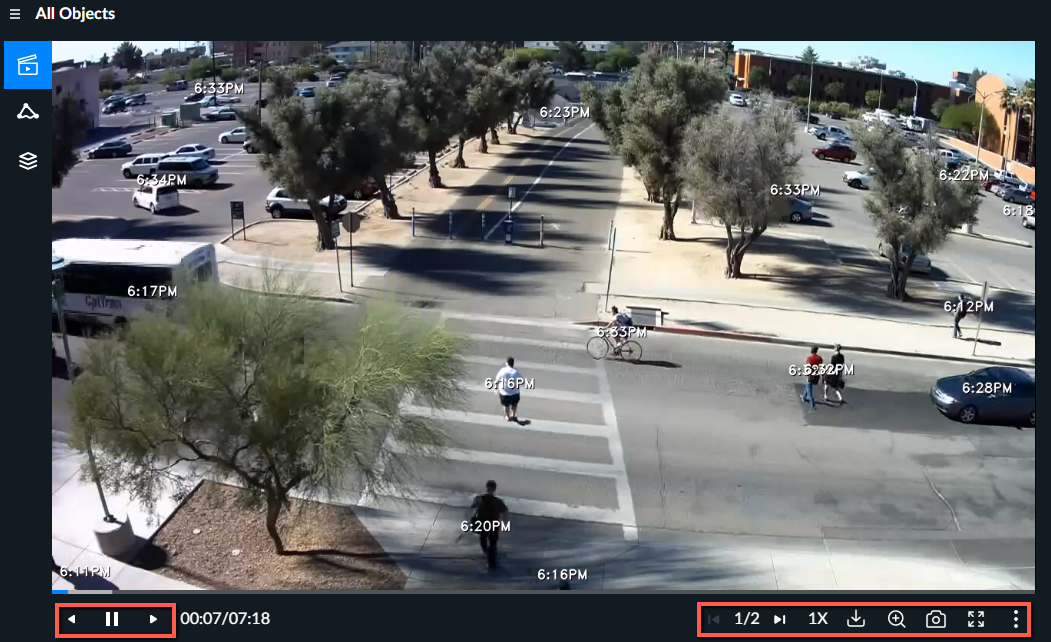
The following are the available options. For additional information, see the sections below.
Icons | Functionality | Description |
 | More video options | Expands and collapses additional options. |
 | Controls the number of events shown concurrently when playing a VIDEO SYNOPSIS®. | |
 | Determines whether to display the time and date, the time only or to hide the timestamp (off). | |
 | Sort video | Sorts the VIDEO SYNOPSIS® according to relevance and time (oldest to newest). The option that you select here is only applicable for the current VIDEO SYNOPSIS®. The available options are By Relevance and By Chronology (oldest to newest detected objects). |
 | Determines whether to display the bounding boxes. | |
 | Backward, pause/resume and forward | Moves through the video frame by frame both backwards and forwards. The right and left keyboard keys can also be used to move through the video and the space bar can be used to pause and resume. |
 | Playback speed selection | Controls the speed of the playback. The available options are four times the speed (4X), double (2X), regular speed (1X), 50% of the speed (0.5X) and a quarter of the speed (0.25X). When you change the playback speed, the new speed remains until you sign out (even when moving between modules). |
 | Zoom | Zooms in and out of areas of interest. Dragging with the mouse moves the zoom area. |
 | Export video | Downloads an .mp4 file of the VIDEO SYNOPSIS®. |
 | Capture | Capture the image or part of it and save it. |
 | Full-screen and windowed toggling | Determines whether to display the screen in full-screen or windowed mode. |
 | Chapters | The VIDEO SYNOPSIS® is automatically broken down into chapters. When filters are applied, reducing the number of detected objects, the breakdown into chapters will automatically be altered, accordingly. |
To close the video either click the X at the top right of the screen or press the Esc key.
Note that objects are played back in non-chronological order to optimize viewing time. Click individual objects to gain access to additional controls that enable you to play back an object’s original video or add it to a case report.
Note that BriefCam's adaptive streaming technology, based on HLS, automatically selects one of two resolution levels (according to available bandwidth) to enable optimal streaming video viewing.
When running or exporting a VIDEO SYNOPSIS®, 4K videos are rendered in half of the resolution for increased performance. The original video of a 4K video is rendered and exported in full size.