Start A Review Case
If there is an alert that you want to investigate further, you can add the clip and any part of the original video to the REVIEW solution.
Click the Start a Review Case
 option at the top of the thumbnail, closeup clip, or original video. You can also add multiple alerts by selecting the thumbnail and clicking the Start a Review Case icon in the action bar at the top right of the screen.
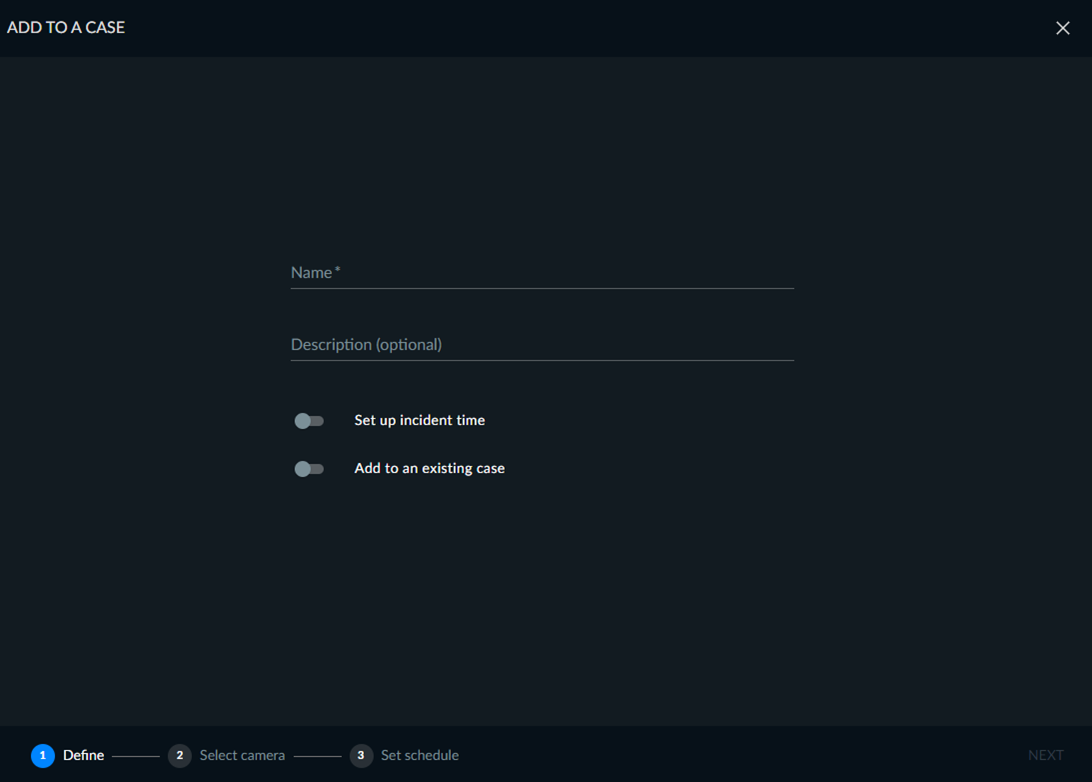
Enter a title in the screen below. You can also enter a description and the incident time.
If you want to add the alert to an existing case, check the Add to an Existing Case checkbox. If you want to create a new case for the alert, leave it unchecked, and click NEXT.
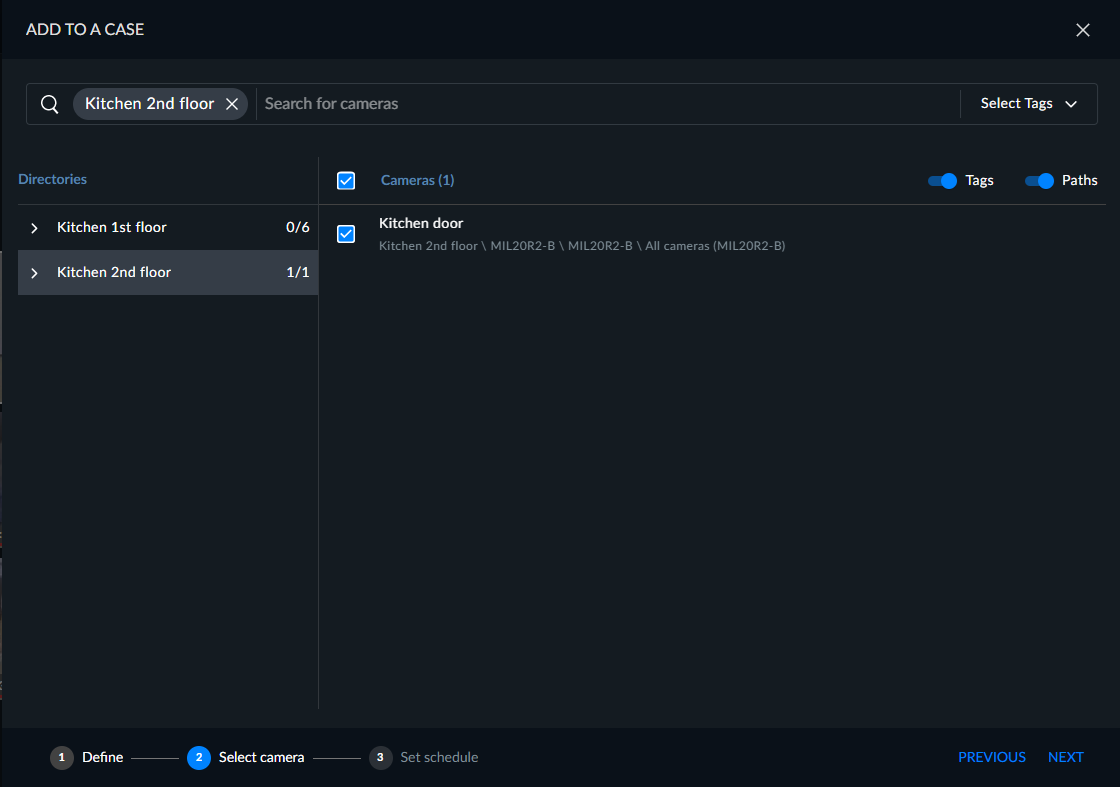
Select the cameras to add to the case. By default, the camera(s) that consisted of the object that caused the RESPOND alert are selected.
Click NEXT.
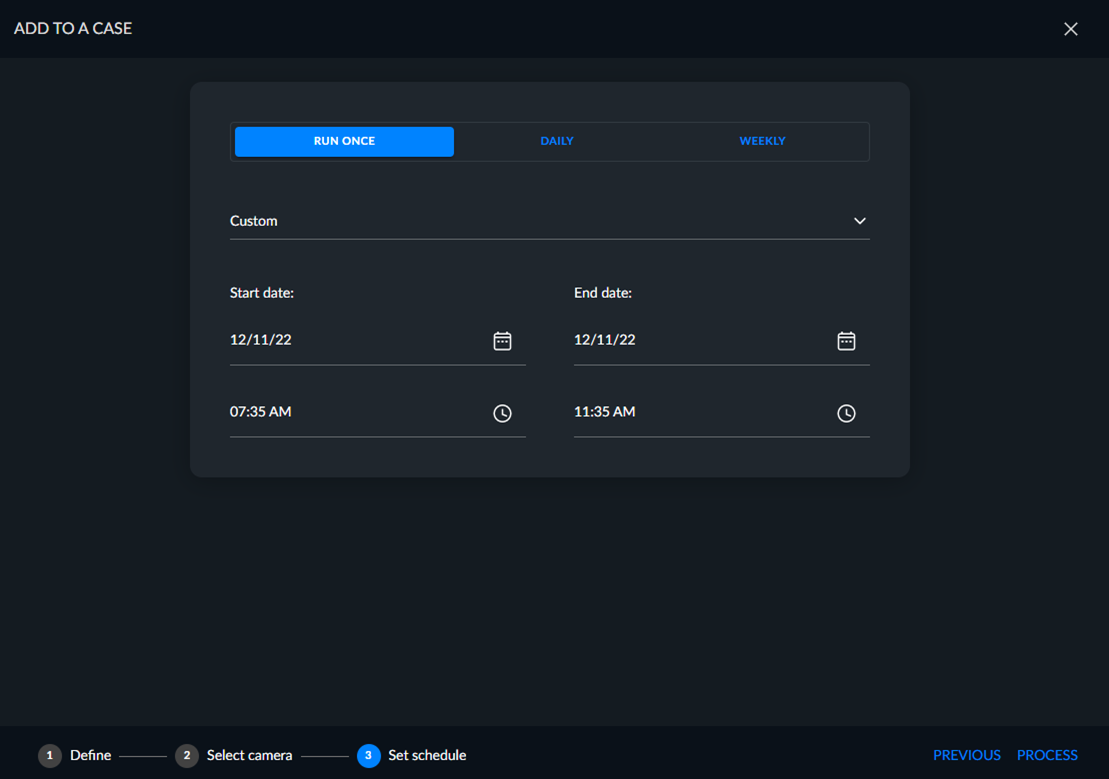
In the next screen, select the time range from the original clip that you want to be added to the case. The default is two hours before the event until two hours after the event.
Click PROCESS and the video file with the alert will be added to a REVIEW case.
If the video was already processed, no processing will need to take place.