Setting a Specific Source and Custom Dimension
When using a measure that has the words “in Specific Source” and/or “in Custom Dimensions” in the name, you need to set the source and custom dimension that you want this measure to use. You do this as follows:
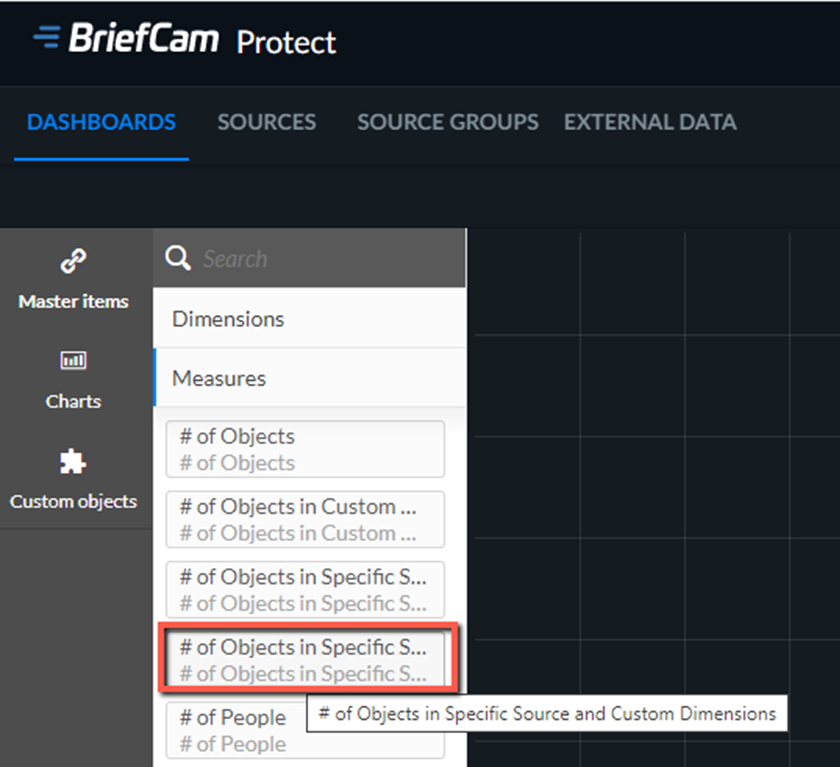
Drag the measure onto the dashboard, such as # of Objects in Specific Source and Custom Dimensions.
Unlink the measure by clicking the unlink (
 ) icon.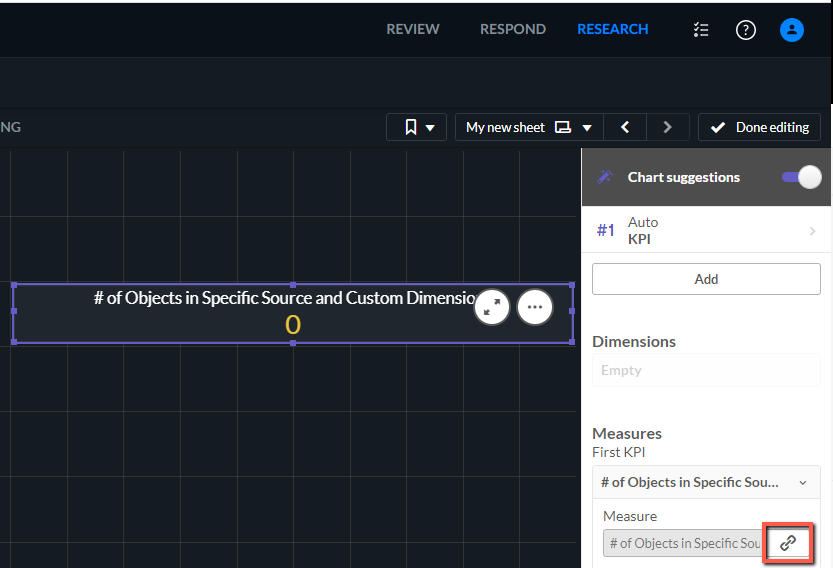
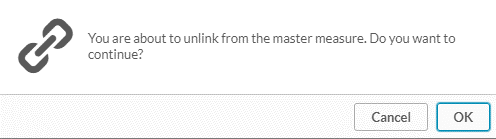
Click OK.
In the Expression field, click the function (
 ) button.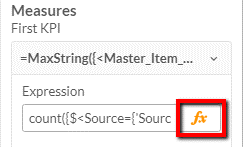
Depending on what appears in the expression for the measure (whether it includes sources and/or custom dimensions), replace the string
SourceExamplewith the requested source name and/or the stringCustomDimensionsExamplewith the requested area, path, or line crossing.
For example:

Click Apply.