Rules Screen
Each rule is listed along with its name, the name of the source camera selected in the rule, its creation date, rule type and status (Disabled or Active).
The status is updated every 15 seconds.
For schedules that are Active, additional information will be displayed in parentheses: Processing, Queued, or Recovering.
Click on the information ( ) icon to see a summary of the number of rules and their status.
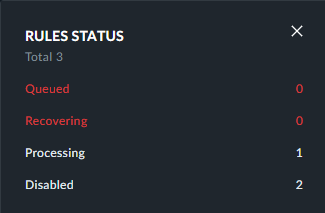
If you have a rule that remains in Queued status, contact your local BriefCam administrator.
If there is a rule that remains in Queued status, check that the GPU is set to Real-Time.
Actions
When you right-click or hover over a rule, various icons are displayed.

Action | Description | |
  | Enable or disable a rule. | |
 | Duplicate a rule. BriefCam will create the selected rules for each of the selected cameras and apply the same global filters to the rules (but not the Scene filters). The newly created rule is owned by the user who duplicated the rule. | |
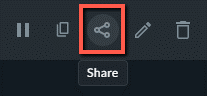
 | Share a rule. See also Rule Collaboration. | |
 | Edit a rule. | |
 | Delete a rule. If a rule is deleted, alerts created by the rule are also deleted. However, bookmarks of the alerts are not deleted. | |
| Copy the text that you right-clicked on. |

If you select more than one rule, an additional option will appear at the top of the screen enabling you to either simultaneously enable or disable multiple rules.


Any events captured by the source camera selected and matching the filters applied in a running rule will trigger alerts in the RESPOND solution’s ALERTS screen, enabling operators to rapidly respond to incidents as they unfold.
Note
If a RESPOND rule fails due to stream loss or another issue, it will try to recover every 60 minutes by default. The time can be changed in the MaxRetryDelaytimeMinutes environment setting. To stop the rule from retrying, disable it.
Rule Collaboration
Click the share icon to share a rule. The share icon is only available for rules owned by the user.
Select the users and/or groups that you want to share the rule with.
By default, rules are shared as "read only". However, if you want to allow the user read-write access, select the Allow users to modify resource content checkbox.
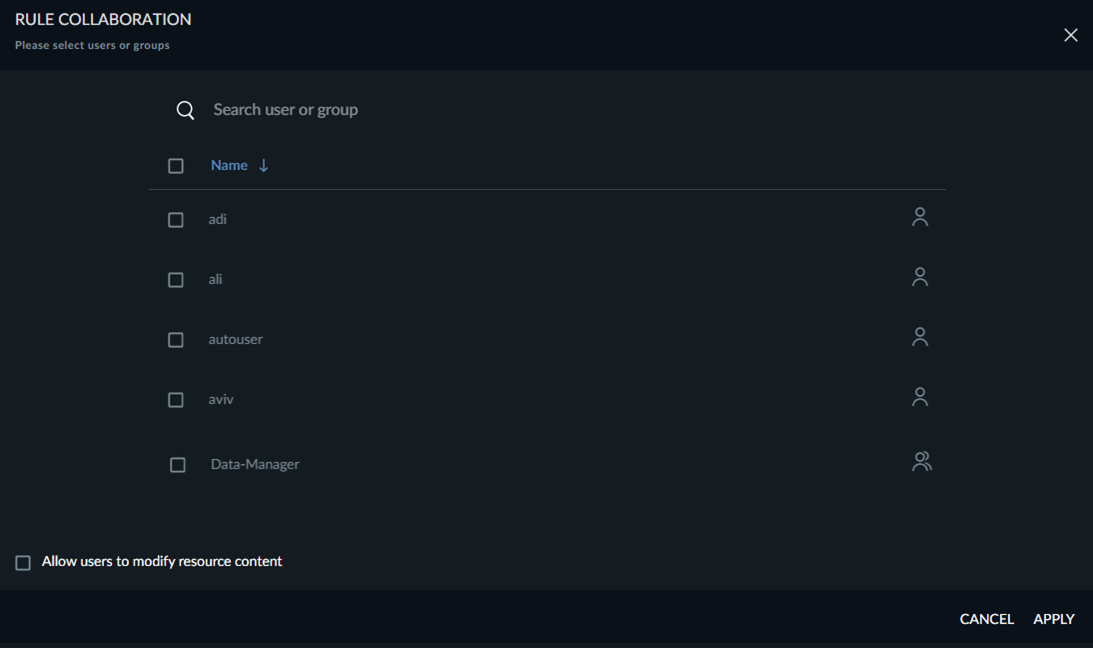
BriefCam will check that all selected users and groups:
Have permissions to view the Rule camera.
Already have permissions to the watchlists that the sharing user does not own (the external and shared watchlists).
When a rule is configured to use watchlists, those watchlists must be shared as well.
The sharing process will not share watchlists that the user does not own (shared and external watchlists). On the right of the screen you will see a list of watchlists that are owned by you and another list of watchlists that are not owned by you and can, therefore, not be shared by you.
Watchlists are shared in read-only mode with the users/groups with one exception: If the watchlist was already shared in advance with one of the users or groups in full control mode, this sharing mode won’t change.
When un-sharing a rule, the shared users will no longer receive alerts from this rule, and all received alerts from this rule will disappear from the user’s RESPOND view.