Filter Tolerance Adjustment
The class, attributes, color, dwell time, direction, area, path, and face and appearance similarity filters are all configured with a default tolerance level of Normal.
Class, Dwell, Person Attributes, Face Recognition, and Appearance Similarity Tolerance
When you open the Class, Dwell, Person Attributes, Face Recognition or Appearance Similarity filters, you can adjust the Tolerance level.
Using the Tolerance field, you can adjust the strictness of your search results.
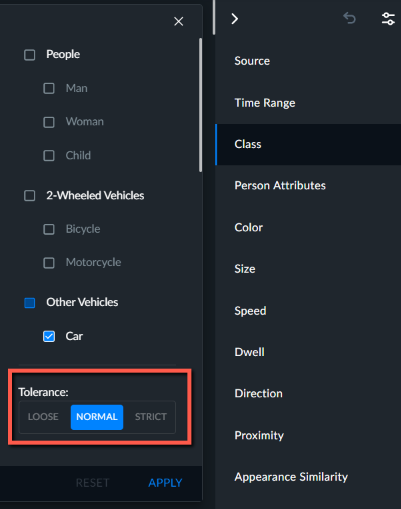
The available values for the Tolerance field are:
Strict – With this tolerance level, you will see fewer of the relevant objects in the results, but you will also see fewer non-relevant objects in the results (most of the results will be relevant – but you may miss out on other of the relevant objects due to misdetections).
Normal (default) – With this tolerance level, you will see the majority of the relevant objects in the results and a smaller number of wrong matches.
Loose – With this tolerance level, more of the overall relevant objects will appear in the results. However, there may be a large number of non-relevant objects that are also presented in the results.
As the number of objects in the case grows, the number of false matches will increase.
Color Tolerance
The Color filter control and the colors for Upper/Lower Wear can be fine-tuned using the Coverage and Shade tolerance settings.
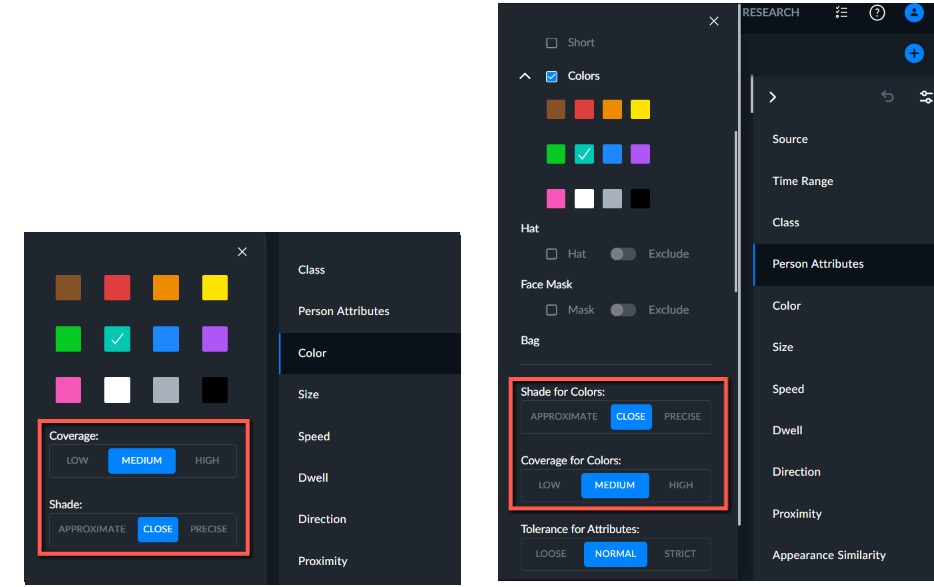
Use the Coverage filter (low, medium, or high) to set how much of the object needs to match the selected color in order to be considered a match and to be displayed. If, for example, you are looking for a car that is almost completely blue, then setting the Coverage to High would probably give you the most accurate results. This is because objects with a small amount of blue will not appear.
Use the Shade filter (approximate, close, or precise) to set how flexible the filter should be in terms of the shade of an item. You are setting here how far the tone of the color can be from the selected color to be considered a match.
If you are looking, for example, for a person with pink hair, select the Upper Wear attribute and the pink color. You can also try searching for the pink color in the Color filter) and set the Coverage to Low, since the hair of a person usually covers only a small portion of the image, and set the Shade to Approximate, since the hair might not be exactly pink, but a lighter or darker shade of pink.
If you are looking for a green hat, select the green color and set the Coverage to Low.
These types of results are easier to achieve when using colors that normally would not appear, such as green, yellow and red. Doing this type of search for white, for example, would be less successful, since white and black are very dominant colors.
Regarding colors and vehicles, shades can be used, but for blue and black, shade does not work well because of windows and shadows tend to be bluish or black.
Note
Different cameras and different angles can produce slightly different tones than a human perceives. This may affect color filtering across cameras or across different times of the day.
Direction Tolerance
For the Direction filter, the default tolerance setting under Angle is Normal, as shown below.
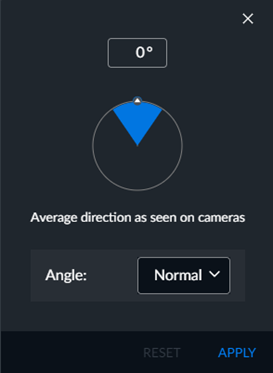
To assure the strictest adherence to the selected direction, click the Angle drop down list to change it to Narrow. You can alternatively change the setting to Wide. You can also enter the degrees for the angle.