Case Collaboration
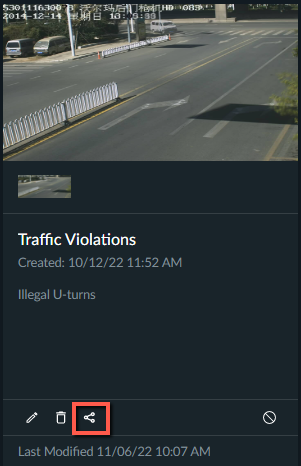
When you are the owner of a case, you can click the Case Collaboration icon at the bottom right of the case to share your case with other users or groups.
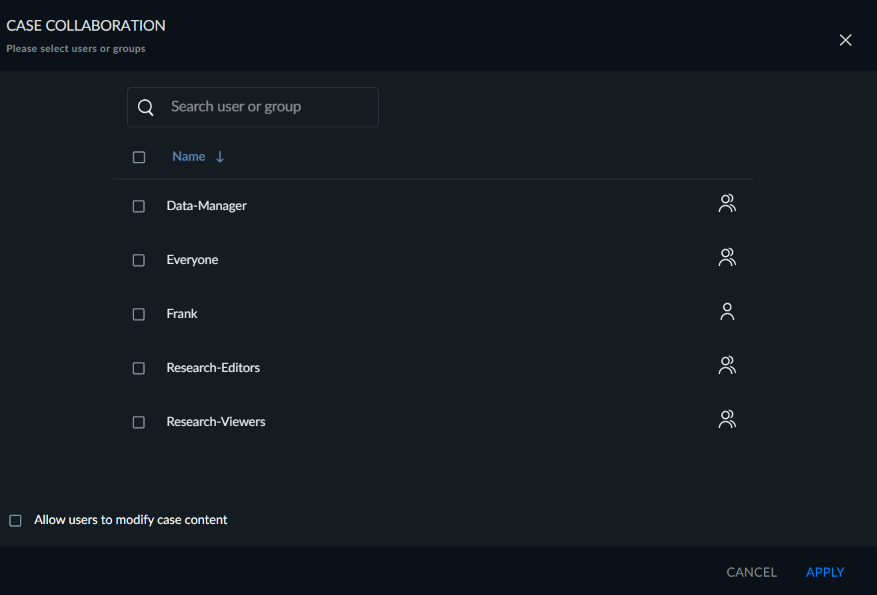
Select the users or groups that you want to share the case with.
If you want to allow the user to modify the case, select the Allow users to modify case content checkbox. If you want them to only have read-only access, then leave the checkbox unchecked. You can only set read-only or read-write permissions for all of the shared users and groups collectively.
A person with read-only access can view cases. The only changes they can make are to add, edit and delete bookmarks, including visual layer bookmarks.
When you click APPLY, the icon will change.
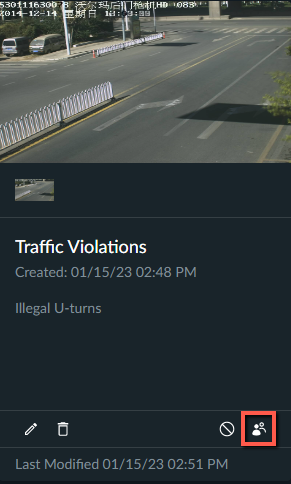
If it is a case that was shared with you, the share icon will be greyed out. If you hover over the share icon, you will see who shared the case with you. If you were not given permissions to modify the case content, all the icons will be greyed out.