Background Changes Layer
To generate a background changes heat map:
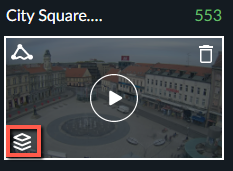
Click the Visual Layers control (
 ).
).
Click the Background Changes icon (
 ) to display where changes occurred in the background.
This visual layer can be used to understand which items were interacted with more than others, and which objects haven’t moved at all. This is useful to see places where changes in the scene have taken place – such as static objects that have been moved around (e.g. the popular items on display at a store, and parked cars that have moved).
Note that camera movements and severe lighting changes may also reflect as background changes, although no item interactions occurred.
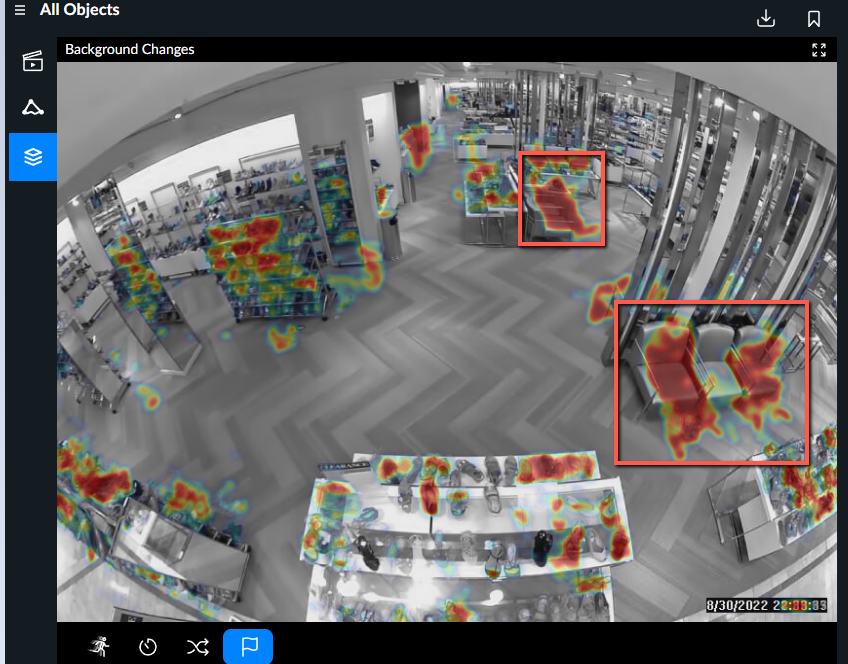
The objects circled in red are objects that did not move for a long time. This is a side effect of the background changes feature.