Viewing Alerts
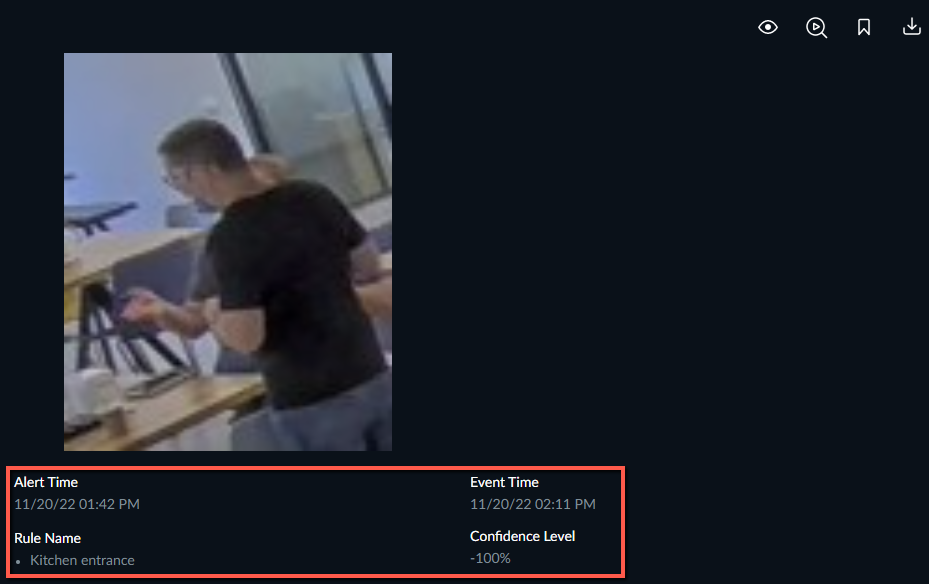
When you click on the alert thumbnail a larger image will appear with the following four icons at the top right of the image:
Icons | Functionality | Description |
|---|---|---|
 | Mark as Watched/Unwatched | A red line will appear under the thumbnail if the video alert was unwatched. |
 | Start a Review Case | Add footage from the video of one or more alerts to a new or existing REVIEW case. See also: Start A Review Case. |
 | Create Bookmark | Flag the alert for later review. To view the bookmarks, open the BOOKMARKS tab. See also: The BOOKMARKS Tab. |
 | Download Image | Download a thumbnail image. |
You can also click the Original Video tab to view the full context of the original feed where the event was captured (i.e. uncropped and at 1:1 zoom).
Caution
Bounding boxes are not supported for OX5 Real-Time alerts and OX6 alerts.
Under the image you’ll see information about the alerts, including the alert time (the viewer’s local time), event time (the event’s local time), and rule name. When relevant, additional information will also be seen, such as the watchlist name and, when a face was matched, a match score between 0-100%, indicating the similarity between two faces. The match score is displayed at the alert’s Confidence Level. Matches that have low confidence levels should be considered with caution (and perhaps other comparison instances should be considered) as there is more chance that this is a false match.
Smart Alerts
This section is only relevant when the administrator has configured the environment to process all visual assets.
For Smart alerts, hovering over an individual alert’s thumbnail will reveal a play button ( ). Click it for a close-up playback of the alert-generating event.
Click the download ( ) icon, to download an .mp4 file of the close-up clip.
You’ll also see information about the alerts, including the alert time (the viewer’s local time), event time (the event’s local time), and rule name. When relevant, additional information will also be seen, such as the watchlist name, plate number, and the comment from the LPR watchlist.
Pause Alerts
At the top right of the Alerts tab, there is an icon for pausing alerts.
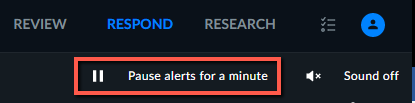
This option stops alerts from being inserted to the thumbnails area. This option is specific per user.
The Pause mode can be configured by the administrator to be constant (until the user resumes) or to be automatically released after a predefined time frame, which, by default, is 60 seconds.
When the alerts are paused, the incoming alerts will not appear in the Alerts pane, but the number of waiting alerts will appear to the right of the Alerts paused icon.