Report Tab
Case findings can be summarized in concise reports with all relevant exhibits.
To view reports, access the REVIEW module’s REPORT tab.
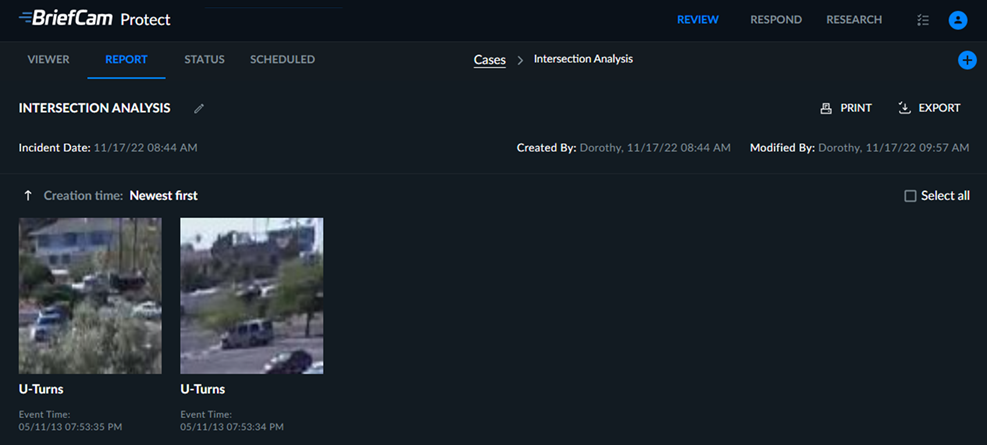
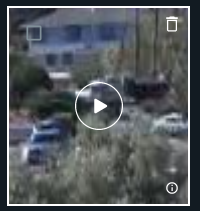
Reports feature a case title and description as well as bookmark thumbnails for all objects and visual layer images added via the Add to Report button ( ), each with a title and description (entered when adding objects to the report on the VIEWER tab). Hover over bookmark thumbnails to reveal the selection, editing and playback buttons.
Note that you can copy the time range by hovering over the time range and clicking the copy  icon.
icon.
When you click the playback button, on the right-hand side you will also be able to view the original video featuring the relevant object and the closeup clip. The action buttons available are the same as described in the Video Player section. In addition, you can copy the source name by hovering over the source name and clicking the copy icon.
When hovering over the bookmark, you can then click the edit icon ( ) to edit a bookmark’s title and description.
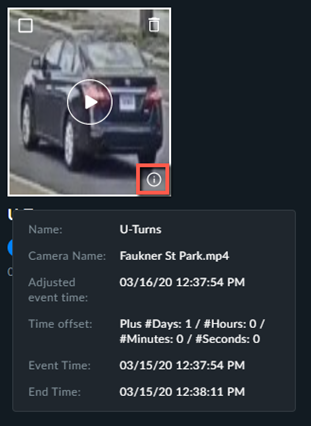
By hovering over the information icon, you will see information about the bookmark (as shown in the image below).
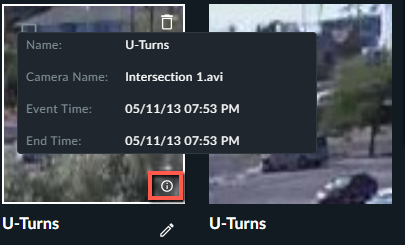
If the video time was adjusted in the STATUS tab, you will see the adjusted time instead of the event time.
Every bookmark that contains adjusted time will show it instead of event time. If an adjustment was added after the creation of the bookmark, the bookmark will not show the time adjustment.
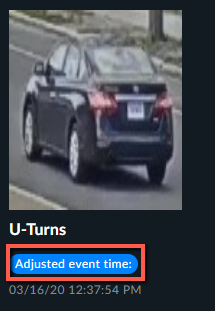
You can also hover over the information  icon to view additional information.
You can export bookmarks by selecting one or more bookmarks or by selecting the Select all option to select all the bookmarks on the current page, then clicking the export icon (  ) on the right-hand side of the Report tab.
You can also export only the selected bookmarks by clicking the export icon next to the delete icon.
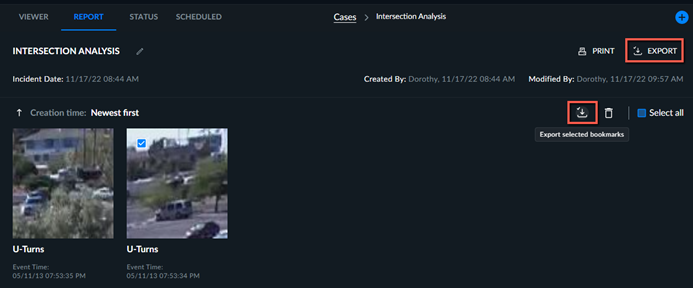
When an object is exported, a zip file will be created containing the selected objects’ original video, close-up clip and thumbnail. When a visual layer is exported, a zip file is created containing a jpg of the visual layer.
You can print bookmarks by selecting one or more bookmarks and clicking the Print icon ( ).
).
You can delete bookmarks by selecting one r more bookmarks for deletion, then clicking the trash can icon ( ) in the top right-hand corner of the Report tab to delete all selected bookmarks.
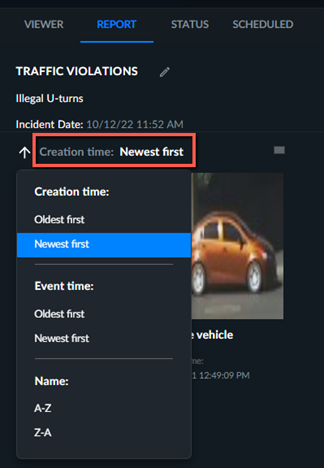
You can reorder the bookmarks by creation time, event time, or name, by clicking the currently selected order (marked in red in the image below)
You can also click the arrow button to switch the order.