Proximity
The Proximity feature is only supported for people.
Click the three-line menu  and in the Show objects with section, select Proximity Data. Only objects that can be added to the Proximity filter will be shown. To reset this selection, unselect Proximity Data.
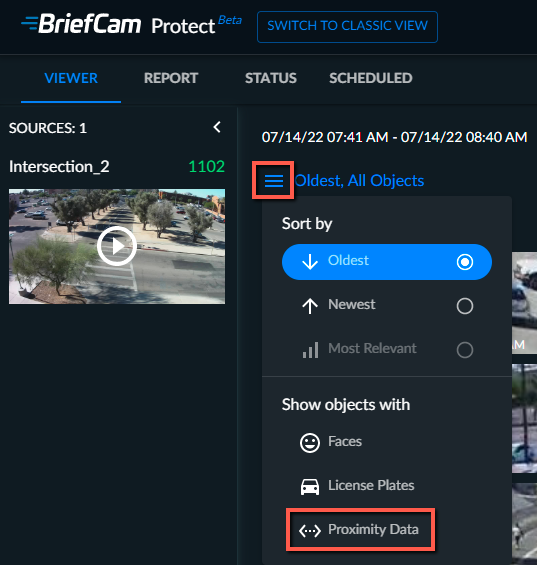
To find which people were above or below a certain proximity from a specific person, add the person to the Proximity filter, by clicking the Proximity icon ( ). The icon will appear when doing one of the following:
Selecting one or more people.
Playing a close-up clip.
Playing a VIDEO SYNOPSIS® and then clicking an object.
Only people that appear concurrently in the scene are considered.
Caution
Proximity information is not available when using fisheye cameras.
Note
For videos being processed for the first time, it is recommended to start the processing approximately 30 minutes before the time of interest in order to give the system time to analyze people passing through the frame. The geometry algorithm requires several people, with their whole body visible, to pass through different areas of the frame in order to establish an approximation of the scene geometry.
Once a person is added and selected in the filter and the filter is applied, the results will include all people that were closer (or farther, or both) than the defined threshold(s) for longer than the defined minimum duration (if defined).
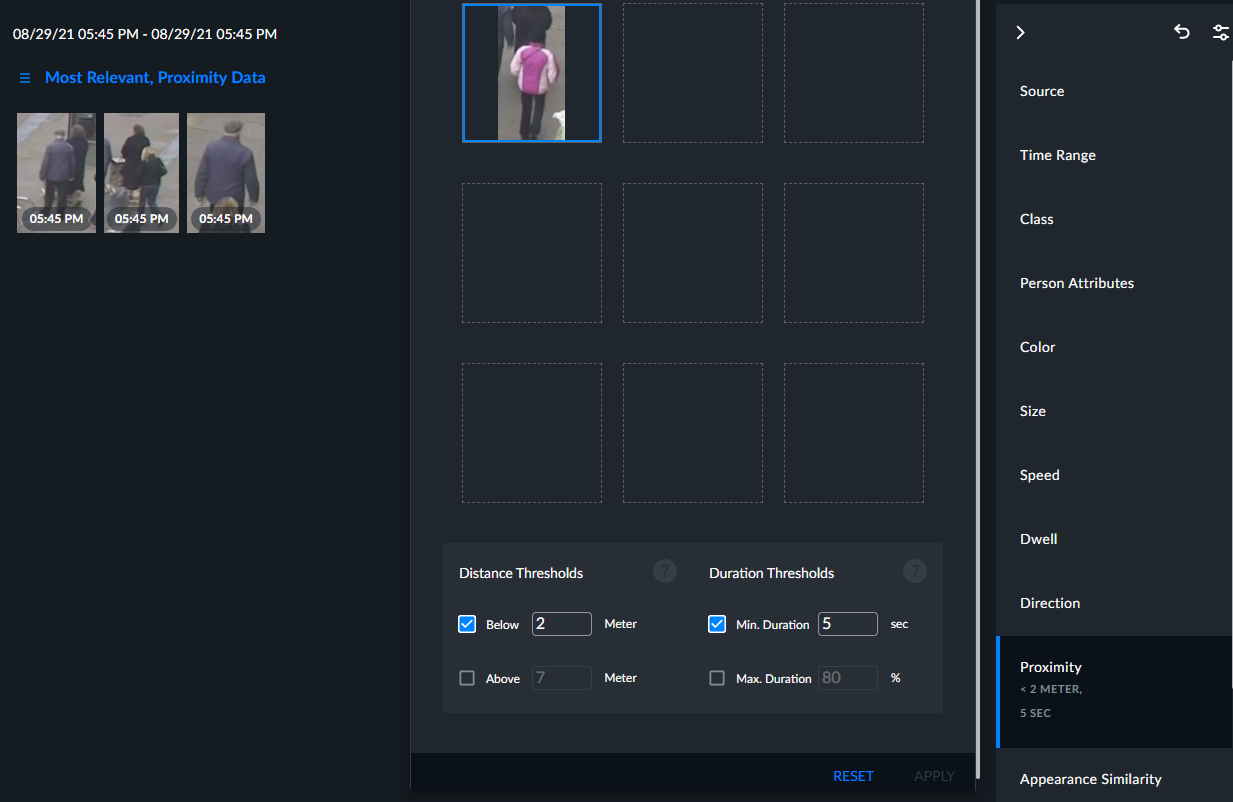
You can select all the objects on the current page by checking the Select All checkbox and you can then delete them all. You can also use Shift+Click to select multiple consecutive objects.
You can hover over an individual object in the Proximity filter and click its delete button (trash can) to remove it from the filter or click the zoom button (magnifying glass) to see the entire thumbnail.
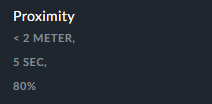
In the Filter pane, under the Proximity filter, you can see the thresholds that were set in the fields described below.
This example means the Below field is set to 2 meters, the Min. duration is set to 5 seconds, and the Max. duration is set to 80%.
Distance Thresholds
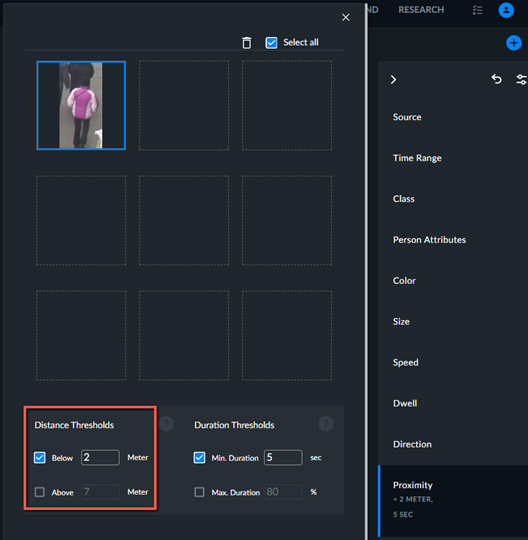
The Distance Thresholds let you set how close or far from each other the two people need to be in order to be included in the search results. You can enter numbers with up to one numeral after the decimal point. The valid values for the Distance Thresholds are 0.1 m to 20 m (0.3 ft to 66 ft).
The Below and Above fields are independent, so if you select both, the search results will show people that were below the distance set in the Below threshold and also results for people that passed the distance in the Above threshold.
Duration Thresholds
The Duration fields are optional.
The valid values for the Min. Duration threshold are 1- 900 seconds (15 minutes) and the valid values for the Max. Duration threshold are 1-100%.
The default value for Min. Duration is 15 secs and for Max. Duration is 80%.
The Max. Duration option lets you ignore groups of people who were closer/farther from the distance threshold(s) for more than the percentage of the duration in the scene.
For example, if the Max. Duration option is set to 90% with a minimum distance threshold of 2 meters, people that are closer than 2 meters for more than 90% of their duration in the scene (the duration of the person who appeared the longest in the scene is used), are considered "associated" and are not included in the filter output (even though they may match the filter's distance and minimum duration conditions). This is useful to exclude groups of people that enter together, exit together, and meet the close proximity conditions together, such as families, that are permitted to be together.
Let’s consider a case where person A enters the scene and stays in it for one minute and then person B joins person A in close proximity for another minute – the violation duration will be 50% (1 minute out of the 2-minute max duration of the two persons) and if we set the Max. Duration to a value below 50% – this pair will be ignored.
Known Issues
There are a few known issues to keep in mind when using the Proximity filter:
Objects at the beginning of a new source of video do not have real-world coordinate information. This is because the geometry modeling algorithm needs to analyze a certain number of objects before real-world coordinates are available. These objects (without real-world coordinates) cannot be added to the Proximity filter (and will not show up in the Proximity filter results). To circumvent this, for new sources, fetch a video time range with a margin at the beginning.
BriefCam cannot extract geometries for scenes that are too crowded (where objects are not separable and trackable).
Objects near the horizon have high inaccuracies. This happens mostly when the camera POV is more parallel to the ground. To ignore these objects, it is recommended to use an Area filter in the REVIEW module to filter out people who are moving in the faraway area and do not come near.
The Proximity filter triggers an alert when a person violates the proximity thresholds. If two people who have already violated the proximity thresholds violate the thresholds again with one another – an alert will not be triggered.
The Proximity feature in the RESEARCH module is disabled by default. To enable this feature, contact your system administrator.