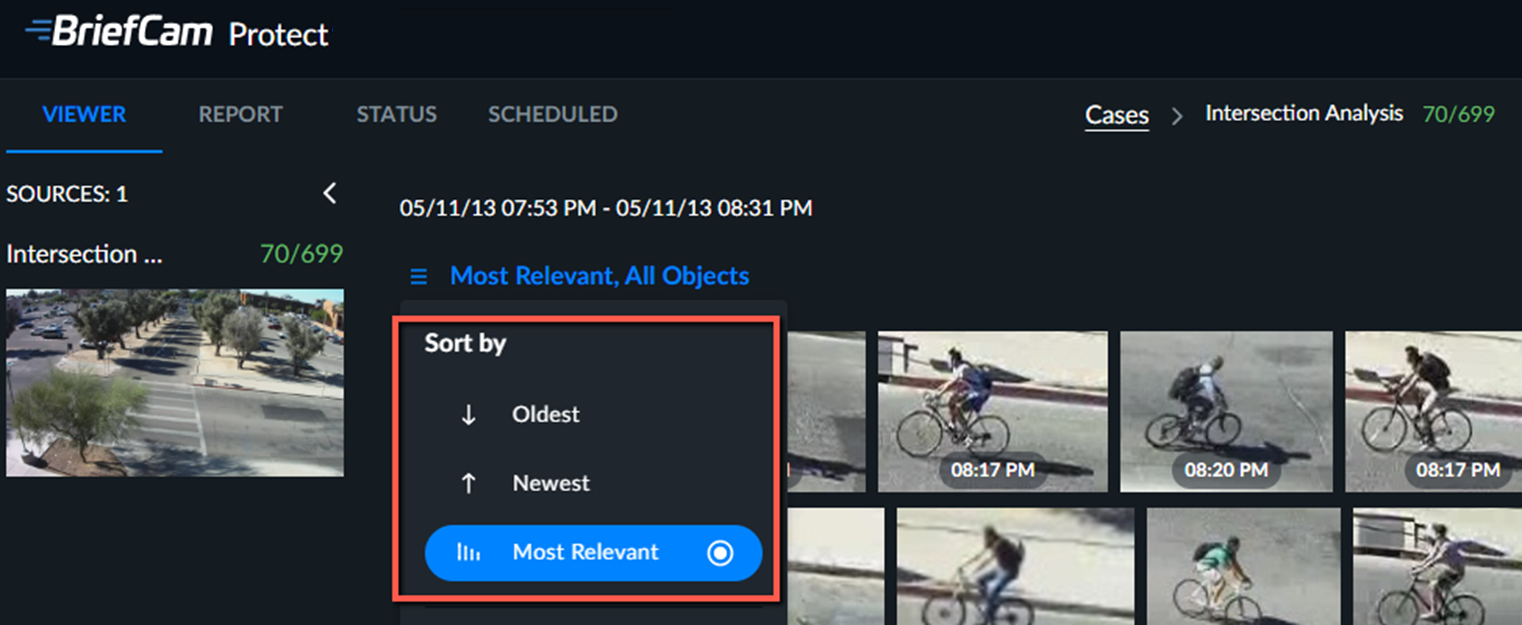
Object Thumbnails
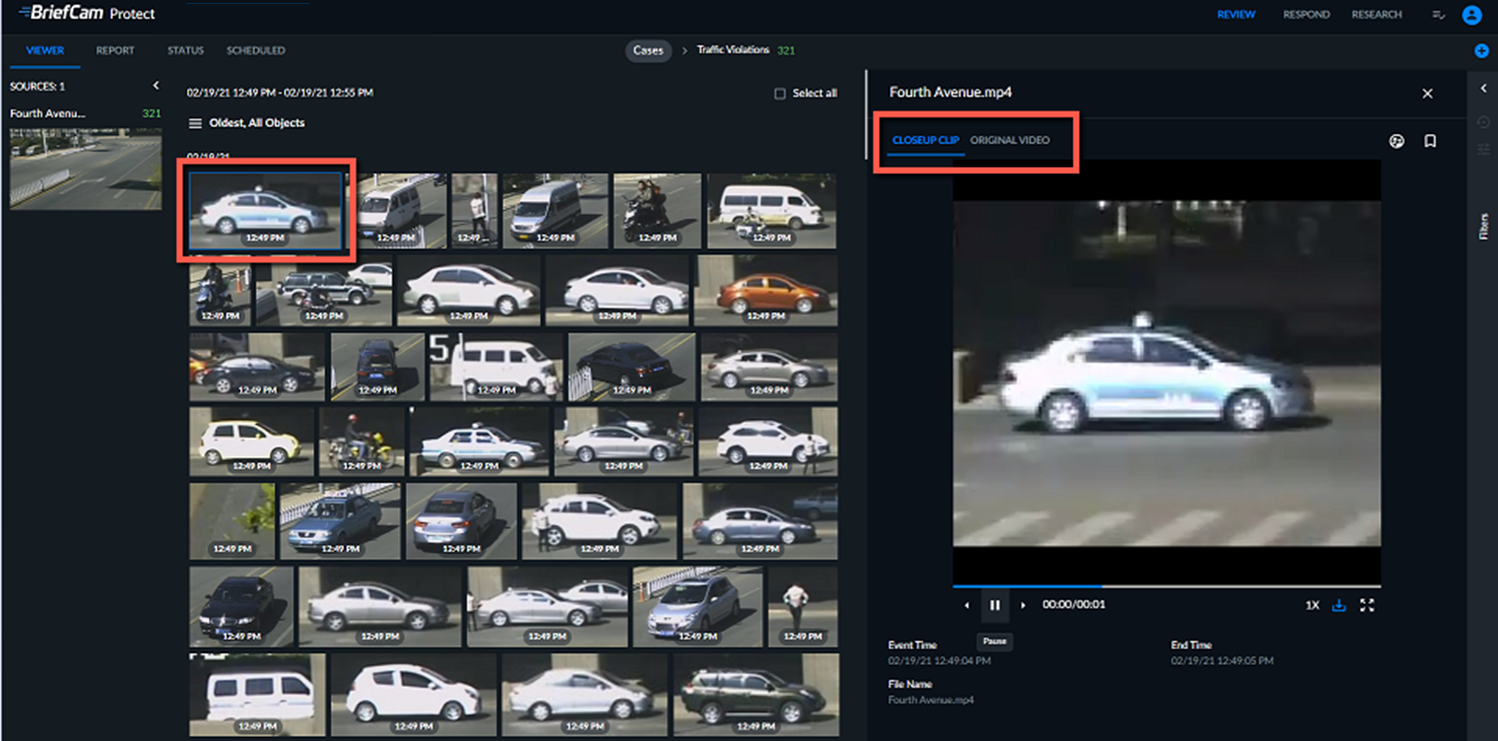
The VIEWER tab’s main content area features thumbnails of video extracted from all camera sources added to the case. Thumbnails are sorted chronologically by default, and by relevance when filters are applied.
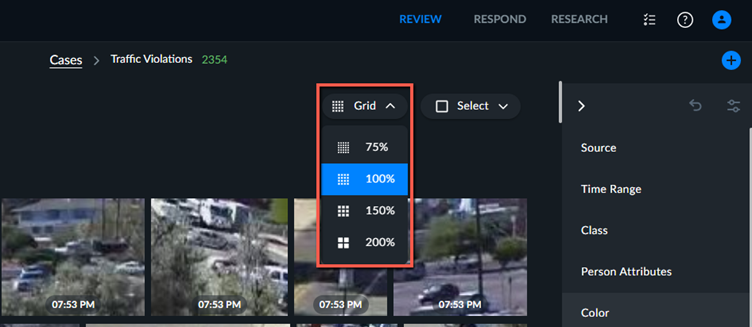
You can change the size of the thumbnails using the Grid drop-down list.
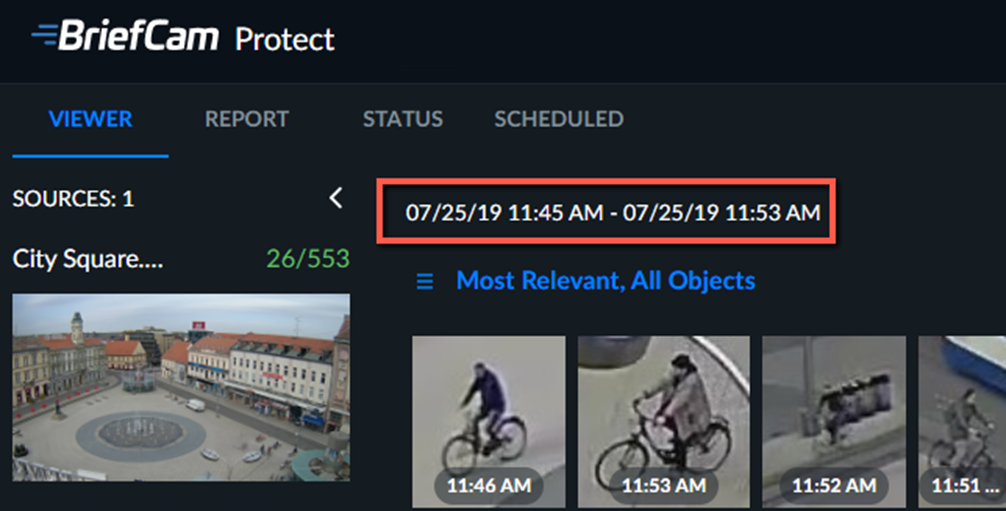
The time range bar at the top of the Objects pane indicates the first and last objects in the filtered objects.
 |
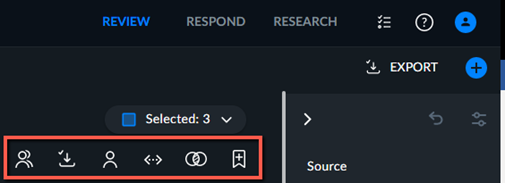
Click the selection button when hovering over object thumbnails to select one or more objects. You can then use the action buttons in the top right-hand corner (see below) to include these objects in the License Plate Recognition, Face Recognition, Proximity or Appearance Similarity filters, to add them as bookmarks to a case report or to export the face thumbnails.
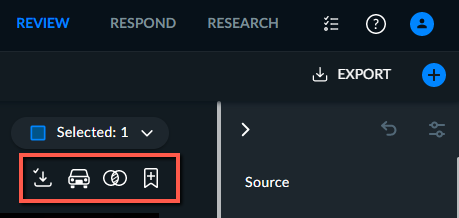
Icons | Description |
 | Export selected license plates or faces. Note that you can export all the license plates or faces by clicking the EXPORT |
 | Add to the Proximity filter. |
 | Add to the License Plate Recognition filter. |
 | Add to the Appearance Similarity filter. |
 | Add to the Face Recognition filter as the same identity. |
 | Add to the Face Recognition filter as multiple identities. |
 | Add to a report. This is added to the Bookmarks tab. |

When you click on a thumbnail, the VIEWER tab will split in two, with the thumbnail remaining visible in the left-hand pane, and the close-up clip being played back automatically in the right-hand pane. On the right-hand pane, you can also switch to the Original Video tab.
Note that you can copy the name of a VIDEO SYNOPSIS by hovering over the name and clicking the copy  icon.
icon.
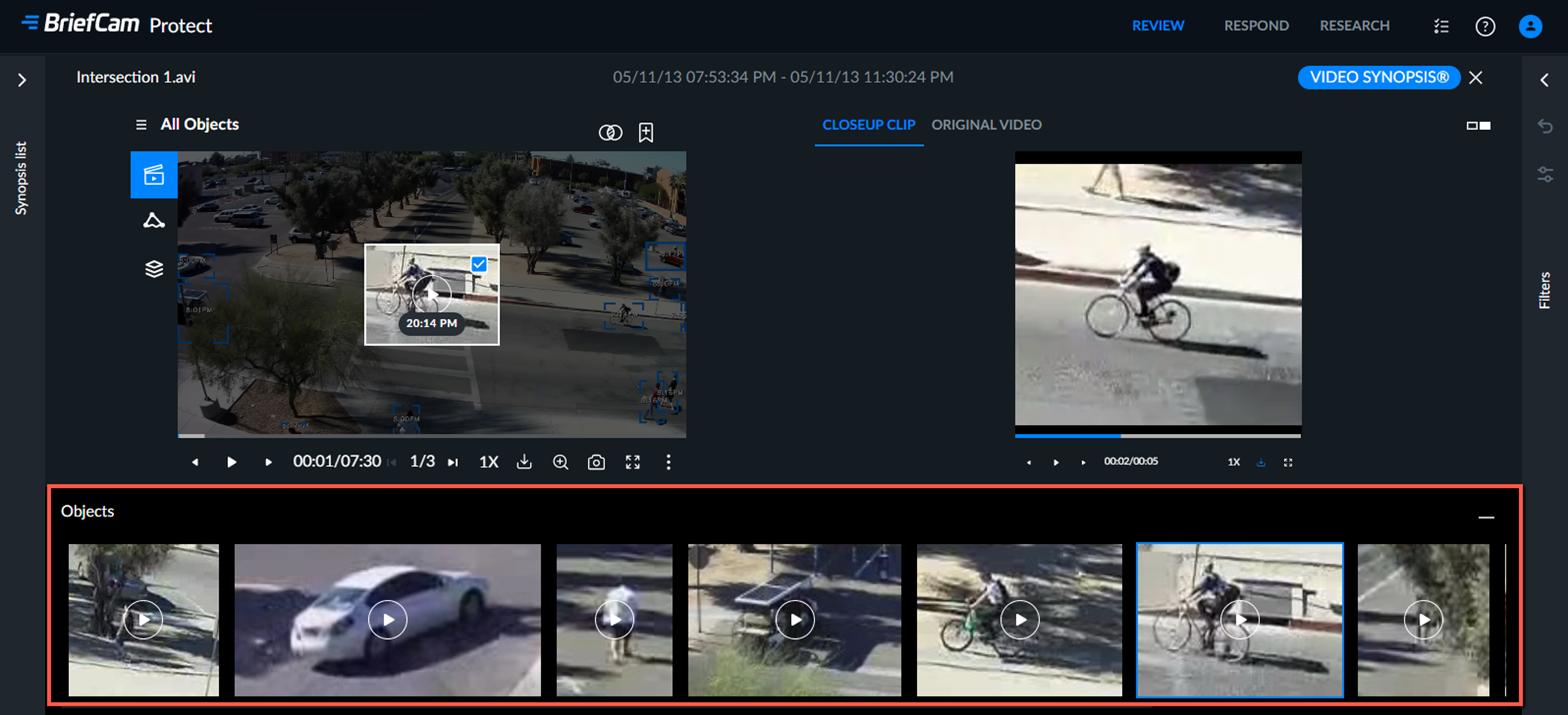
When you click on a close-up clip from a VIDEO SYNOPSIS®, you will see object thumbnails in the stopped scene under the clip.
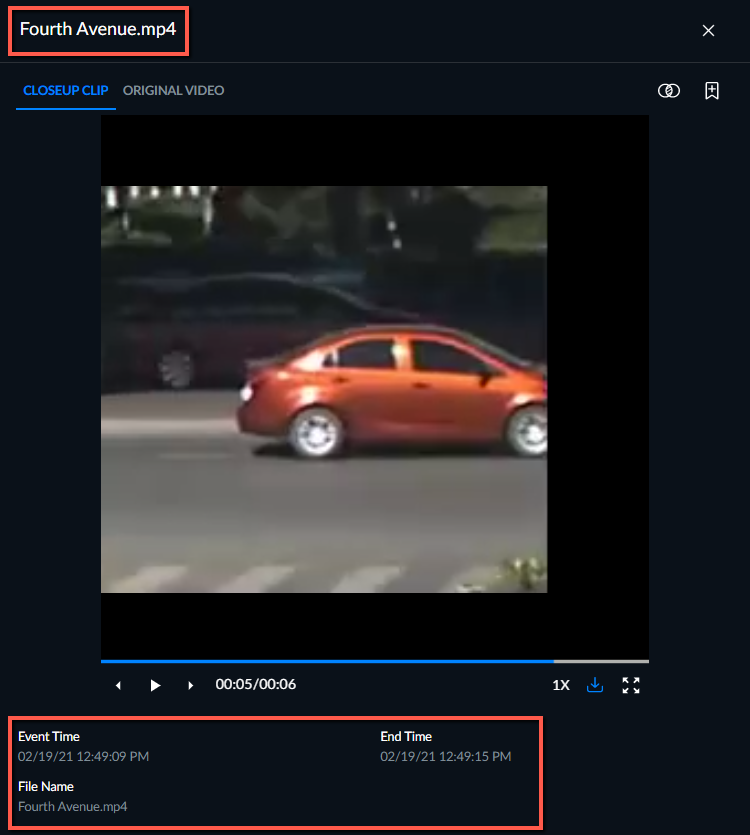
Close-up Clip Display
The name of the VIDEO SYNOPSIS® appears above the close-up clip area.
The following information will appear under the close-up playback area when relevant:
Event Time – the date and time at which the event was first recorded in the original video.
End Time – the date and time when the event ended.
File Name – indicates the original file name for a reference even in a multi-file same-camera synopsis.
License Plate – if the object has a detected license plate, the license plate number will appear.
When face or plate watchlists are used, additional information regarding the watchlist will also be displayed.
Original Video Display
In the Original Video tab, you can view the playback of a clip of the original video featuring the object. When you play the original video, a bounding box will appear by default around the object in the close-up.
Note
BriefCam can detect objects whose duration in the scene is very short, less than 10 frames. However, for such objects no original video clip is generated.
At the top of the original video, you’ll see the following options (when available):
Icons | Description |
| If the object is a person and the person’s face is captured in sufficient quality, you can use this option to add the face to the Face Recognition filter. |
| Click this to add the object to the Appearance Similarity filter. |
| Click this to add a captured license plate to the License Plate Recognition filter. |
| Click this to add the object to the Proximity filter. |
| Click this to bookmark the object and add it to the report (you’ll be requested to enter a title and optional description). |
At the bottom of the original video, you’ll see the Video Player options.
Object Thumbnail Sorting and Filtering
Thumbnails are sorted chronologically by default, and by relevance when filters are applied.
However, sorting by time (oldest to newest and vice versa) is also available. To change the sorting, click the  icon.
icon.