Backing Up the Databases
It’s recommended to back up the existing database. You can do this by following the steps below:
Go to
C:\WINDOWS\system32.Search for
CMD.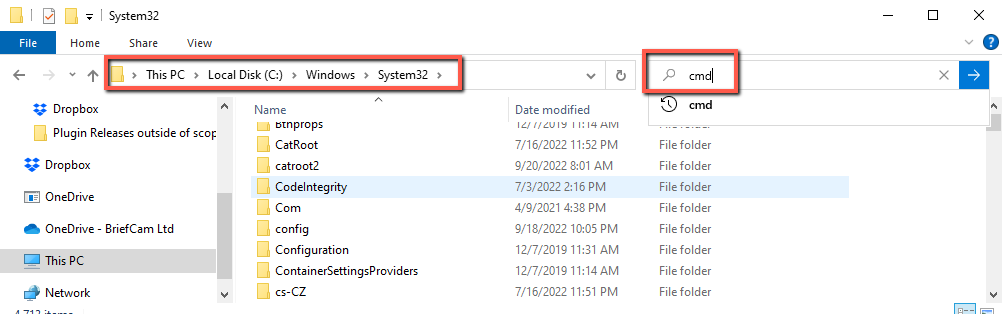
Click on the cmd application.
Press Shift and right click the CMD icon.
Select Run as different user.
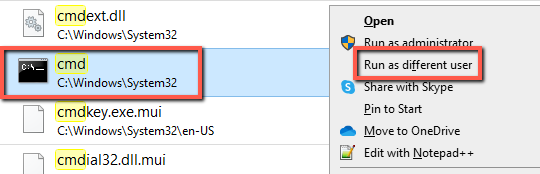
Enter the same username and password of the user who is running BriefCam services and click OK.
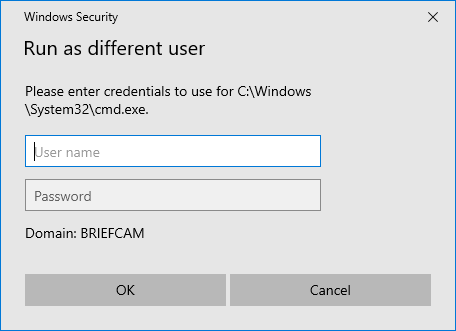
Note: Instead of steps d-f, you can also use the “runas.exe” module in the windows CMD.
In the opened terminal window, type
cdand then the path of where theexportDB.batfile is located. By default:cd C:\Program Files\BriefCam\PostgreSQL\Tools\Backupand then press Enter.Type
exportDB.batand then press Enter.The backup will be saved to
C:\BriefCam\ServerData\Backups\.
It’s recommended to back up the existing Qlik database and Qlik shared folder. You can do this by double-clicking the
bi_backup.exefile located at:C:\Program Files\BriefCam\RESARCH\Tools\bi_backup.The backup will be saved to
C:\BriefCam\ServerData\Backups\RESEARCH