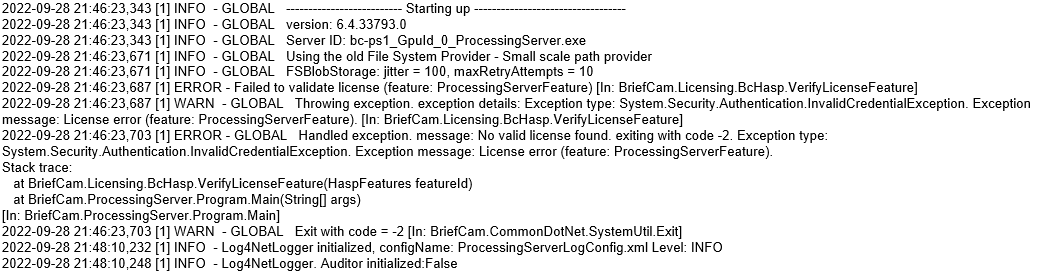
Why Is the License Not Working Over the Network?
In some cases, setting the license manager parameter as the host name of the main BriefCam machine does not work properly since all of the remote components are not able to validate their license over the network.
To resolve this issue, follow these steps:
Open an internet browser and go to http://localhost:1947.
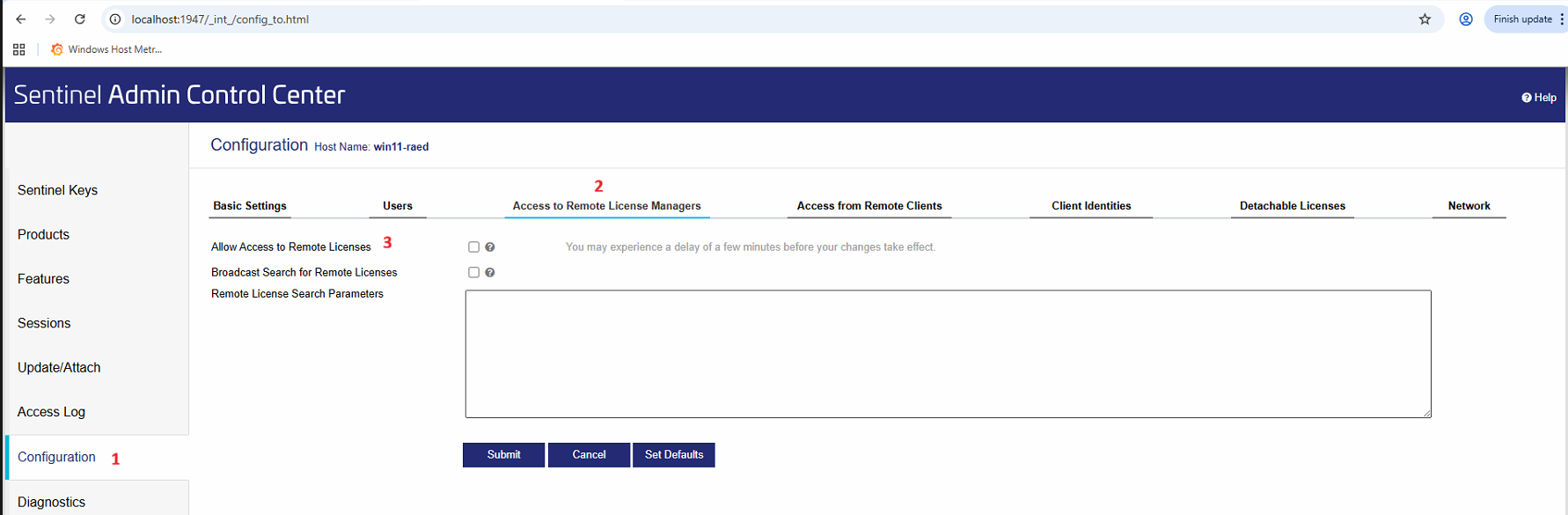
From the Sentinel Admin Control Center screen (as shown in the image below), carry out the following steps:
Click the Configuration option.
Click the Access to Remote License Managers tab.
Check the Allow Access to Remote Licenses checkbox.
Type in the IP address of the main BriefCam server where you activated the license.
Click Submit.
Restart the relevant BriefCam services and IIS on all remote machines. To restart IIS, open the Windows services, right-click on the World Wide Web Publishing Service and click Restart.
Verify that the services started up and that there are no license errors in the logs.
If you are working with a distributed environment, the value of the License.LicenseManager environment setting, just match the value as shown in the Sentinel Configuration > Basic Settings tab on the license server.
In some cases, the issues with the network as described above, can lead to the following exception (InvalidCredentailException). If you encounter this, make sure to follow step #2 above.