Why am I getting the Thumbnail not available message?
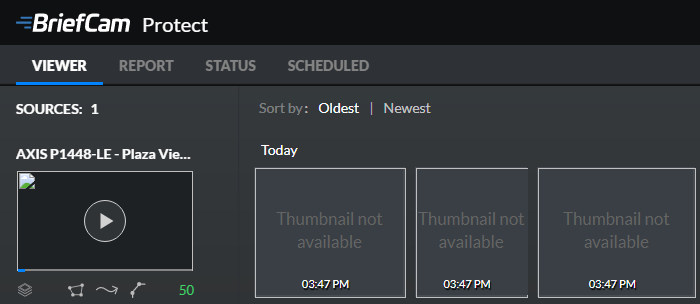
This message may appear because you do not have enough space of the data drive. To solve this issue, try freeing up space on the data drive.
This also may be a permissions issue. The first thing to try is:
Open the IIS Manager.
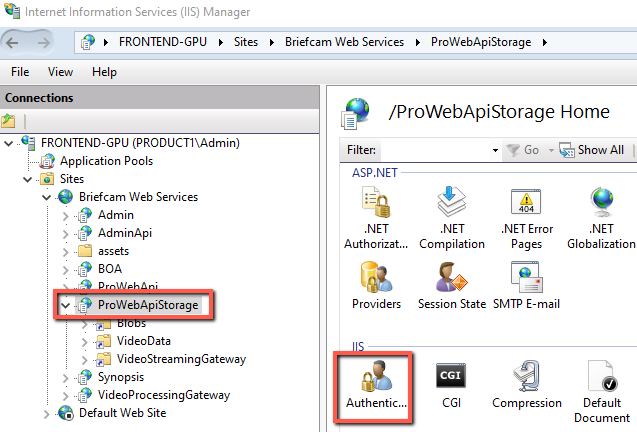
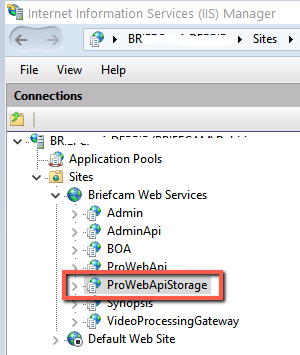
From the Briefcam Web Services site, select ProWebApiStorage, and then select Authentication.
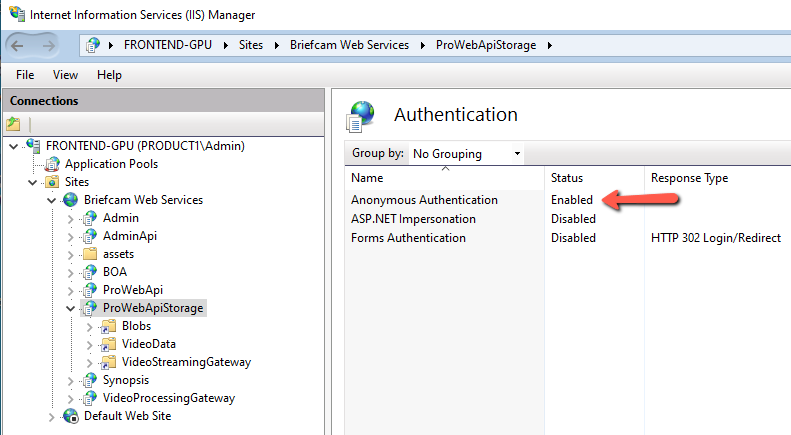
Make sure that Anonymous Authentication is set to Enabled and the other rows are set to Disabled.
Check to see if you can now see the thumbnails.
While installing the Web Services, if you did not select the same data drive folder as you did when installing the PostgreSQL database, you will see this behavior.
To solve this issue, try fixing the permissions at the IIS level.
To set the permissions at the IIS level:
Right-click on the shared folder.
In IIS, open the Sites folder and click ProWebApiStorage.
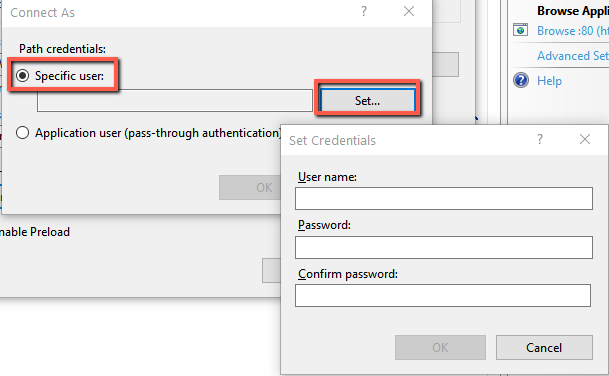
On the right-hand side of the screen, click on Basic Settings and in the Edit Application screen, click Connect as....
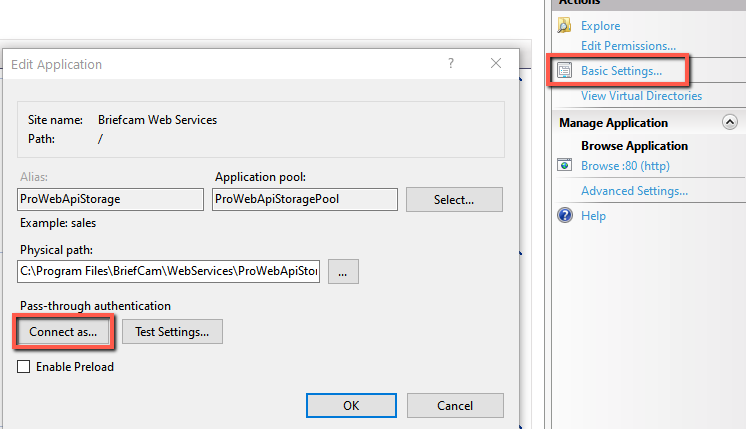
Select Specific user and click Set.
Enter the User Name and Password that was used when installing BriefCam.
Click OK.