Log Files
For troubleshooting purposes, it is important to become familiar with BriefCam’s log files. BriefCam’s log files track both ongoing activity and unexpected errors.
Here are some examples of which log files you would look at depending on the issue:
Issue | Log files to look at |
Can’t play any form of video including the VIDEO SYNOPSIS | Rendering, Video Streaming Gateway, and ProWebApi |
Processing is stuck or taking too long | Fetching and Processing Server |
Web client is not responsive or not displaying properly | ProWebApi |
Filtering isn’t working | Filtering and ProWebApi |
Face Recognition not working | Face Recognition, Rendering and ProWebApi |
Installation Log Files
The installation log files are located at: C:\Users\<USER>\AppData\Roaming\BriefCam where <USER> is the operating system user. If you ran the installer as an administrator (which is the recommendation), the path will be: C:\Users\Admin\AppData\Roaming\BriefCam.
Server-related Log Files
There are various server-related logs.
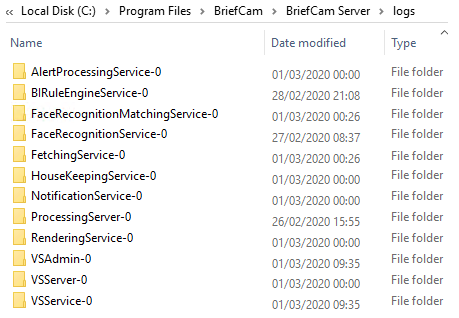
Note that you can export many of these logs from the BriefCam Administrator Console, by selecting the relevant services and clicking the export log icon.
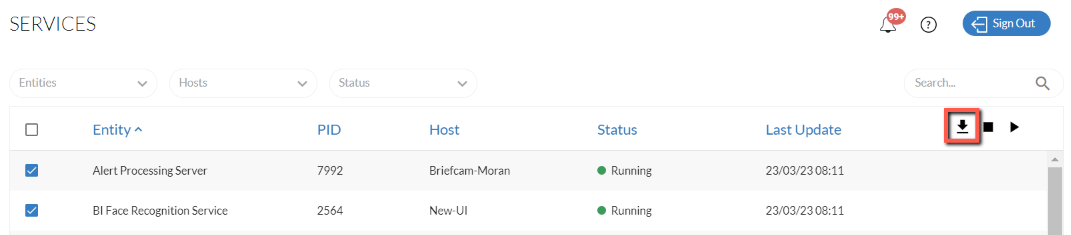
Every service writes its own log file in a separate folder.
If a certain module is not installed, its logs will not be created.
Logs are separated by their date and one log type per day is generated.
As of version 2025 R1 SP1, a datetime stamp was added to the logs for the following installers: PostgreSQL, RabbitMQ, Server, Web Services, and NGINX.
Log files do not store sensitive data, such as passwords and access tokens.
The logs are written with Administrator privilege.
If more than one instance of a module exists, a separate log folder is created which will have an increasing number value appended to its name, such as FetchingService-1.
The last 250 MB of each day’s log files will be saved for up to 14 days. These default values can be changed using the following environment settings:
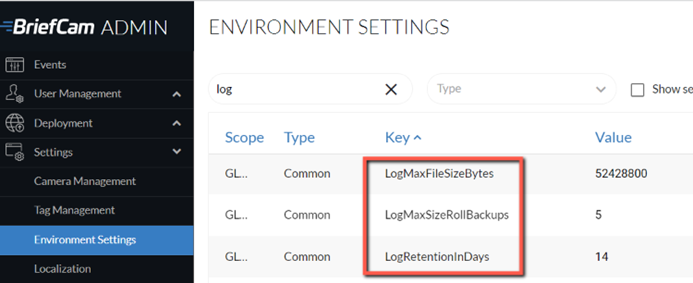
LogMaxFileSizeBytes – If a log file reaches the size of 50 MB (default), a new file will override it.
LogMaxSizeRollBackups – If there are five files (default), they will be automatically zipped into an archive.
LogRetentionInDays – The log files are saved for 14 days (default). It is highly recommended to ensure that you have enough days set here so as not to interfere when troubleshooting is needed.
Each service has its own configuration file where the behavior of the log files can be tailored for the specific service. These log files are named: <Service name>LogConfig.xml, such as VSServiceLogConfig.xml. These files are located, by default, at: C:\Program Files\BriefCam\BriefCam Server.
If you want to override the global settings from the three environment settings in the BriefCam Administrator Console, you can add them directly to the individual files in the RollingAndPurgeFileAppender section using the following naming conventions:
Environment Setting | Parameter to Add to XML |
LogMaxFileSizeBytes | maximumFileSize |
LogMaxSizeRollBackups | maxSizeRollBackups |
LogRetentionInDays | DaysToRetain |
For example, in the image below, the DaysToRetain parameter was added to the override this to 5 days for the processing server log. Note that it was added to the RollingAndPurgeFileAppender section.
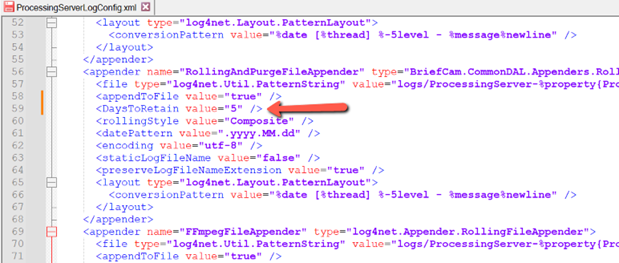
In addition, these files contain the staticLogFileName parameter. This is set to false, which means that each day only one new set of log files is created. It is highly recommended not to change this setting. In BriefCam versions prior to 2023 M1 UP1, this parameter was set, by default, to true.
Log Files for BriefCam’s Web Services
The following are log files related to BriefCam's Web services:
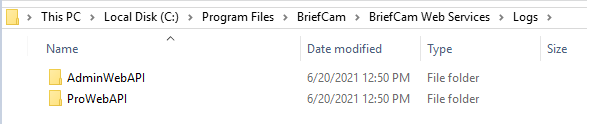
The last 250 MB of each day’s log files will be saved for up to 14 days. These default values can be changed using the environment settings as described in the Server-related Log Files section above.
RESEARCH Module Log Files
There are a number of log files related to the RESEARCH module.
RESEARCH Installation Log File
The RESEARCH_Install.log file is located at: C:\Users\<USER>\AppData\Roaming\BriefCam where <USER> is the operating system user. If you ran the installer as an administrator (which is the recommendation), the path will be: C:\Users\Admin\AppData\Roaming\BriefCam.
RESEARCH Service Log File
The RESEARCH Service log file is named BIRuleEngineService and is located at: C:\Program Files\BriefCam\BriefCam Server\logs\BIRuleEngineService-0.

Qlik Log Files
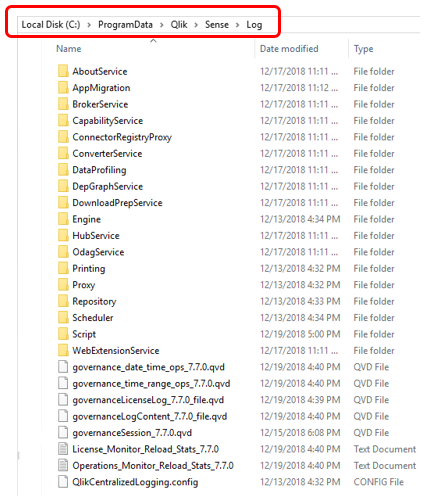
This log file is located at: C:\ProgramData\Qlik\Sense\Log.
Note
ProgramData is a hidden folder.
To minimize the growth of the Qlik trace log folder, continuously back up and remove files that have not been modified for a period of time.
Each element has separate log files, such as Engine and App Migration.
Milestone Embedded Log Files
There are two log files for Milestone Embedded environments.
MilestoneEmbeddedViewer.log, which is located at: ${APPDATA}/Briefcam/Client/logs/. The configuration file for this log is MilestoneEmbeddedViewerLogConfig.xml, which is located at: C:\Program Files\BriefCam\BriefCam Server.
EmbeddedBrowser.log, which is located at: ${APPDATA}/Briefcam/Client/logs/. This log is available if you enable it as follows:
Open the MilestoneEmbeddedViewer.dll.config file, which is located at:
C:\Program Files\Milestone\XProtect Smart Client\MIPPlugins\BriefCam.Set the browserLog value to true.
See also:
Why am I seeing an Npgsql.PostgresException in the VSServer log?
Why am I seeing a System.IO error in the log?
Why am I seeing an Unhandled Exception from Integration error in the log?