In the Milestone Embedded client, I'm seeing an error. What can I do?
BriefCam (or XProtect Rapid REVIEW) was installed without any errors. However, the Milestone embedded client shows one of these messages:
The embedded client could not be launched
The BriefCam server is unreachable
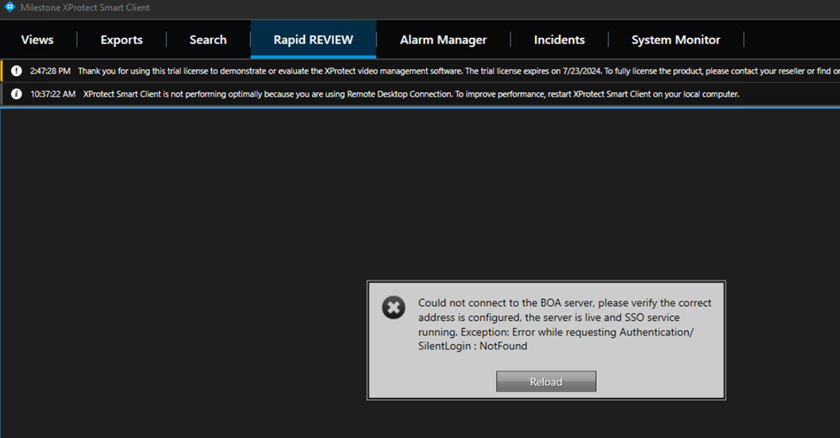
Could not connect to the BOA server
Possible Root Causes
In order to view the BriefCam tab embedded in Milestone XProtect smart client, the user who accesses the client has to have at least 'Read' permissions defined on the Milestone management application.
In the Milestone management application, check that the user accessing the XProtect smart client has Read permissions.
If the user exists but does not have Read permissions – assign the user the necessary permissions.
If the user does not exist:
Create the user by accessing XProtect. The user will be created automatically in BriefCam when the user accesses XProtect.
Do not manually create the user in the BriefCam Administrator Console. If the user is created manually and has the same username in Milestone, you will see a white screen in the Milestone smart client.
You can log into the BriefCam Administrator Console’s Users section and verify that the Milestone user is there with the type set to SAML.
Try to access the smart client using this user and check the BriefCam tab.
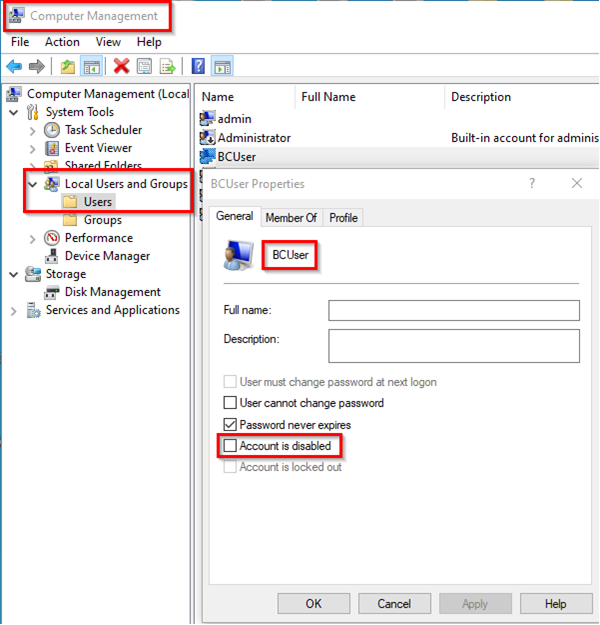
Note that by default the user who runs the BriefCam services is the BCUser. You may still see the white screen issue if the user configured as BCuser was disabled, for example, after moving to a domain. To solve this issue:
From the Windows Services, try restarting the BriefCam VSService.
If the service fails to start, then check the BCUser settings in the Computer Management console.
If the issue still is not solved, check the Milestone-client side logs at
C:\Users\[CURRENT USER]\AppData\Roaming\BriefCam\Client\logs.
Sometimes on a system where not all the components were installed correctly and the embedded client previously showed a white screen, clearing the Milestone client cache can solve the issue.
To clear the cache on the BriefCam server-side:
Go to:
C:\Users\CurrentLoggedInUser\AppData\Roaming\Milestone.Note that the
AppDatafolder is a hidden folder. If you do not have hidden folders enabled on your machine, you can open theAppDatafolder by going to the search bar on your Windows Toolbar, typing%appdata%and pressing Enter.Delete all the contents of this folder.
On the next Milestone XProtect client startup, the contents of this folder will be recreated.
To clear the cache on the Milestone Smart client side:
Go to:
C:\Users\CurrentLoggedInUser\AppData\Roaming\Milestone\BriefCam\MilestoneEmbedded.Delete all the contents of this folder.
On the next Milestone XProtect client startup, the contents of this folder will be recreated.
The white screen might display if either the BriefCam server of Milestone smart client machine has two NICs (network interfaces) are attached to it and the SSO communication looks for the localhost.
As a result, there are issues loading BriefCam’s iFrame in the Milestone Embedded client.
To solve this issue:
Check how many activated NICs exist, by going to Control Panel > Network and Sharing Center > Change adapter settings.

If there is more than one NIC activated, if possible, inactivate one of the NICs.
If the above did not resolve the issue, you need to change the value in several locations so that it does not point to localhost but rather to the BriefCam server’s IP address (the IP address of the NIC configured to communicate between the BriefCam server and the Milestone server):
On the BriefCam server, open the
MilestoneSSOProvider.exe.configfile (located at:C:\Program Files\BriefCam\BriefCam server) and find theAuthenticatorAddressvalue.If the value is set to
localhost, change the value to the BriefCam server’s IP address.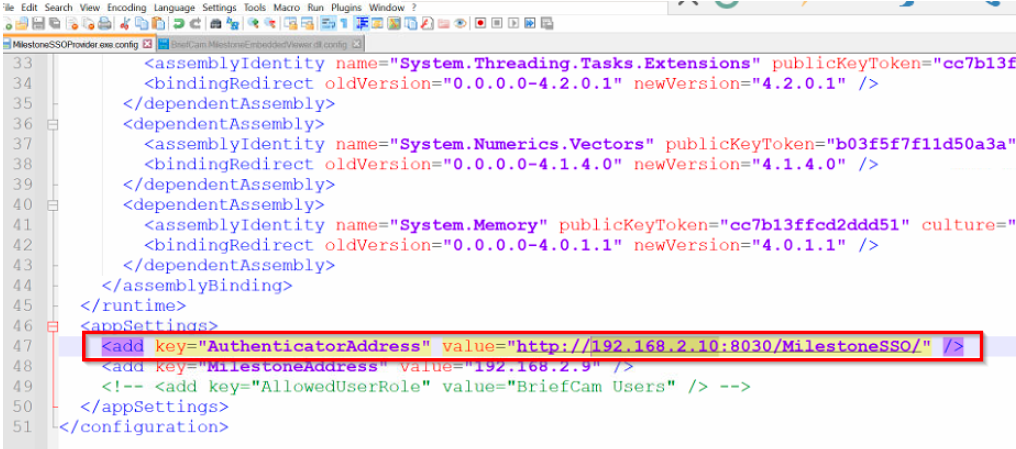
Note
The
MilestoneSSOProvider.logfile is located atC:\Program Files\BriefCam\BriefCam Server\logs\MilestoneSSOProvider-0.On the Milestone smart client machine, open the
BriefCam.MilestoneEmbeddedViewer.dll.configfile (located at:C:\Program Files\Milestone\XProtect Smart Client\MIPPlugins\BriefCam).If the value of the
serverAddressorboaServerAddresskey is set tolocalhost, change the values to point to the BriefCam server’s IP address.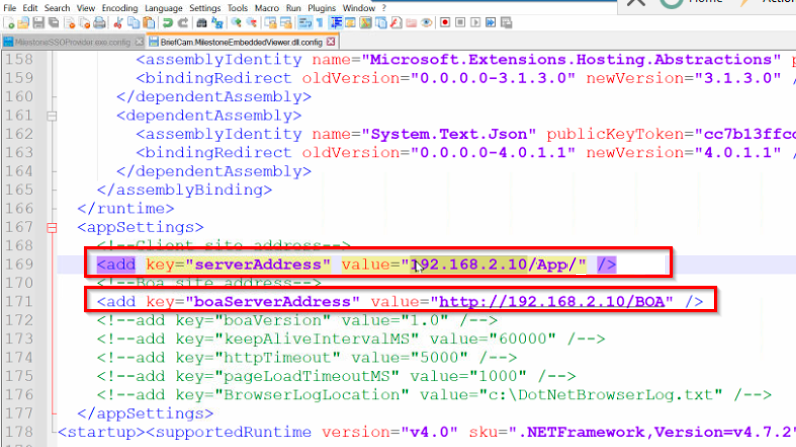
In the BriefCam Administrator Console, go to Settings > Environment Settings and search for the SSOEndpoint setting. If the value is set to
localhost, change it to the BriefCam server’s IP address, that is: http://[BriefCam server IP address]:8030/Milestone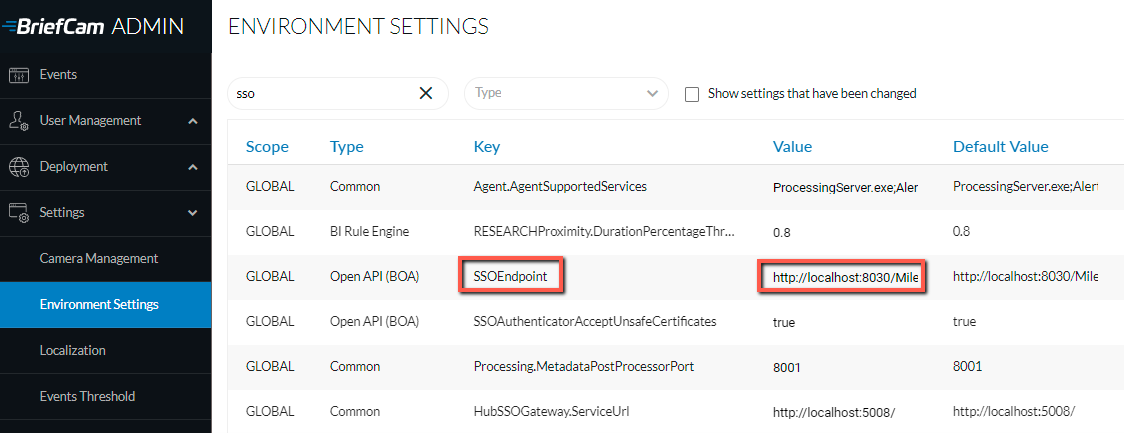
Restart the following:
In the BriefCam Administrator Console: the Milestone SSO Provider service and the VS Server service.
The BOA application pool of the IIS.
The Milestone XProtect client.
Clear the cache as described in the Clearing Server/Client Cache section.
The BriefCam Open API (BOA) is the communication between BriefCam and the Milestone SSO.
Check the BOA log at
C:\Logs\BriefCam\BOA– It could point to a missing license for example.Check that the BOA license product exists at
localhost:1947. The BOA license is a free product and it should appear in the Features list on the Sentinel ACC (localhost:1947). If it does not appear, contact Milestone Technical Support for further assistance.
If you see the “Could not connect to the BOA server. Please verify the correct address is configured. The server is live and SSO service running. Exception: Error while requesting Authentication/SilentLogin: Not Found” error, you’ll need to manually configure SSO-related settings making sure that each of the config file's settings are pointing to the proper server hostname (either to the BriefCam Administrator Console server or to the Milestone server).
In the BriefCam Administrator Console, go to Settings > Environment Settings and search for the SSOEndpoint setting. If the value is set to localhost, change it to the BriefCam server’s IP address, that is: http://[ BriefCam server IP address ]:8030/Milestone
Open the
MilestoneSSOProvider.exe.configfile (located at:C:\Program Files\BriefCam\BriefCam Server) and find theAuthenticatorAddressvalue.If the value is set to
localhost, change the value to the BriefCam server. If there are multiple NICs, this should point to the BriefCam server.Open the
BriefCam.MilestoneEmbeddedViewer.dll.configfile (located at:C:\Program Files\Milestone\XProtect Smart Client\MIPPlugins\BriefCam), both theserverAddressand theboaServer addressneed to point to the BriefCam server. If there is more than one NIC, use the IP address of the BriefCam server. Below are detailed instructions of how to do this:Scroll to the bottom of the file and look for the following lines:
<add key=”serverAddress” value=”http://machine’s_hostname/app/” />Change the values to match your BriefCam server (the XPRR machine). For example, if the BriefCam XPRR machine is called RapidReview, the value will look as follows:
http://RapidReview/app/Find this row:
<add key=”boaServerAddress” value=”http://machine’s_hostname/BOA/” />Change the value point to your BriefCam server. For example:
http://RapidReview/BOA/
Restart the following:
In the BriefCam Administrator Console: the Milestone SSO Provider service and the VS Server service.
The BOA application pool of the IIS.
The Milestone XProtect client.
Clear the cache as described he Clearing Server/Client Cache section.
Install Web Services on the BriefCam Administrator Console server side + License.
Install the Milestone plugin on the server side and select Install the SSO provider and configure the Milestone VMS IP\host.
Install the Milestone plugin on other machines (PS/APS) without the Install the SSO provider checkbox checked
Install the BriefCam Embedded plugin on the Milestone client machine and configure the web server address and BOA server address to point to the BC\BOA server.
The Milestone Embedded SSO Authentication fails on distributed environments.
When this happens, the following will appear in the BOA logs:
"Invalid Configuration for SSO Validator or SSO Validator is down", and "No connection could be made because the target machine actively refused it IP of the Briefcam Server SSO provider:5008. Stack trace:"
To solve this issue:
In the BriefCam Administrator Console’s SSOEndpoint environment setting, change
localhostto the hostname running the Milestone SSO Provider.On the machine running the Milestone SSO Provider, give the BriefCam user that runs the BriefCam services a specific permission to open up a listener, by running the following command in PowerShell as Admin (replace the
urlanduservalues with your environment’s values):netsh http add urlacl url=http://BCServer:8030/MilestoneSSO user=bcuserRestart the Milestone SSO provider services and the IIS on the relevant machines.