Activating a Custom License in Qlik Sense
Log in to the Qlik Management Console (QMC) at: https://localhost/qmc.
Sign in using the bcuser account.
Navigate to: Manage Resources → License Management.
From the right-side menu, select Site License.
Enter the license information provided to you:
Owner Name:
ResearchOwner Organization:
ResearchSerial Number: <
Custom serial number>Control Number: <
Custom control number>
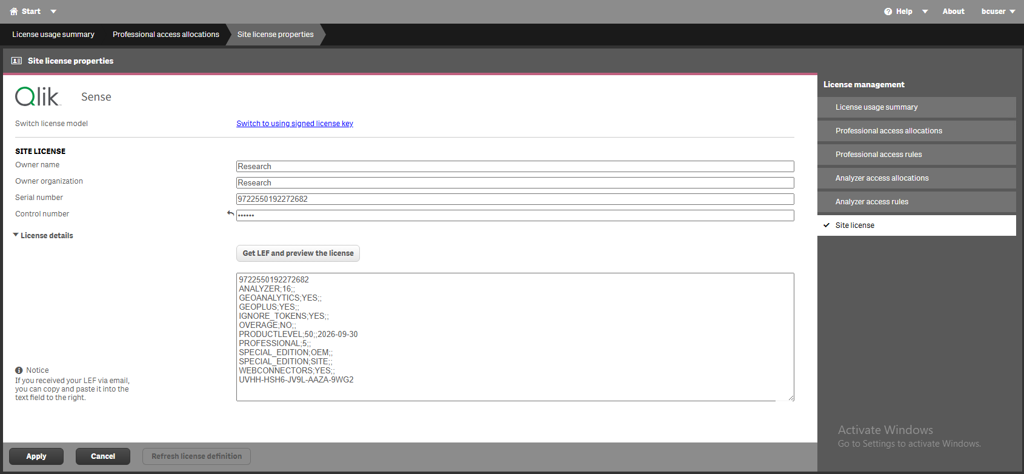
Paste the provided LEF into the LEF text box. You can get a LEF token by using this web page: Manual LEF (qliktech.com). If you need assistance with this, please contact BriefCam’s support.
Ensure the LEF is copied exactly as provided.
Avoid leading/trailing spaces or extra line breaks.
Click to activate the license.
Verify the license activation:
Navigate to License Usage Summary.
Confirm that the available number of licensed users matches the quantity purchased with the custom license.