BriefCam Supported Hardware and Software - v2024 R2
Supported Hardware Configurations
The following are the supported configurations:
Workstation Grade
Dell Tower Workstation 3660 equipped with (1) A2000
Dell 1U Workstation Rack Mount 3930 equipped with (1) A4000
Dell 2U Workstation Rack Mount 7920 equipped with (4) RTX A4000
Server Grade (during non-HW sales, recommended for spec only)
L4, featuring the following specifications:
RAM: 128/256GB RAM
Storage: 2X 512 GB SSD disk for the OS
CPU: A minimum of 24 cores at a clock speed of 2.90GHz
Note
These specifications apply to one NVIDIA L4 hosted on the BriefCam processing machine. If the number of cards doubles, increasing the RAM and CPU is advisable. It is recommended not to host more than two L4s on one processing machine.
Laptop Grade (during non-HW sales, recommended for spec only)
RTX4080 ADA, featuring the following specifications:
RAM: 64GB RAM
Storage: 2TB SSD disk
CPU: A minimum of 24 cores at a clock speed of 2.20GHz
Installed software
Before installing a BriefCam component, download the installer to the machine where you will be installing that component.
The following software components must be installed prior to the BriefCam product installation:
Supported Operating Systems for OX5
The operating systems that are supported for production use are:
Windows Server 2022
Windows Server 2019
Windows 11 (for laptop environments)
Windows 10 IoT Enterprise 2021 LTSC
You can check the Windows versions by running
winver.exe.
Note
Windows 10 and 11 Desktop versions can be used for development environments. They are not supported for other production environments and do not support RESEARCH environments.
Windows Updates
Make sure that every server has the latest Windows updates installed.
Supported Browsers
The browsers that are supported are:
Google Chrome version 77 and above
Microsoft Edge version 80 and above
High Security Environment with Customized Policy Settings
If your environment is configured for high security with customized policy settings, note the following:
Many of the installers use PowerShell. To enable PowerShell to run, the Local Computer’s Script execution policy must be enabled or not configured (and not disabled). In addition, the maximum restriction of the policy that can be used is RemoteSigned.
To turn on script execution follow these steps:
From the Windows Start menu, type
policyand select Edit group policy.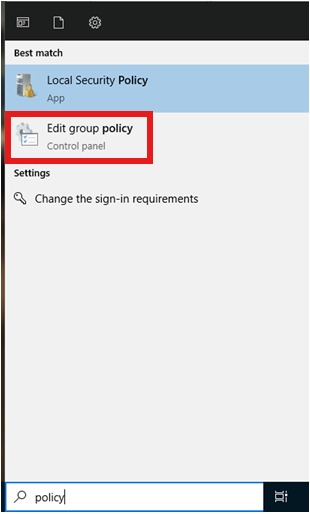
The Local Group Policy Editor will open.
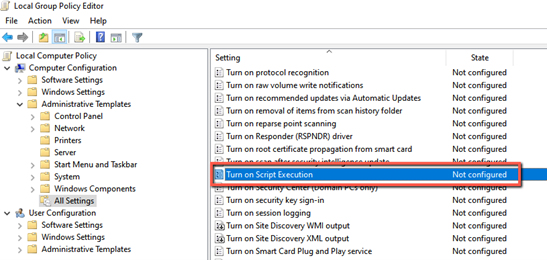
Navigate to Computer Configuration -> Administrative Templates -> All Settings.
Check that the Turn on Script Execution policy is set to Not configured or Enabled.
To check that the maximum restriction of the execution policy is RemoteSigned:
From PowerShell, run the following command:
Get-ExecutionPolicy.
To set the execution policy to RemoteSigned:
From PowerShell, run the following command:
Set-ExecutionPolicy RemoteSigned