Syncing the Cameras with the VMS
When the cameras defined in BriefCam are not synchronized with the cameras in the VMS, you can sync them. Syncing cameras is needed when changing a camera’s name, ID, coordinates, logical path, or time zone.
Note
Syncing cameras is done via the BriefCam client (https:// [server name or IP address]/app) using administrator credentials. This is the first step in merging the BriefCam Administrator Console into the BriefCam client.
Note
If a camera is moved from one VMS to another, the syncing will not work. In this scenario, you will need to reactivate the camera.
To sync the cameras defined in BriefCam with changes made in the VMS:
Log in to the BriefCam Web client:
Go to your BriefCam Web client located at:
https:// [server name or IP address]/app.Log in with your administrator credentials. You defined this user for the classic BriefCam Administrator Console (
https:// [server name or IP address]/admin).
Find the VMS that you want to synchronize, click the Sync to VMS (
 ) icon.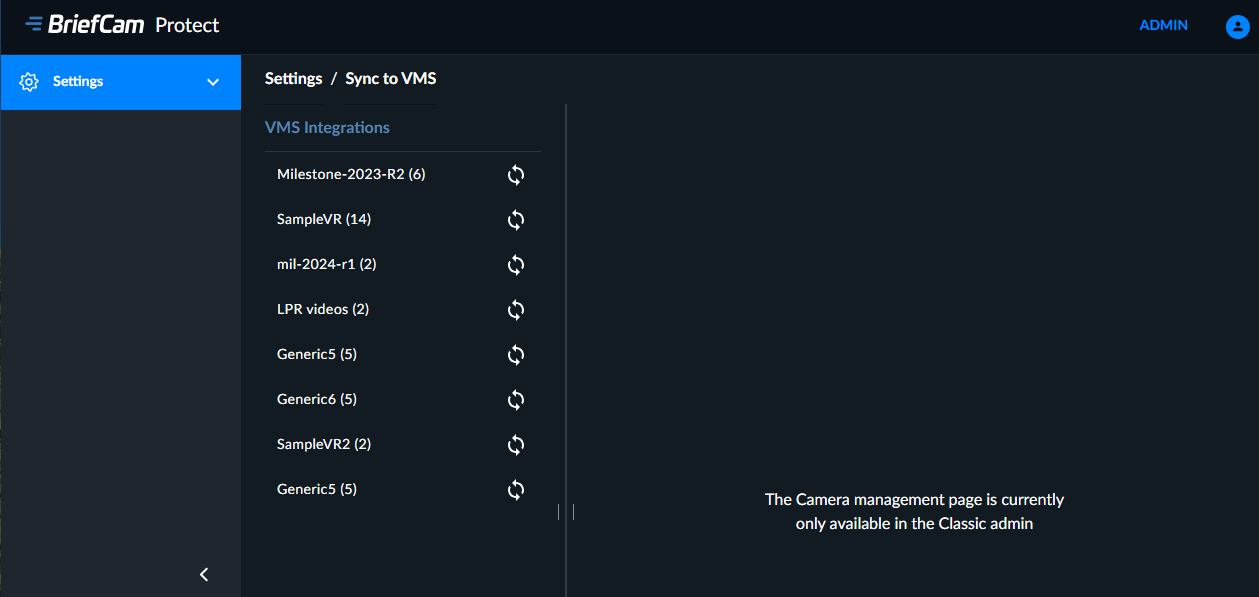
You will now synchronize cameras using one of the following methods:
Synchronize an individual camera by clicking the Sync button.
Select multiple cameras and click the Sync selected button.
Synchronize all the cameras by clicking the SYNC ALL button.
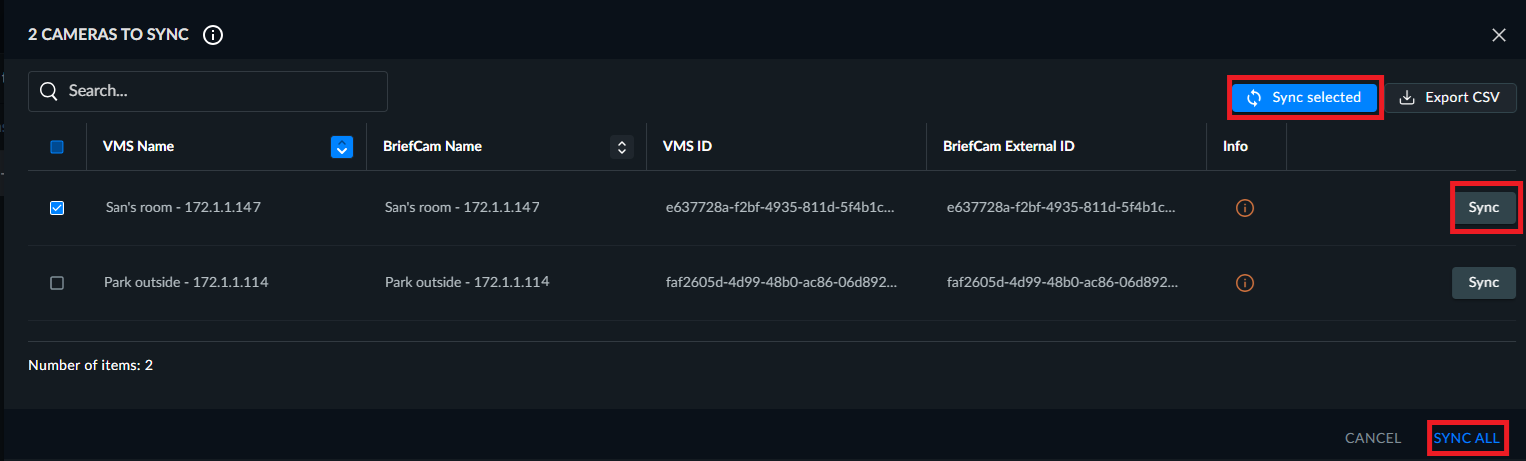
You will see a list of all cameras that have changed since the last synchronization.
Cameras that appear on this list will meet one or more of these criteria:
If the BriefCam camera has the same name as the VMS camera, but the IDs are different. Clicking the Sync button, the VMS ID will overwrite the BriefCam ID.
If the BriefCam camera has the same ID as the VMS camera, but the names are different. Clicking the Sync Name button, the VMS name will overwrite the BriefCam name.
The name and ID are the same, but additional camera information is different. In this case, the information button will appear in yellow. Click the button to see the differences.
A mismatch between name and ID. In this scenario, check the camera in the VMS.
The VMS has a few names with the same ID. BriefCam does not support duplication of names within the same directory.
By syncing the name or ID, all additional information, such as logical path, coordinates, and time zone will be overwritten in BriefCam. If BriefCam contains manually added information and the VMS does not, during the sync, the NULL value from the VMS will not overwrite the information in BriefCam.
If multiple IDs exist for the same camera, a drop-down list will appear where you first need to select the relevant ID.
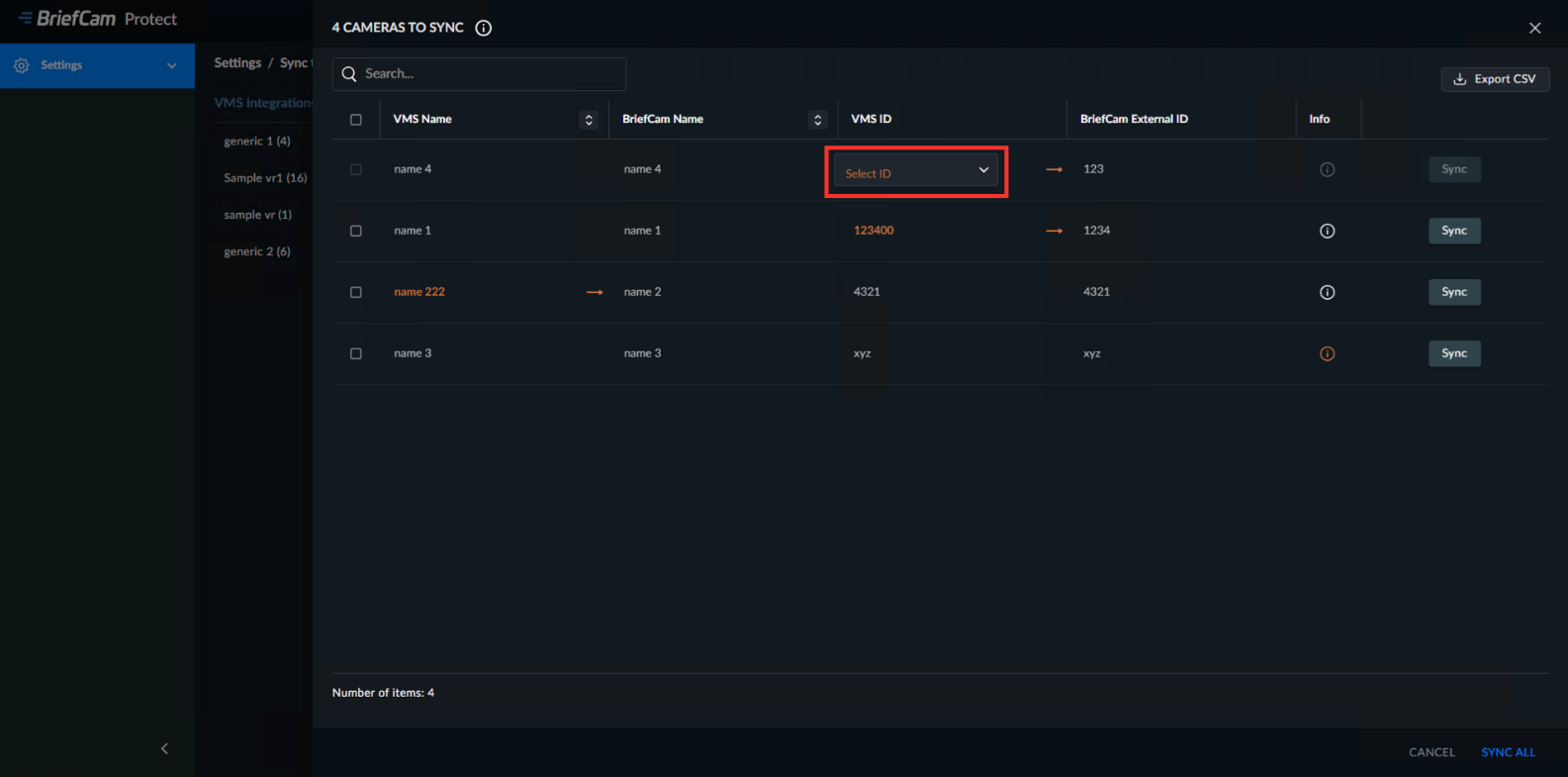
You can export the list of cameras that appear in the sync table by clicking the Export CSV button.
Note that it might take a few seconds for the sync to complete.
The behavior of the sync is as follows:
For activated cameras, if the camera was disabled or removed in the VMS, the camera will be disabled in BriefCam.
For non-activated cameras, if the camera was disabled or removed in the VMS, the camera will not appear on the cameras list in BriefCam.
If you click the sync button while a previous sync is still running (because the screen was refreshed), two requests will occur simultaneously. The status shown will be the status of the latest request.
If the syncing takes more than five minutes (due to many cameras), the sync indication might not appear, but the sync process will appear in the log files.
The sync will fail if not all the camera names are unique.