Processing Settings
Warning
These settings are not applicable for the Hub. They are only relevant for sites and in standalone deployments.
Minimum FPS
BriefCam’s minimum supported FPS is 8 frames per second.
In the OX.ini file, the value of the MinSupportedFps setting is set by default to 0. This means that if there are momentary drops in the FPS, the task does not fail. Note that since there will not be an indication when there is low FPS, it is crucial to ensure adequate FPS, because FPS lower than 8 will reduce the accuracy of BriefCam’s algorithms.
Disabling Writes to Server Data
You can set the processing mode so that it does not save visual artifacts (video clips, thumbnails, background, masks, etc.) in the server, only in the DB tables. This will eliminate overloading the DB storage and keep only the metadata written in the DB tables (for Research use only). You do this by setting the following values in the OX.ini parameters on every processing server:
[BgModel]
WriteBackgroundImages = false
[ObjectRendering]
GenerateThumbnails=false
GenerateFixedSizeThumbnails=false
CreateObjectMovie=false
WriteObjectMask=false
Scene Geometry
The scene geometry is saved across different tasks of the same source (camera). If the saved geometry needs to be reset, the administrator can turn this off by changing the Processing.UseSavedSceneGeometry environment setting to false. For example, if one of the cameras is moved, the saved geometry should be reset since there is currently no mechanism to detect that the field of view (FOV) has changed.
Partial Visual Assets Generation
By default, only minimal visual assets are generated when processing videos in the RESPOND and RESEARCH modules. For example, close-up clips are not generated. This improvement results in increased throughput in the RESPOND and RESEARCH modules, and less disk space consumed.
When the “Partial Visual Assets” mode is on, RESPOND sources will not be playable.
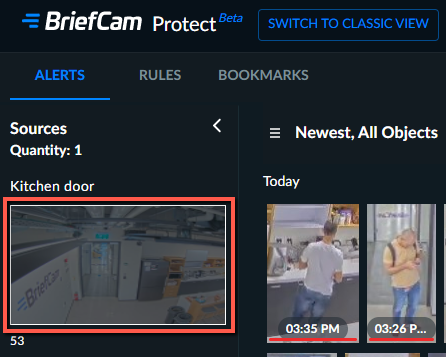
Processed videos without the full set of visual assets are not usable in the REVIEW module. Therefore, videos processed in the RESPOND and RESEARCH modules in “Partial Visual Assets” mode need to be reprocessed if added to a REVIEW case. The reprocessing is done automatically.
This behavior is set in the PartialVisualAssets environment setting, which is set to true by default when installing a new version of BriefCam.
Instant REVIEW
If you want BriefCam to generate all the visual assets when processing videos in the RESPOND and RESEARCH modules, change the environment setting to false. In full asset mode, videos processed in the RESPOND and RESEARCH modules will be immediately available in the REVIEW module when you are investigating the same exact time range. Working in this mode is called Instant REVIEW. If you process the videos in Continuous mode, you do not need the exact time range.
RESEARCH Schedules
In the RESEARCH module, if the PartialVisualAssets environment setting is changed during processing, the behavior of the scheduled processing depends on whether it is on-demand processing (Daily, Weekly, or Time) or real-time processing (Continuous):
For on-demand (scheduled) processing, the previous state will continue until the end of the interval – and then switch to the new state.
For continuous processing, the change will take effect immediately.
Long Processing Warning Message
When processing a long video, by default 24 hours, a message appears letting the user know that the processing may take a while. The length of the video that will trigger this message can be changed in the LongProcessingWarningInHours environment setting.