High-Sensitivity Mode
Warning
This functionality is not applicable for the Next-Gen engine.
This functionality is not applicable for the Hub. It is only relevant for sites and in standalone deployments.
BriefCam is optimized to filter out items that are not detected as objects, such as shadows and lighting, and small objects. However, when these objects are of interest, a high-sensitivity mode can be defined.
Note that this mode will result in more false positives.
To define the high-sensitivity mode, set the following parameters:
In the
OX.inifile (located at:C:\Program Files\BriefCam\BriefCam Server), set the [Ox] HighSensitive parameter totrue(the default isfalse) and remove the semicolon.In the
OX.inifile also set the ObjectQualityThreshold parameter to0.1(the default is0.15) and remove the semicolon.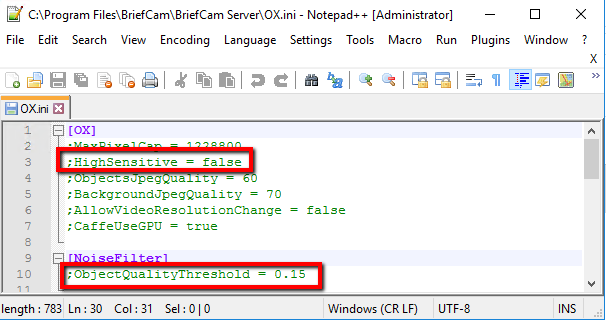
In the BriefCam Administrator Console, set the two OX.HighSensitive settings to
true.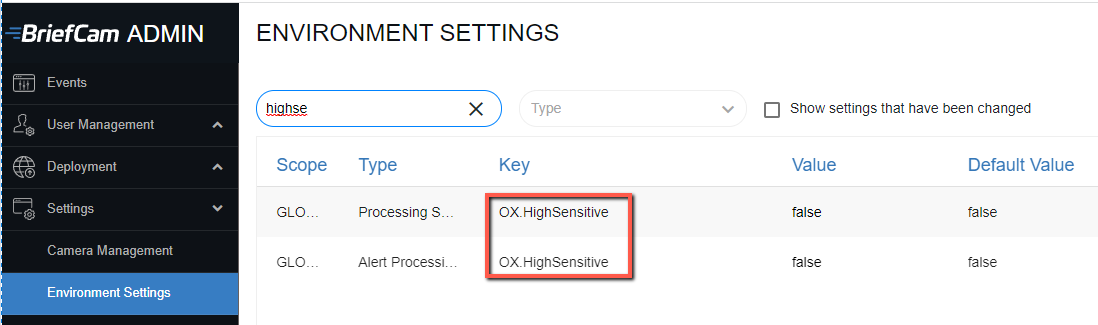
In the Environment Settings’ Pro Web API section, set the objectQualityThresholdMaxSensitivity setting to
0.1. (The default is0.15.)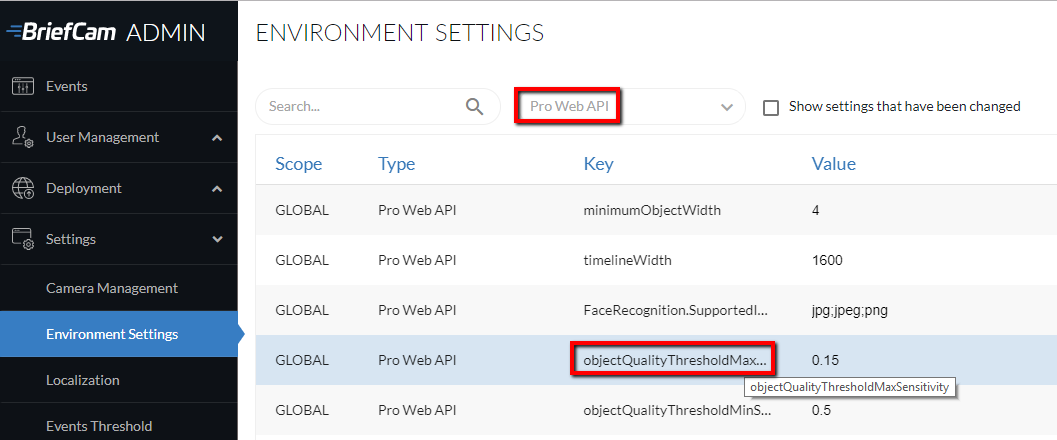
If you make changes to these settings, restart IIS (by opening the Windows services, right-clicking on the World Wide Web Publishing Service and clicking Restart).
RESEARCH Sensitivity
For the RESEARCH module as well as for the REVIEW module, the sensitivity threshold can be configured in the defaultSensitivity setting. The default value is 1. This means that the minimum default object quality is 0.15.
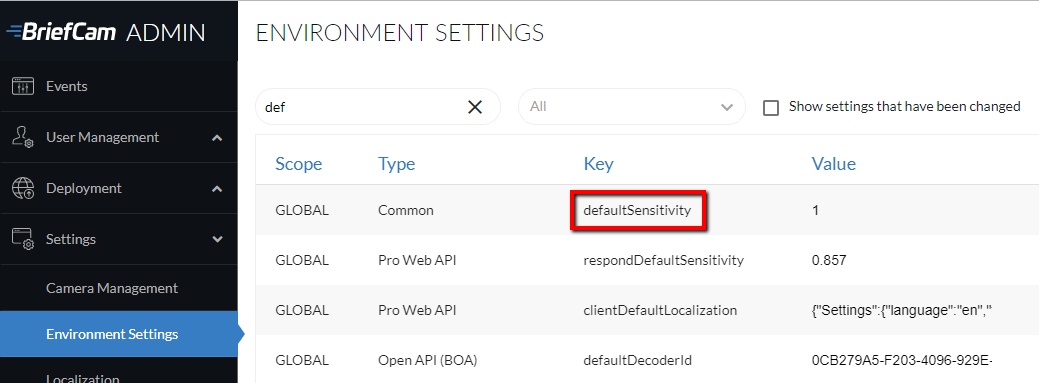
The default formula for calculating the sensitivity (the object’s quality) is 0.5 - 0.35 * defaultSensitivity, which means that sensitivity is 0.15.
This means that the objects’ quality (like within RESEARCH), by default, is at least 0.15.
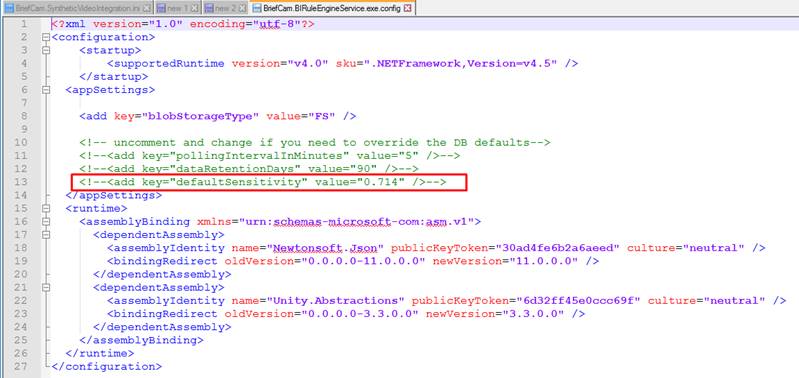
If you want the RESEARCH sensitivity to be different than the REVIEW sensitivity, you can manually update the BriefCam.BIRuleEngineService.exe.config file:
Using Notepad, open the
BriefCam.BIRuleEngineService.exe.configfile, which is located at:C:\Program Files\BriefCam\BriefCam Server.Uncomment the below row and set the required sensitivity.
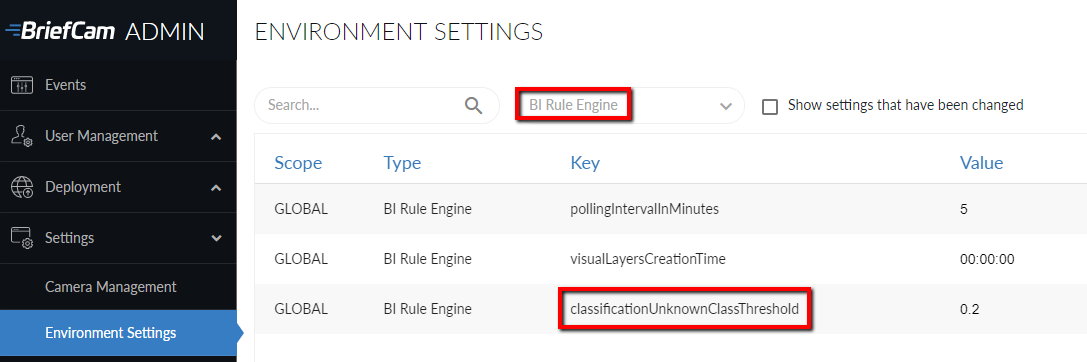
The RESEARCH minimum object’s classification probability is set in BriefCam's classificationUnknownClassThreshold environment setting.
The default value is 0.2, which means that if the object’s classification probability is smaller than 0.2, it will be recognized by BriefCam as an unknown classification.
If you make changes to the classificationUnknownClassThreshold setting, restart the BIRuleEngine service.
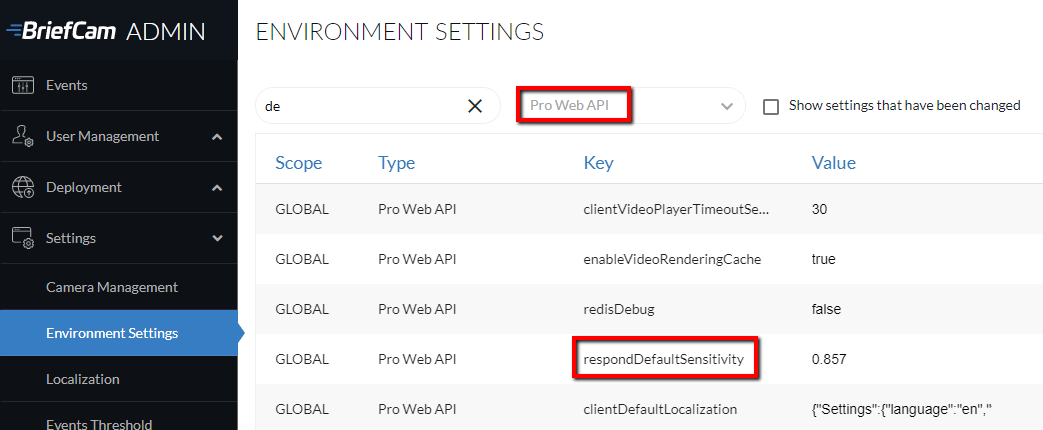
RESPOND Sensitivity
For the RESPOND module, the sensitivity threshold of alerts can be configured in the respondDefaultSensitivity environment setting. The default value is 0.857.
If you change this setting, you need to recreate the rules for the settings to take effect.
For face recognition, by default, 2-star images cannot trigger alerts.
REVIEW | RESPOND | |
1 star | X | X |
2 stars | √ | X - default √ - high-sensitivity |
3 stars | √ | √ |
To configure the high-sensitivity mode that will trigger alerts for 2-star faces in the watchlist:
Change the FaceRecognition.FaceQualityThreshold setting to 0.01. There are a number of settings with the same name, so make sure to select the one where the Type column is Video Processing Gateway.
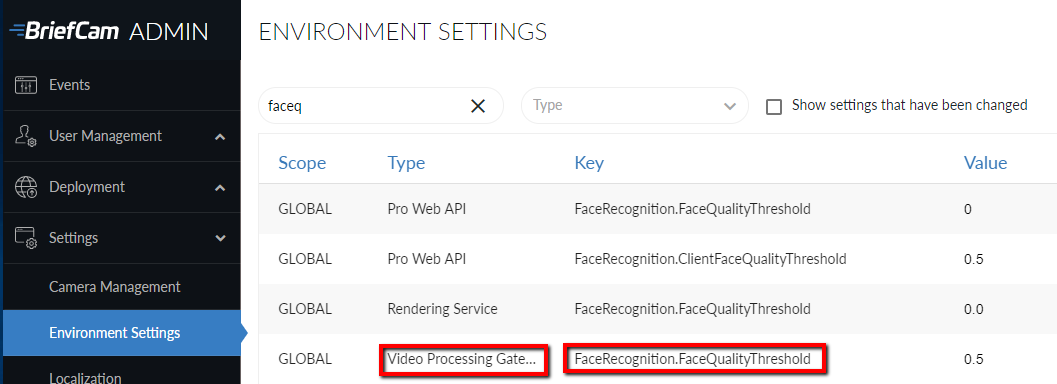
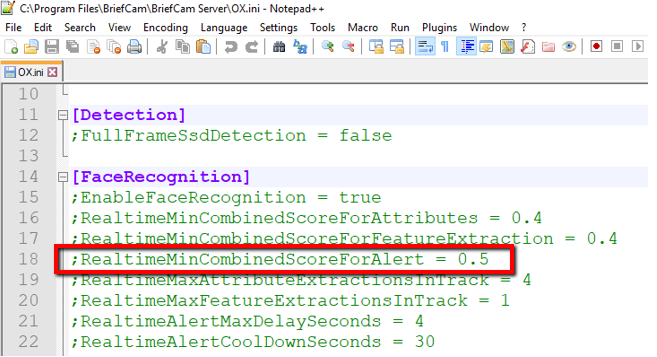
In the
OX.inifile, remove the semicolon and set the RealtimeMinCombinedScoreForAlert parameter to 0 (zero).