Exporting BriefCam’s RESEARCH Data
BriefCam includes a script that generates the data since the last execution from BI DB tables into CSV files. The script can be scheduled (externally to BriefCam) to run on a schedule, for example every hour.
The script is located on the RESEARCH server under the default BriefCam RESEARCH tool directory (C:\BriefCam\serverdata\BIExportData). The exported CSV files will be generated to: C:\BriefCam\serverdata\BIExportData\Files. This path can be changed using the RESEARCH.DataExportPath environment setting.
The CSV files are not part of the maintenance process and are, therefore, not deleted.
Data from the following tables are fully generated each time the script is run:
bc_sites
bc_bi_settings
BC_BI_MASTER_ITEM_LOOKUP
BC_CAR_MAKE
BC_CAR_MODEL
bc_customclasses
BC_BI_COLORS_LOOKUP
BC_BI_DLCCLASS_LOOKUP
BC_BI_RULES
BC_BI_SOURCE
BC_BI_GROUPS
BC_BI_GROUPS_SOURCE
BC_BI_GROUP_FILTERS
Data from the following tables are incrementally generated each time the script is run
bc_bi_source_match
bc_bi_rule_match
bc_bi_proximity_data
bc_bi_customclasses
bc_bi_source_headcountmatch
bc_bi_rule_headcount_match
bc_bi_face_match_view
bc_bi_face_match_view_hub
bc_bi_visual_layers
To export BriefCam’s RESEARCH data:
Run the script that exports the data:
From the
BIExportDatafolder, open cmd (command line) as administrator.Run the following lines one at a time (the path is as-is if you did not move these files. If you moved them, change the path accordingly):
cd C:\BriefCam\serverdata\BIExportData export_data.exe
A log file will be created (
export_data.log).The first time you run the script you will see that for each section there was a full load.
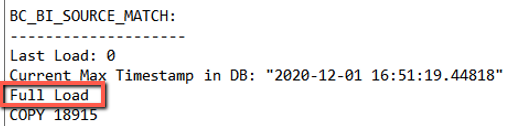
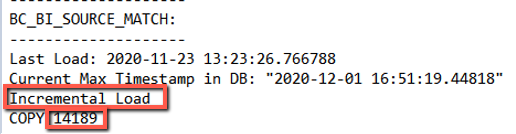
If you are running it for a second time, the script will run on any changes that occurred since the last time the script was run. You will then see in each of the sections how many items were incrementally loaded. For example, in the below log, you can see that 14,189 items were loaded since the last run.
To schedule the script to run on a schedule:
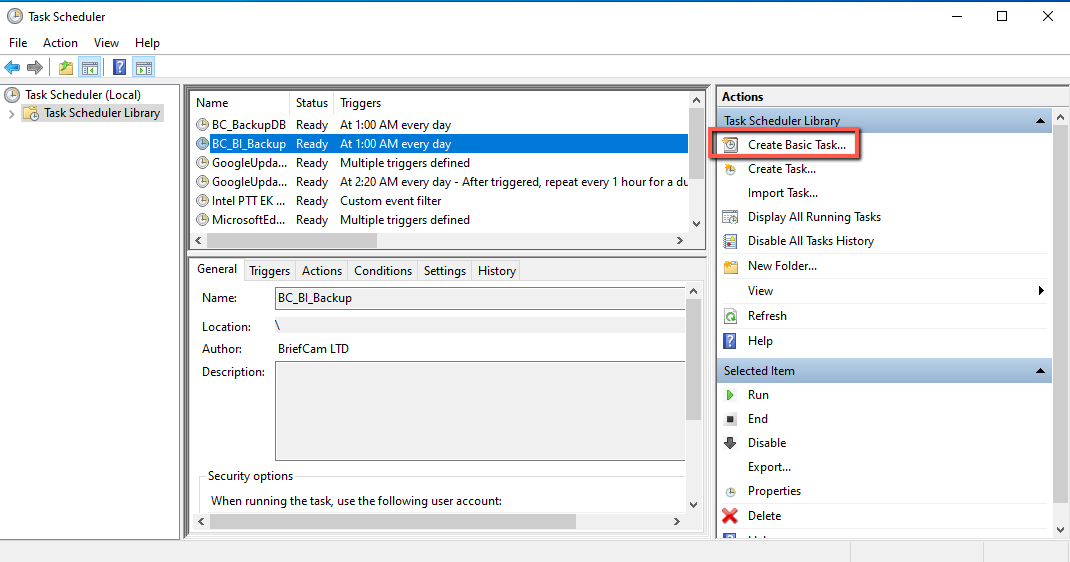
Open the Windows Task Scheduler.
Select Create Basic Task and run through the wizard to create a scheduled task for the
export_data.exefile.