Changing the Default RESEARCH Dashboard
To choose a default dashboard, you need to find the dashboard ID and change it in the BriefCam Administrator Console's Environment Settings.
First you need to find the ID.
Open a dashboard and click Edit.
From the Master items, click Visualizations.
Drag the Dashboards’ Details visualization onto the dashboard.
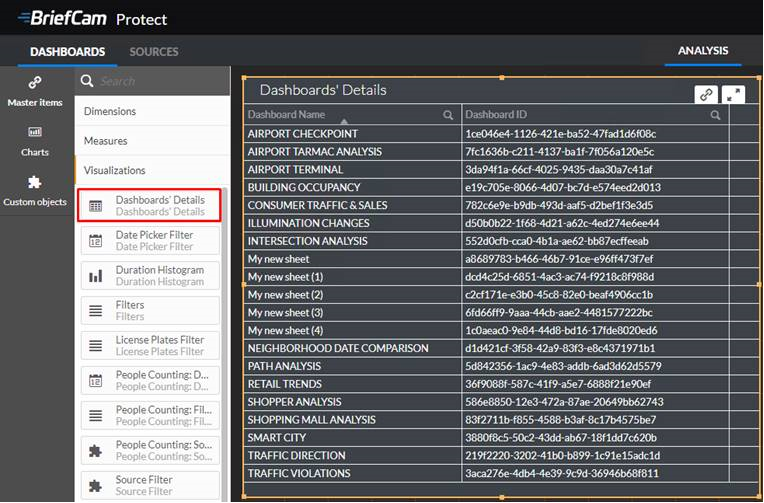
Find the dashboard that you want as the default dashboard.
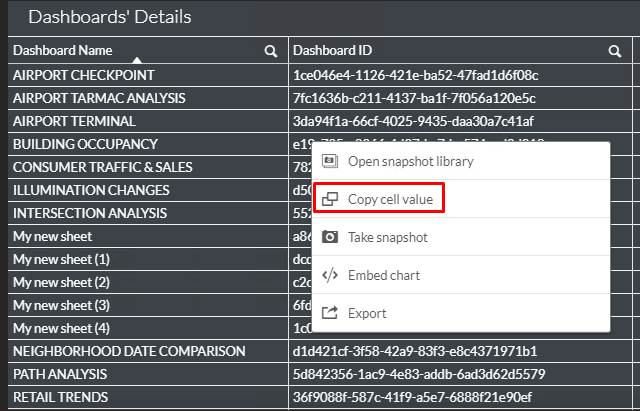
Copy its ID by right-clicking on the dashboard ID that you want and clicking Copy cell value.
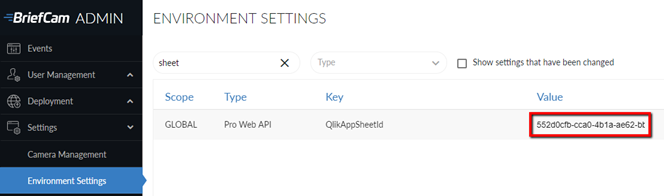
Now you need to take that ID and paste it into the BriefCam Administrator Console.
In the Environment Settings section, search for the word:
sheet.In the QlikAppSheetId setting, replace the ID in the Value column with the dashboard ID that you found above. For aggregated dashboards, use the QlikAggregatedAppSheetID setting.
Caution
This functionality is not applicable for sites. It is only relevant for the Hub and in standalone deployments.