Accessing the BriefCam Administrator Console
The initial administrator (with the user name: Administrator) needs to log into the BriefCam Administrator Console as follows:
Enter either the IP address or the name of the computer hosting the BriefCam server, followed by
/admin(e.g. http://xxx.xxx.xxx.xxx/admin or http://[computer name]/admin) in your browser’s URL field and press Enter. You will be presented with a BriefCam sign in page.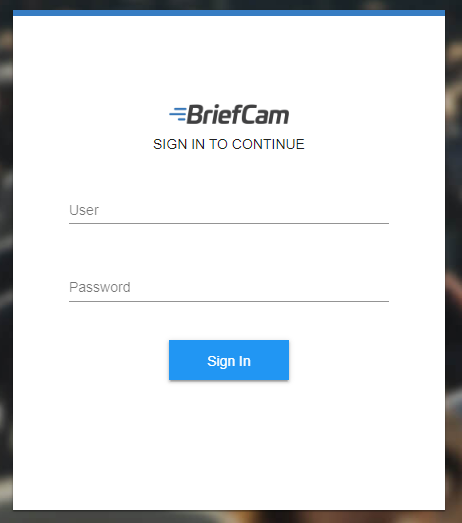
In the Sign In screen, enter the following:
User:
Administrator(this is the initial administrator)Password:
changeit(this is the initial password)
Press Enter or click Sign In.
When the BriefCam Administrator Console is launched for the first time, you will be prompted to change the administrator password.
Enter a new password and enter it again to confirm your password, and then click OK.
Note that non-English characters are not supported for passwords.
Additional administrator users can also be added. These users can access the BriefCam Administrator Console with their assigned credentials but will need a separate user to access the BriefCam client.
Administrator users are automatically logged out of the BriefCam Administrator Console after 20 minutes (per machine).