摄像机和视频管理软件配置
本部分仅与连接到外部视频管理软件系统的产BriefCam品相关。
[en] Connecting BriefCam to a VMS Server
[en] Make sure the appropriate VMS plug-ins are installed.
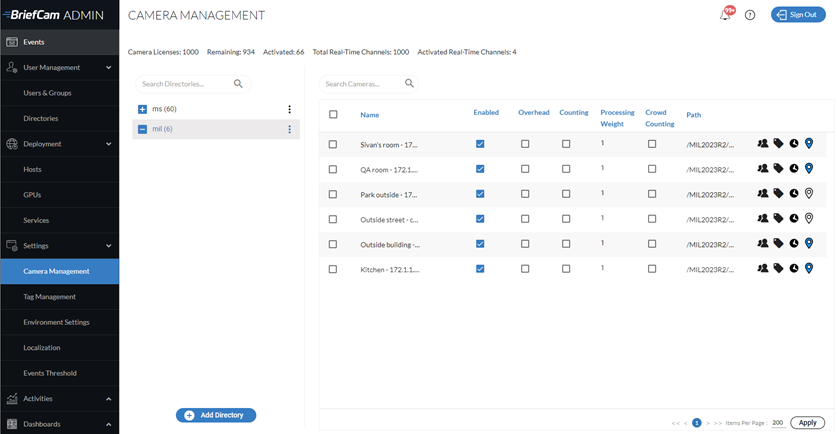
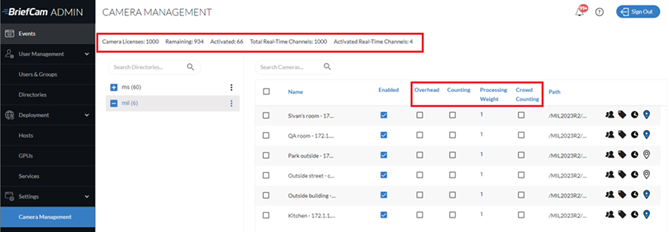
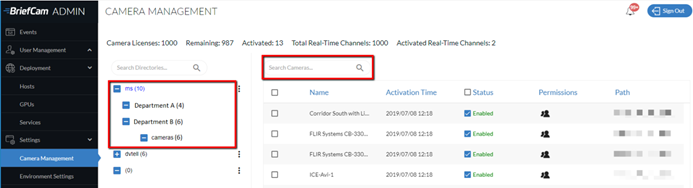
[en] Open the Camera Management section (see image below), which lists all connected VMS servers on the left and the servers’ associated cameras on the right.

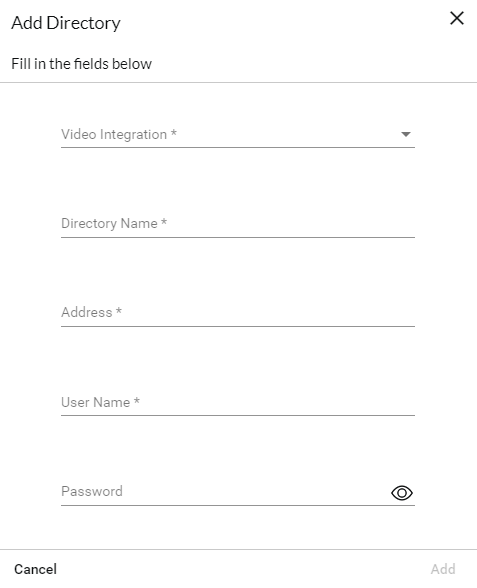
[en] Click the Add directory button to add a VMS server. The Add Directory dialog opens.

[en] From the Video Integration field, select the appropriate VMS integration option. Different integrations can be added by installing additional VMS-specific plugins.
[en] In the Directory Name field, enter a display name for the user directory. The directories should have different names.
[en] In the Address field, enter the VMS server’s IP/host address. If you are not using the default port (80), add the communication port (the port number may be specified as a suffix to the address, preceded by a colon).
[en] In the User Name and Password fields, enter the VMS server user name and password. This user must have permissions in the VMS to the cameras exposed for BriefCam. Click Add to add the directory.
[en] If you selected Milestone or Genetec, you will also see an RTSP Settings toggle button. These settings can be used to securely define the RTSP credentials for the integration.
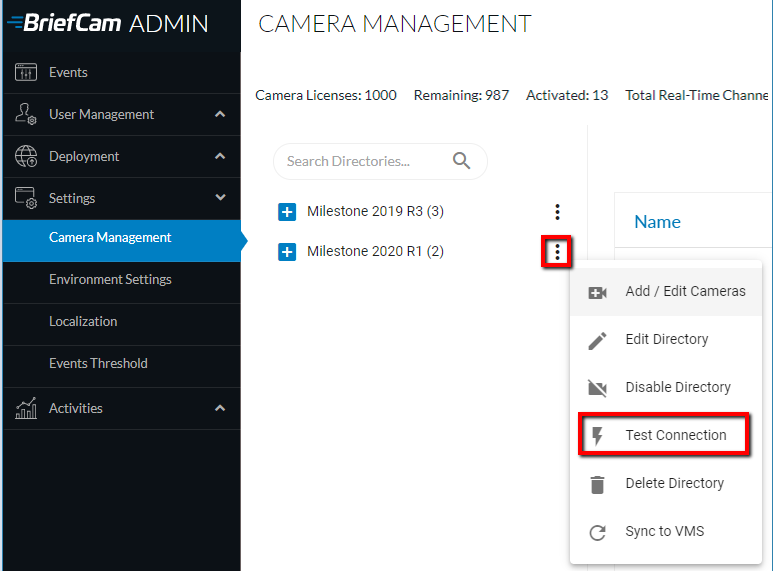
[en] To test the connection to the newly added directory, click the zoom (
) icon to the right of a directory (VMS server) name and select the Test Connection option.
[en] To edit the directory, click the Edit Directory option. When changing the Address field, the new value must point to the existing directory.
[en] To completely disable all cameras associated with a directory, click the Disable Directory option. In a disabled directory, it is not possible to enable individual cameras. If you disable and then enable a directory, all of the associated cameras are also enabled.
[en] To completely remove a VMS directory (assuming that none of the cameras associated with it are currently activated), click the Delete Directory option.
注意
[en] Make sure to click the Apply button to retain any configuration changes.
注意
[en] When using a multi-site deployment (comprised of multiple site systems and a central Hub), video sources are set up in the Sites’ Administrator Consoles and not in the Hub Administrator Console.
摄像机选择和激活
此时,您可以选择并启用或禁用(根据许可条款)随后可以处理以生成视频大纲的单个或多个摄像机馈送。
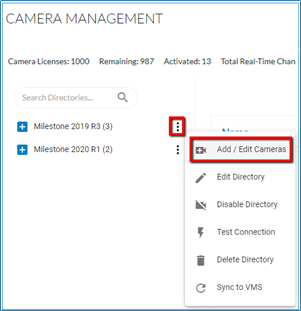
要激活摄像机,请单击目录(视频管理软件服务器)名称右侧的缩放(
)图标,然后选择“添加/编辑摄像机”选项。
将显示“摄像机激活”屏幕,其中包含与所选视频管理软件目录关联的摄像机的列表。
注意
摄像机激活是一个不可逆的过程。一旦完成,激活计数将无法重置,除非在BriefCam支持下打开特殊批准的请求。
在已激活列中选中要激活的所有摄像机的复选框,然后单击激活按钮(位于右下角)。已激活的摄像机的复选框将变灰。
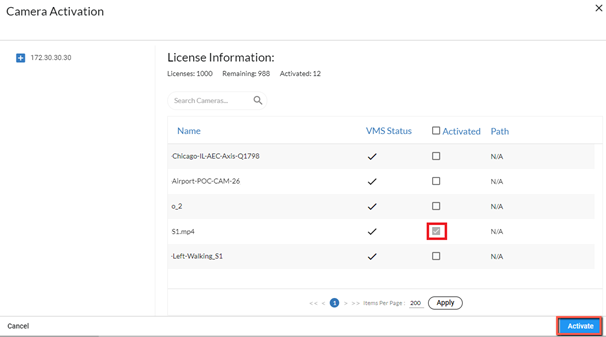
与激活不可逆的摄像机相反,您可以通过选中或取消选中“状态”列中的“启用/禁用”复选框来禁用单个摄像机。禁用的摄像机将不会显示在BriefCamWeb客户端中。请注意,您还可以从摄像机管理屏幕启用和禁用摄像机。
注意
当视频管理软件服务器不可用时,摄像机不会在视频管理软件服务器重新可用BriefCam时自动激活。要解决此问题,请重新启动AlertProcessingServices。
[en] Camera Configuration
[en] At the top of the screen, you can see the number of active and remaining camera licenses.

[en] This screen has the following columns:
[en] Overhead
[en] If the camera is set with an overhead angle or is an overhead fisheye camera and the camera is used with the Line Crossing feature, it is recommended to check the Overhead checkbox. This will improve the object extraction accuracy by running the algorithmic engine in a special processing mode that compensates for the warping that overhead cameras introduce. Note that only people are detected on cameras with the Overhead checkbox checked. Vehicles and animals are not detected. In addition, the only metadata generated for people detected in Overhead mode is colors.
[en] Counting
[en] If the camera is set with an overhead angle and is used for people counting, check the Counting checkbox for the cameras. This will improve the people counting accuracy by running the algorithmic engine in a special processing mode that reduces the amount of false object detections, which makes the counting more reliable. This Counting mode, which is available for the OX5 engine, is not the “people counting” feature. Note that vehicles are not detected on Counting cameras.
[en] Processing Weight
[en] The processing weight is how much of the total GPU Processing Capacity is expected to be consumed by this camera. The GPU’s processing capacity is defined in the GPUs screen.
[en] Note that the weighting system only applies to real-time processing. All on-demand tasks are treated as having a processing weight of 1.
[en] Crowd Counting
[en] Crowd counting is only supported for the Linux-based Next-Gen (OX6) engine.
[en] Select the Crowd Counting checkbox to enable the collection of crowd counting data for groups of more than 50 people, by default. This number is configurable using the HeadCount.CrowdCountingThreshold environment setting. The value you enter in this setting appears in the user interface with one more than the entered value (for example, if you enter 60, 61 will appear in the user interface).
[en] By default, crowd counting data is not collected from the camera.
[en] Note that:
[en] Only the Area filter is available with the Crowd Counting filter.
[en] Enabling Crowd Counting on a camera will cause existing rules for that camera to stop sending alerts. Therefore, it is recommended to disable or delete all existing rules for the camera before enabling Crowd Counting.
[en] Disabling Crowd Counting on a camera will turn existing Crowd Counting rules for that camera into People Counting rules. Therefore, it is recommended to disable or delete all existing rules for the camera before disabling Crowd Counting.
[en] Instant REVIEW mode is not supported for Crowd Counting cameras.
[en] Camera Management icons
[en] This screen has the following icons:
[en] Icon | [en] Description |
![]() | [en] Set permissions for the cameras. See: 摄像机权限. |
![]() | [en] Assign tags to the camera. See: 将标签分配给摄像机. |
![]() | [en] Set a time zone. This is only for use in multi-site environments. See: 为摄像机指定时区. |
![]() | [en] Set coordinates for outdoor cameras for use in the Cameras view and Fast Track. You can hover over the icon to see a tooltip with the coordinates. Geo-location available in Milestone (all supported versions) and Genetec (v5.8 and above) are automatically set here. You can override the Milestone and Genetec coordinates by clicking on the icon and editing the coordinates. Coordinates can also be set in the BriefCam client. Note that 将摄像机与视频管理软件同步 will override manually added coordinates. |
![]() | [en] Hover over this to see the activation time and last modified time information. |
[en] Filtering Cameras
[en] There are two ways to filter the list of cameras.
[en] Use the directory tree on the left to drill down to the camera you are searching for.
[en] Use the Search field to narrow the list even further. The search will search the camera name, camera ID, and tags.

更改摄像机名称
如果更改摄像机的名称,则需要重新定义并再次激活摄像机。
更换摄像机
您可以按以下方式更换停产或损坏的摄像机:
将新摄像机连接到视频管理软件,并为其提供与停产或损坏的摄像机相同的摄像机名称。
在中,单BriefCam Administrator Console击“同步到视频管理软件”。

BriefCam将识别并激活更换的摄像机。

BriefCam将保留所更换摄像机的所有现有设置。
为了使具有实时任务的规则和源重新开始处理,在BriefCam Administrator Console中重新启动Alert Processing Server和VSServer服务。