Security Settings
Non-Predictable Storage
All file names in BriefCam’s storage are hashed using an MD5 algorithm that includes a unique BriefCam encrypted key.
When upgrading from a version prior to BriefCam 2023 M1 SP1, this functionality is not included by default. To enable this functionality, set the NonPredictableStorage environment setting to true.
API Rate Limiting
BriefCam enforces usage limits on API calls.
The following three settings are related to the API rate limiting:
ApiRateLimitEnabled: Enable/disable API rate limiting. Default: true. When upgrading from a version prior to BriefCam 2023 M1 SP1, this setting is set to false by default.
ApiRateLimitInSeconds: The API rate limit in seconds. Default: 60 seconds.
ApiCountLimit: The number of requests that can be made to the API within the API rate limit. Default: 1000.
The rate counting is validated by the following key: "ClientIP-UserAgent-MethodName-SessionId"
For example:
ClientIP(e.g. 172.23.34.55)UserAgent(e.g. Chrome)MethodName(e.g GetCaseById)SessionId(3df0dkj33f0)
With the default settings: If within 60 seconds the server receives 1,000 API calls by the same key, the API will fail with the code: [429 - Too Many Requests].
Secure Storage
BriefCam includes a Storage Gateway service, which is responsible for securely accessing BriefCam’s storage where accessing any storage visual artifact requires a valid authenticated session.
This service is off by default. To enable this service:
In the BriefCam Administrator Console, set the UseStorageGateway environment setting to true.
Make sure that the StorageGatewayUrl environment setting is set to the hostname of the machine.
If you are not using NGINX, the URL should look like:
//[Server IP/hostname]:[Value of StorageGateway.InternalPort]/StorageGateway/.For example:
//172.29.29.97:5012/StorageGateway/.If you are using NGINX, the address should not include the port, and the server address should be the NGINX server. For example:
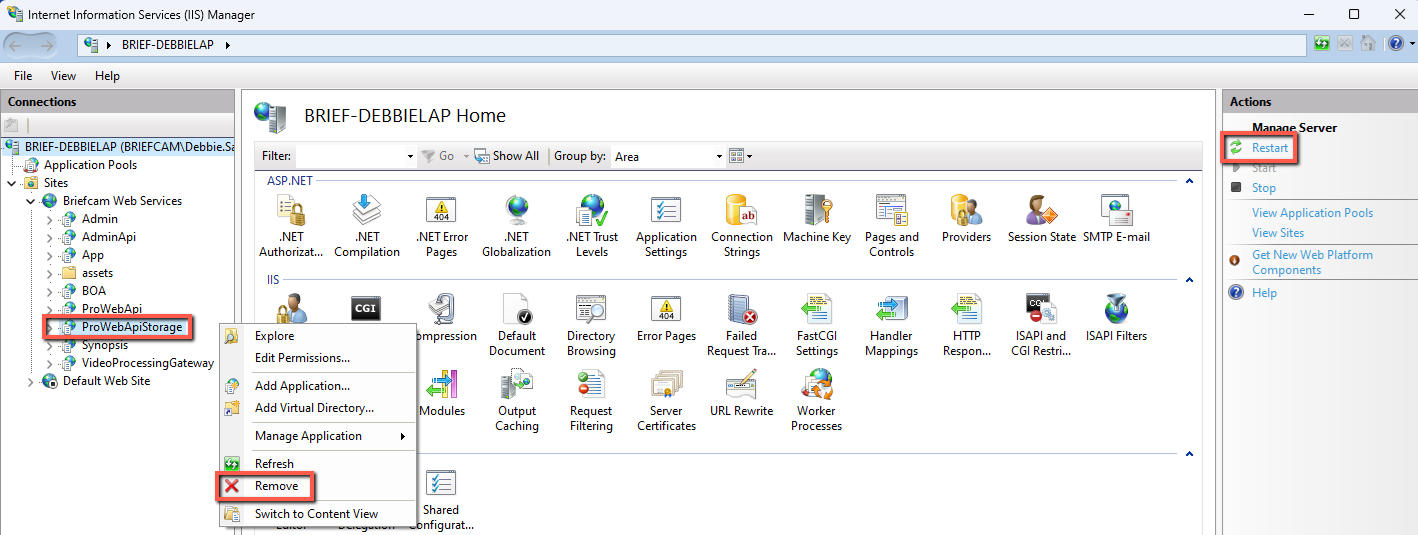
//nginx.server.com/StorageGateway/.Open the IIS Manager and remove the ProWebApiStorage from the Briefcam Web Services site.
Restart IIS.
In the BriefCam Administrator Console, start the Storage Gateway service.
In addition, if you enable this service and if your system communicates with one of the BriefCam APIs, you need to change the integration with the system so that all the APIs that consume the storage visual artifacts will use the new service. You also need to ensure that the URLs to these artifacts contain a valid authenticated session. For example:
https://yourdomain.com/StorageGateway/?type=1&key=674&sid=274b4c1761924355ac3e70b369c89a25.
See also: Session Timeouts and Locking Out Users