

Log in and log out
Log in
-
Start XProtect Smart Client. The login window appears.
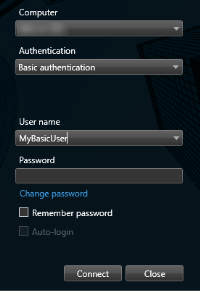
- Specify the name or address of the server that you want to connect to.
- Select one of these authentication methods:
Windows authentication (current user)–log in using the same Windows user credentials as your current login.
Windows authentication –log in with Windows user credentials that are different from your currently used Windows user credentials.
Basic authentication–log in as a basic user. Basic users are defined by your system administrator in XProtect Management Client.
[Name of external IDP
 An external entity that can be associated with the XProtect VMS to manage user identity information and provide user authentication services to the VMS.]–select this option to log in with an external IDP.
- Click Connect.
- Depending on the configuration, you are asked if you want to restore the windows and tabs left open when you last logged out.
- If your system administrator has set up login authorization, one of your colleagues must authorize your login before you can start XProtect Smart Client.
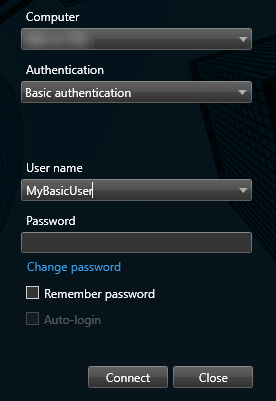
If a problem occurs during login, you receive an error message.