

Configuring device camera links
- Open the OnGuard System Administration application. Open the Video menu and select Digital Video. Go to the Device - Camera Links tab.
- Click Add to start the process of linking a camera to a device.

- Open the Device Type list and select Access Panel, then select the access panel device from the Search Device by Panel Filter list, and click on the Access Panel generating the alarm to link to the camera. Verify the red check mark icon appears. Click Next to select the camera to be linked.

- Select the Recording Server from the Video Recorder list, then select the required camera.
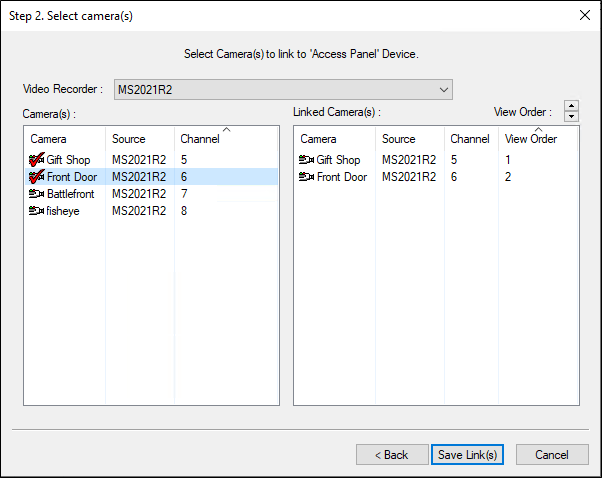
- Click Save Links to save the configuration.