

Configuring alarm video links
- Open the OnGuardSystem Administration application. Open the Video menu and select Digital Video. Go to the Alarm-Video Configuration tab of the client.
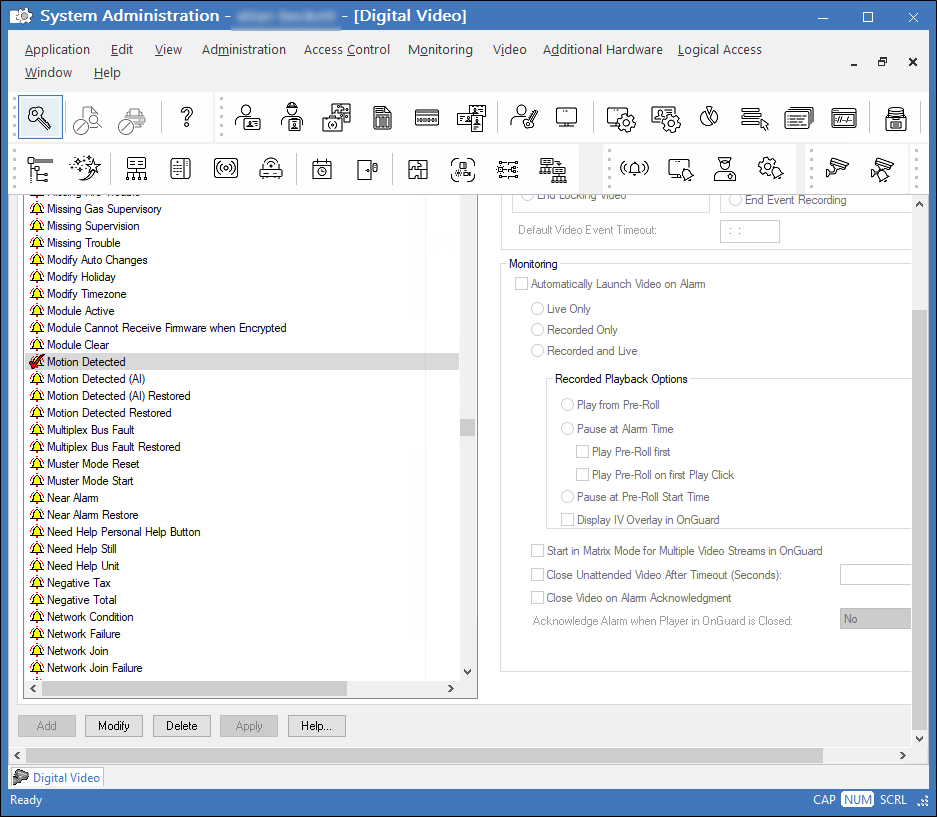
- Select the required alarm from the alarm list that will be linked to video. In this case, select Motion Detected. Click Modify to modify the existing response to the alarm.
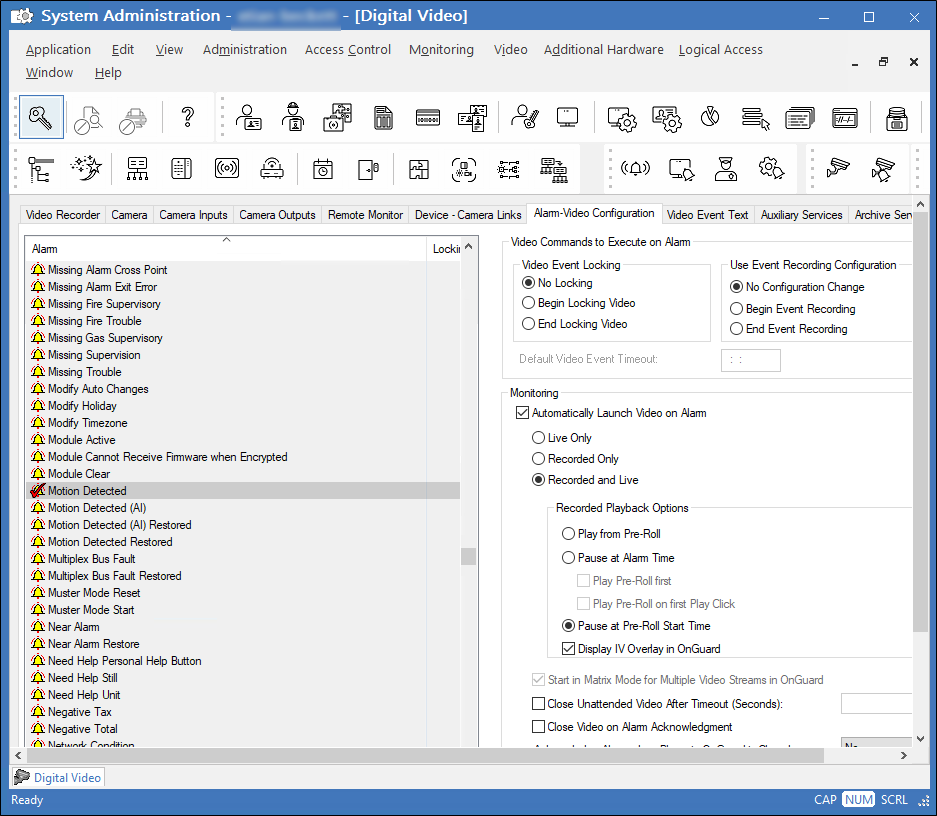
- Select the Automatically Launch Video Player on Alarm checkbox, then select Live Only or Live and Recorded options. Click OK to save the configuration.