Add a camera to existing investigation
 | "I want to add more cameras to an existing investigation. How can I do that?" |
On the Investigations tab, click  to open the side panel.
In the side panel, click Investigations.
Go to the investigation that you want to add more cameras to and click on the name of the investigation.
In the side panel, click All cameras. All available cameras appear as thumbnails in the All cameras area.
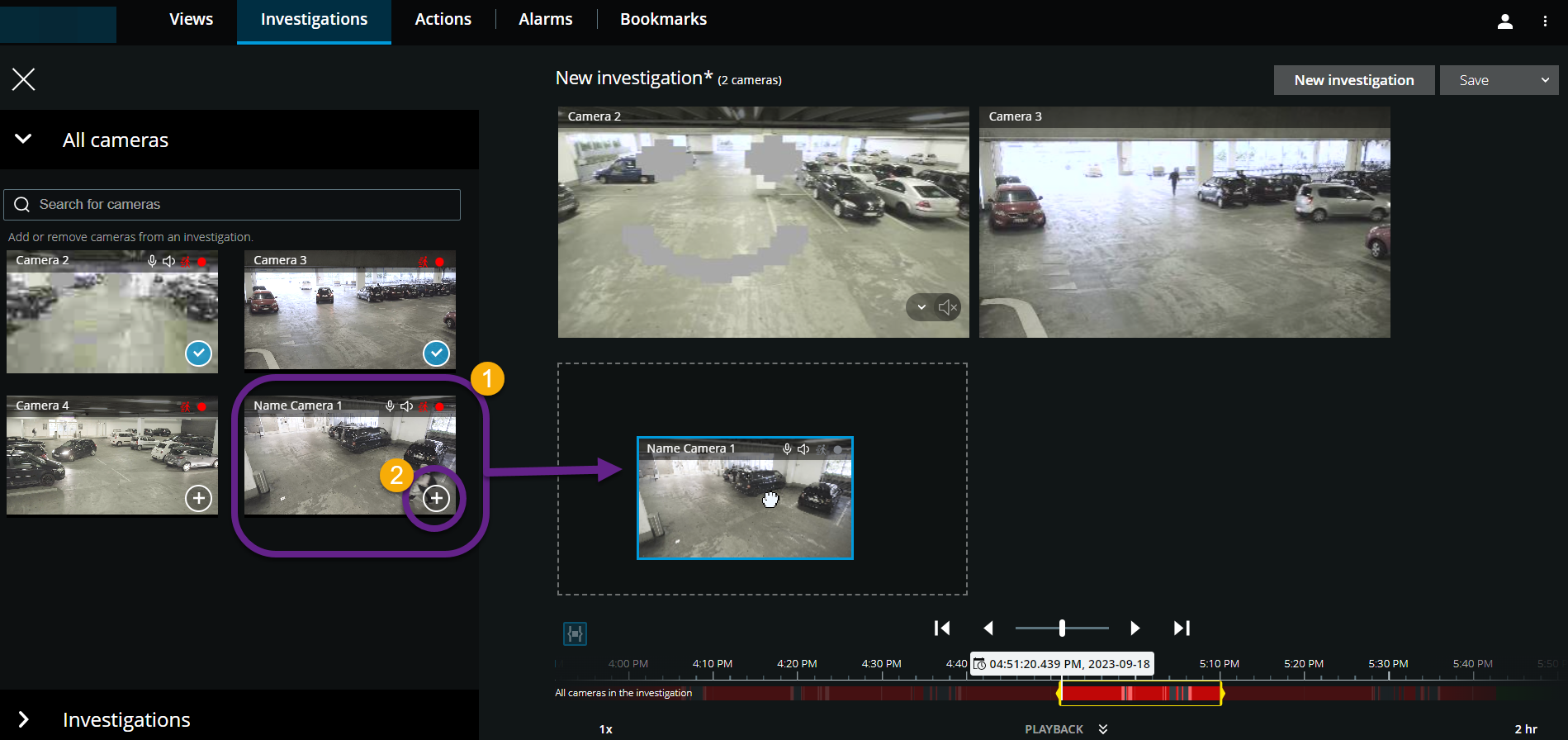
Go to the camera that you want to add and:
Click, drag, and drop the camera
 into the investigation area.
Click
 in the bottom-right corner of each camera
  .
.Double-click on the camera that you want to add.
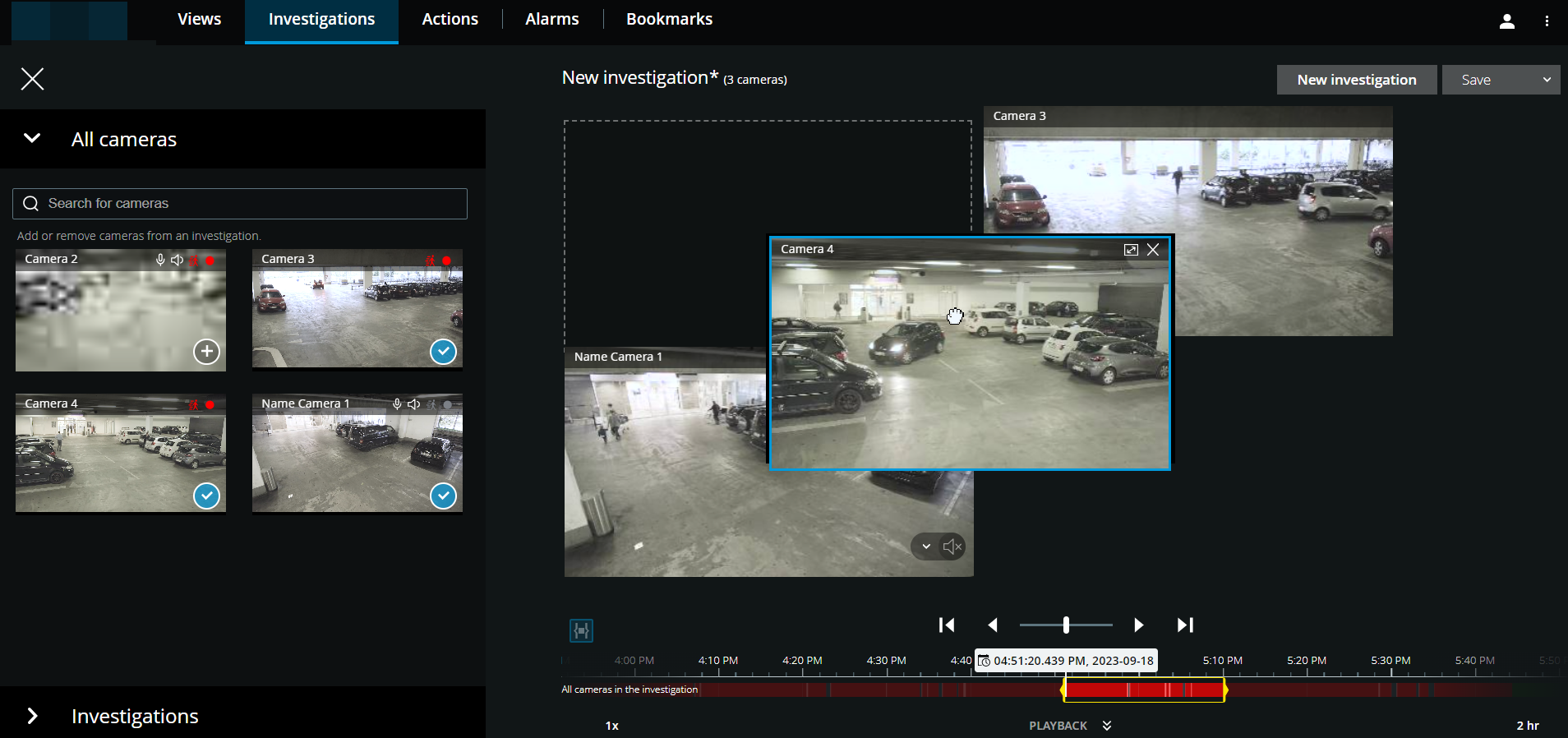
Optional. To reorder the cameras in the investigation, click, drag, and drop the camera that you want to move.
Tip
You can search for a certain camera by name in the Search for cameras field.
Note
If the check box in the bottom-right corner is selected
 , the camera has already been added.
Click Save.
In the drop-down list, select Save.