View exported video in an adaptive view
When you open exported video in XProtect Smart Client – Player, you can select to see the video in an adaptive view. Compared with the standard view, the adaptive view is optimized for viewing exported video from many cameras.
Open the folder that contains the exported video and run the SmartClient-Player.exe file.
If the exported video is password-protected, enter the password.
Select Connect.
Next to the name of the current view, expand the list of available views.
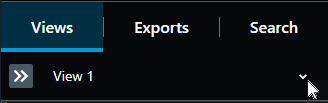
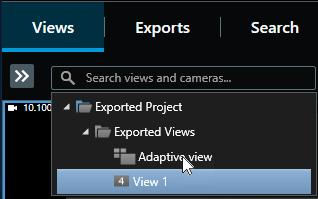
Select Adaptive view.
From the timeline, select how you want to playback the video. For example, select Play forward
 .
.
Note
Adaptive view was introduced in XProtect Smart Client – Player 2023 R2. If you have an older export project and want to see the exported video in an adaptive view, you can often open the older export project with XProtect Smart Client – Player 2023 R2 or later.