View evidence locks
Switch to playback mode.
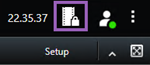
On the workspace toolbar in the upper-right corner, click Evidence lock and select View.
If you want to stay in live mode instead of in playback mode, select Evidence lock on the global toolbar.
A list of existing evidence locks with devices that you have permission to access appears.
Search for text in the headlines and descriptions, sort the different columns and/or use the filter options to make it easier to find the wanted evidence lock.
Select an evidence lock and click Details to see the cameras included in the evidence lock and other information.