The user interface of XProtect Smart Client – Player
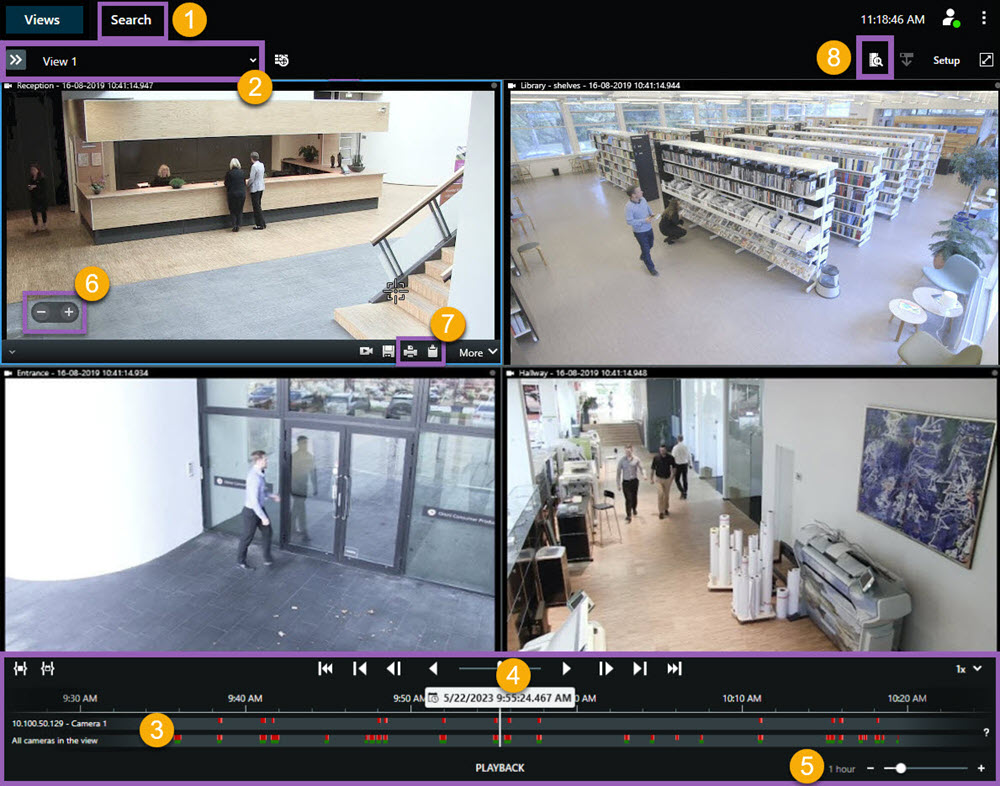
Number | Description |
|---|---|
1 | Investigate the exported recordings in playback mode, and run searches on the Search tab. |
2 | Select the view that contains the cameras that you’re interested in. |
3 | In the main timeline, drag the timeline tracks back and forth to browse the recorded video. |
4 | Use the timeline controls in the main timeline to play back video or jump to a specific moment in time. |
5 | Change the time span of the timeline track. The range is five minutes to four weeks. |
6 | Change the speed of the playback. |
7 | Copy a still image to the clipboard, so you can paste it into, for example, a document, or print a surveillance report with a still image and related information. |
8 | Start search in a new search window with the cameras in the current view preselected. |