Search for bookmarks
You can find incidents that are bookmarked by you or others for any number of cameras.
Select the cameras that you want to include in your search.
Click Search for > Bookmark > New search. If the database has any bookmarked recordings, they appear as thumbnail images in the search results pane.
Optionally, enter a keyword to filter the search results. The keyword can be:
The full Bookmark ID, for example
no.000004Who the bookmark was added by, for example
site\user2Any text that appears in the Headline or in the Description
Note
By default, the system will search for the keyword both in the Headline and in the Description. Use Search for keyword in to change that.
To preview the video sequence and bookmark details, select a search result and play back the video in the preview pane on the right-hand side.
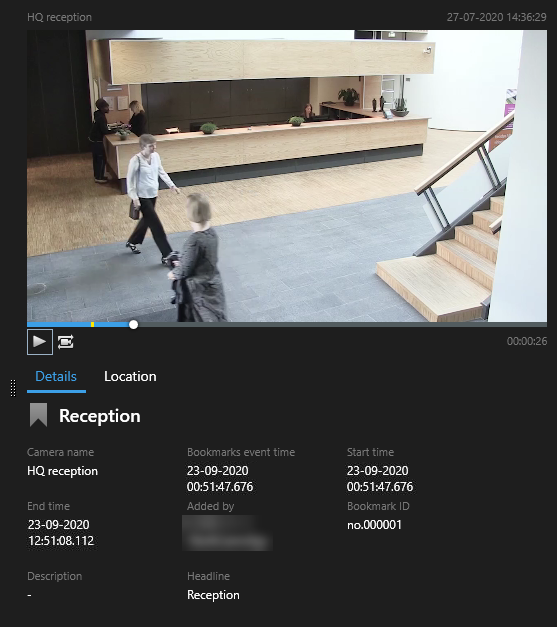
To view the recording in full-screen mode, double-click the search result.
To perform other actions, for example editing the bookmark, hover over the search result and select the check box
 . The action bar is displayed.