Remove devices from smart map
You can remove devices, for example if devices have been physically removed or were added by mistake. By removing a device, the positioning information of the device, for example the geo coordinates, are removed from your VMS system.
Steps:
Navigate to the device that you want to remove.
On the workspace toolbar, select Setup.
To remove a single device, right-click the device and click Remove.
Example: In the case of a camera, click Remove camera.
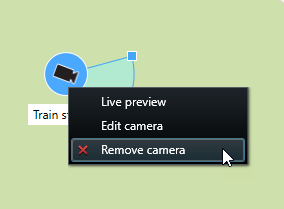
To remove several cameras:
On the smart map toolbar, click
 Select multiple cameras.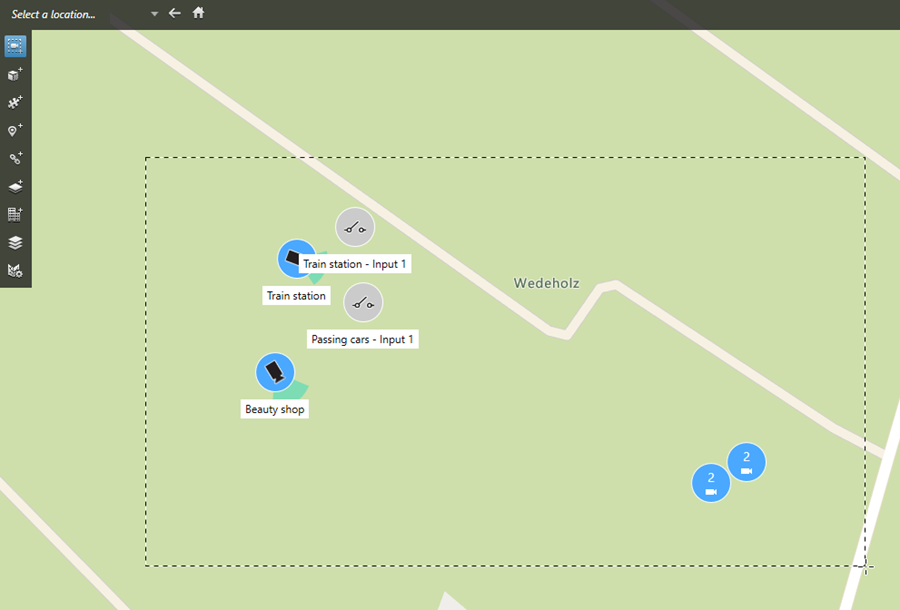
Click and drag to select multiple cameras. Other types of devices, for example input devices, are not included in the selection.
Right-click and select Remove cameras.
To remove several devices that are not cameras:
On the smart map, press and hold Ctrl.
While holding down Ctrl, click the devices that you want to remove.
Right-click one of the selected devices and select Remove.
Select Setup again to exit setup mode and save your changes.
Tip
You can also delete a single device by selecting it and then pressing DELETE on your keyboard.