How alarms look on a smart map
If you have got the right permissions, you can see alarms on smart maps.
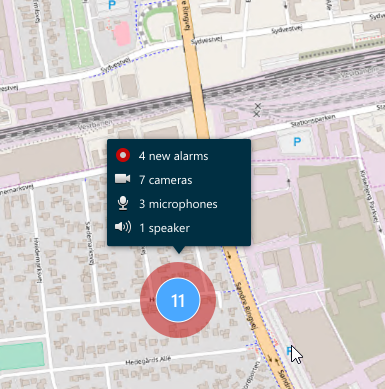
The icons below show how alarms appear on a smart map, depending on whether the device triggered the alarm or if the alarm is only related to the device that triggered it.
The examples show a camera icon, but the principle is the same for all devices and clusters.
Icon | Description |
|---|---|
 | This is a source camera: the camera that triggered the alarm. |
 | This is a related camera: a camera associated with the selected source camera, which triggered the alarm. This icon appears when you have selected the source camera. |
 | This is both a source camera and a related camera: This camera triggered an alarm, and the camera is also associated with another source camera with an alarm. This icon appears when you have selected the other source camera. |