Check hardware acceleration settings
Go to Settings > Advanced > Hardware acceleration.
Select the default setting Auto.
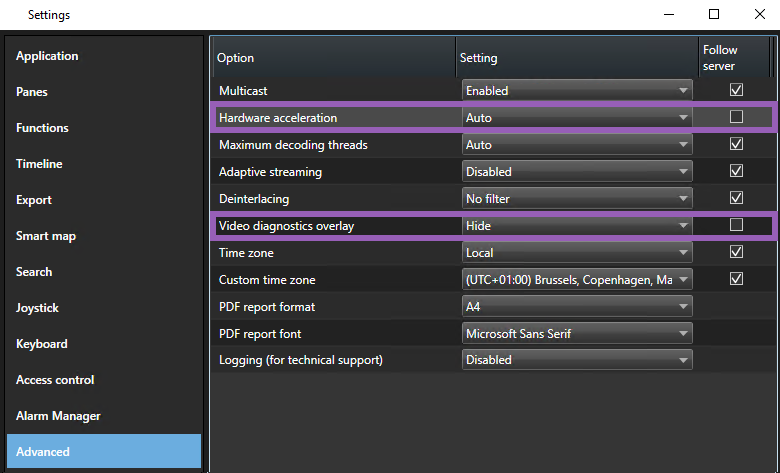
Go to Video diagnostics overlay.
To make the current status of the stream, including the GPU resource used for hardware acceleration visible, select Level 2.
Note
This setting applies to all view items. The default setting is Hide.
The video diagnostics overlay status for Hardware acceleration can be: Intel, NVIDIA or Off.
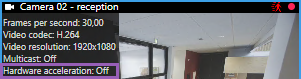
If the status is Off, continue to examine your computer so you can enable hardware acceleration, if possible and make sure that all hardware acceleration resources are utilized.
Use the System Monitor to check the current XProtect Smart Client decoding performance. See Monitor client resources.