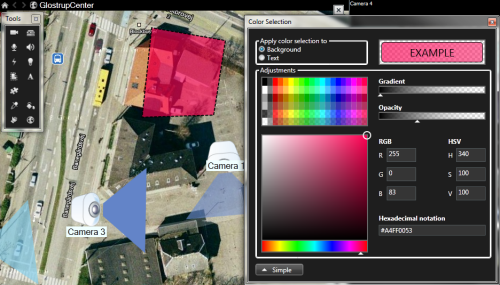
Change the appearance of map elements
You can change the color of texts, backgrounds, hot zones, etc. on maps to differentiate map elements from each other.
In setup mode, right-click the map and select Toolbox.
Select the element that you want to change.
In the toolbox, select the color fill tool
 . This will open the Color selection window.
Tip
Use the color picker tool
 to use an existing color from the map.
Only relevant for text elements: Select whether you want the color change to apply to text or background.
Select the color from the color palette—you can see a preview of the selected color in the EXAMPLE box.
Click the map element to fill it with the new color.
Use the Gradient slider to adjust how the element color fades from left to right.
Dragging the slider to the far right will make the element color fade instantly. Dragging the slider to the far left will make the element color almost not fade at all.
Drag the Gradient slider to the required level, then click the map element to apply color and gradient.
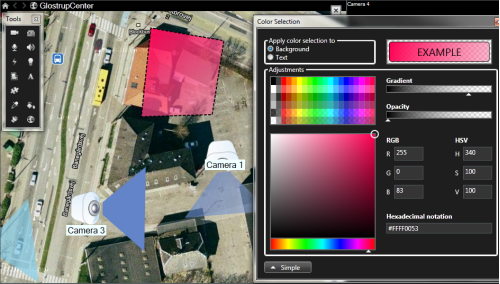
Use the Opacity slider to adjust the transparency of the color fill.
Dragging the Opacity slider to the far right will make the color completely transparent, while dragging the Opacity slider to the far left makes the color completely solid.
Drag the Opacity slider to the required level, then click the map element to apply color and opacity.