Bookmark search results
To document or share incidents that you have found by searching, you can bookmark multiple search results at the same time. Bookmarking incidents allows you or other operators to find the incidents later.
For each search result that you want to bookmark, hover over it and select the blue check box
 .
.In the blue action bar, click
 . A window appears. The picture reflects the situation where you have selected two search results.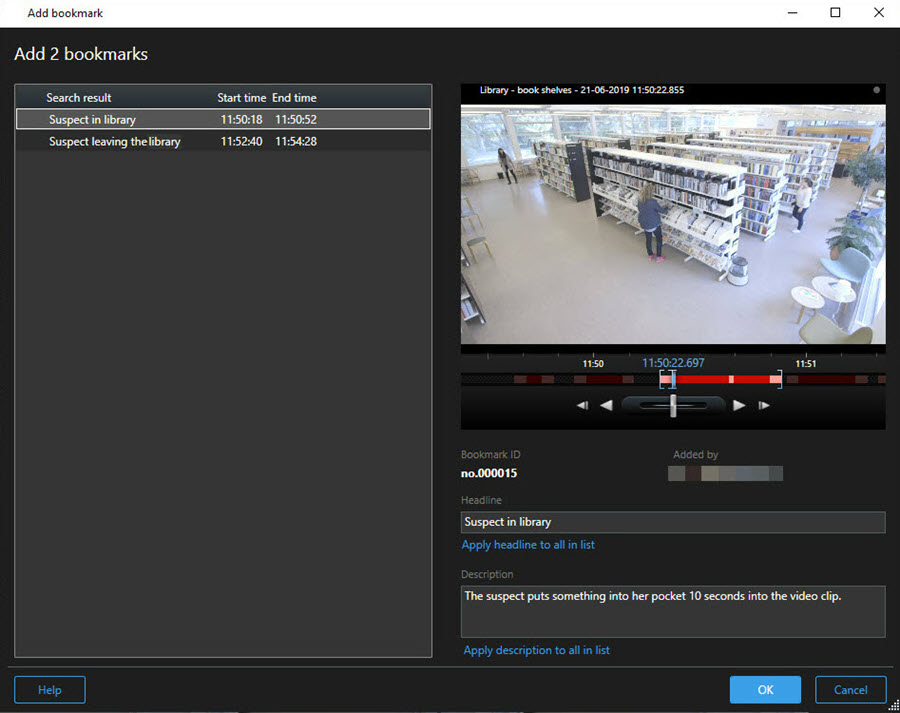
Select the search results one by one to add details to the bookmarks and follow these steps:
To change the default time span, drag the handles in the search timeline to a new position.

Enter a headline and possibly also a description of the incident.
If you want the same headline or description to apply to all the bookmarks, click:
Apply headline to all in list
Apply description to all in list
Click OK to save the bookmarks. A progress bar informs you when the bookmarks are created.
Note
If XProtect Smart Wall is set up in your system, click Display on Smart Wall to send a bookmark to a monitor in a Smart Wall.