Adjust position, size, or alignment of custom overlay
You can move an overlay to a different place on the map, make it larger or smaller, and rotate it. For example, this is useful if your overlay is not geo-referenced, or the overlay is geo-referenced but for some reason does not align exactly with the geographic background.
Steps:
Select the view that contains the smart map, and then click Setup.
Right-click the overlay, and select Edit position.
To resize or rotate the overlay:
Click and drag a corner handle
To rotate the overlay around a specific point, move the pivot point to that place on the map. Then click and drag a corner handle
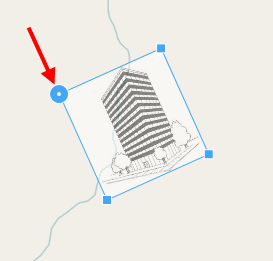
To move the overlay on the map, click and drag the overlay.
To save the change, click Save.