Add/edit text on a map
You can insert text anywhere on the map, for example, to inform users of maintenance situations.
In setup mode, right-click the map and select Toolbox.
In the toolbox, select the text tool:

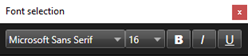
In the Font selection window, edit your text settings.
Tip
You can always edit your text settings; click the required text box and select the text tool from the toolbox, then change the text settings for the selected text box.
On the map, click where you want to place the text.
Enter your text. Press ENTER on your keyboard to make the text box expand downwards.
Tip
You can use the color fill tool to change the text color and background.
Tip
You can move the text box around; select the selector tool, grab the text box on the map, and move the text box.