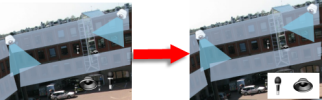
Add and remove elements from maps
In setup mode, right-click the map and select Toolbox.
In the toolbox, click the required element icon to open the Element selector window.
You can use the filter to quickly find a required element: enter a search criterion to narrow down the list of displayed elements to fit your search criterion.
Select the element and drag it onto the map.
To remove an element, right-click the unwanted element (camera, hot zone, server, event, output, microphone, or speaker) and select Remove [element].
To move an element, click and drag it to a new position on the map.
To change the orientation of an element, select it and place your mouse over one of the element's sizing handles. When the mouse pointer changes appearance to a curved arrow, click and drag the element to rotate it.

Tip
You can use the selector tool from the toolbox to select and move elements on a map, or to pan the map.
Tip
If your map has a color that makes it difficult to see the elements on the map, try creating a text box and fill it with a color that makes it stand out from the map. Add the required elements to the map, then drag them into the text box.