Add an overlay button to a camera view item
You can add overlay buttons to your camera view items to perform tasks such as activating speakers, triggering events, or moving PTZ cameras directly from your views.
Overlay buttons appear when you move your mouse over individual camera view items in live mode.
You can add as many overlay buttons as you need.
Select the view where you want an overlay button.
In the Overlay buttons pane, select and drag the command to the camera view item.
Place and resize the overlay button.
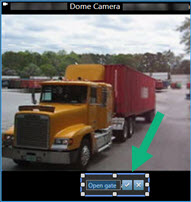
To change the text of the overlay button, double-click it, then select the check box
 to save your change or
  to discard the changes.