Using the playback timeline
The playback timeline is available in playback mode, investigations, and bookmarks.
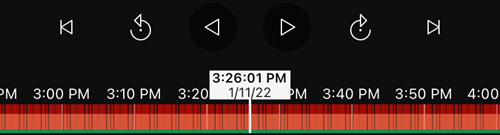
On the timeline bar:
Use the timeline controls to play the video forward or backward, to go forward to the next sequence, go back to the previous sequence, or go one frame forward or backward in the sequence.
Speed up or slow down the playback speed.
Specify the date and time of the recording.
For Android users:
On the timeline bar, tap the time indicator to open the time picker.
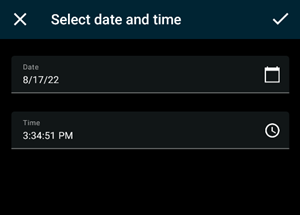
On the Select date and time screen:
Tap
 to select the date and then tap OK. You can also type the desired date into the Date field.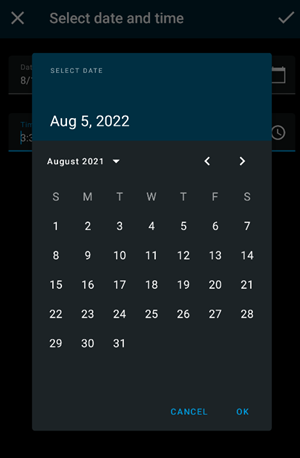
Tap
 to select the start time and then tap OK. You can also type the desired start time into the Time field.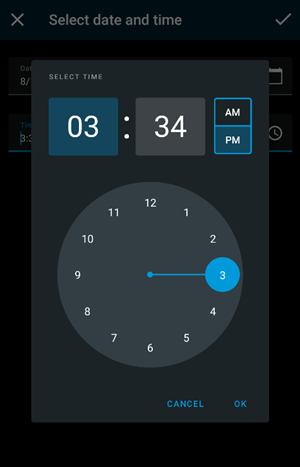
Tap
 to save your changes. The recording loads at the selected start time and date.
For iOS users:
On the timeline bar, tap the time indicator to open the time picker.
Select the start time of that part in the recording that you want to play back.
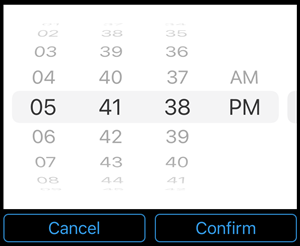
Tap Confirm. The recording loads at the selected start time.
For Android and iOS users:
On the timeline bar, drag the time scroller to the right or to the left to adjust the start time of that part in the recording that you want to play back. In the center of the time scroller, the time indicator shows the selected time in the recording. While you drag the time scroller, you see the frames currently selected in the recording. When you stop dragging the time scroller, the recording that you want to play back loads at the selected start time.
Note
The maximum time period displayed on the timeline is 24 hours, with a four-hour time interval between frames. The minimum time interval between frames is one minute.
Colors in the timeline
Light red indicates recordings.
Red indicates motion.
Light green indicates incoming audio.
Green indicates outgoing audio.