Encrypt your recordings
Note
Available functionality depends on the system you are using. See: Milestone XProtect® Product Comparison Tool.
You can secure your recordings by enabling encryption on your recording servers' storage and archives. You can choose between light and strong encryption. When you enable encryption, you must also specify a related password.
Note
Enabling or changing encryption settings or passwords can potentially be time consuming, depending on the size of the database and performance of the drive. You can follow the progress under Current Tasks.
Caution
Do not stop the recording server while the task is ongoing.
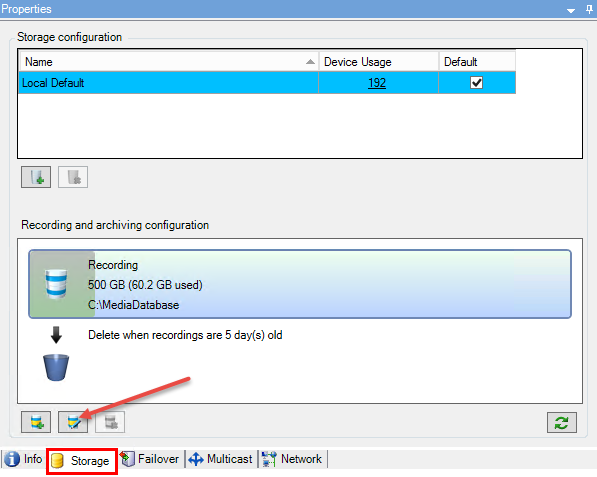
Click the Edit Recording Storage button below the Recording and archiving configuration list.
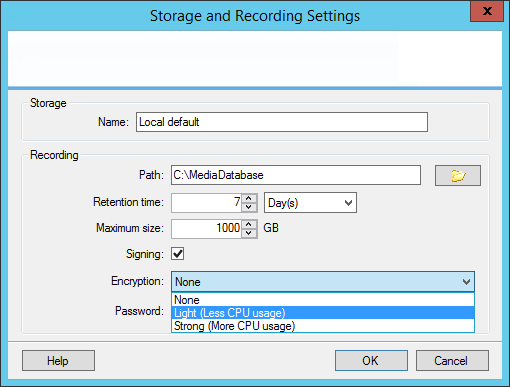
In the dialog box that appears, specify the encryption level.
You are automatically directed to the Set Password dialog box. Enter a password and click OK.