Enable adaptive streaming
Enable adaptive streaming to improve the performance of computers running XProtect Smart Client.
From the Settings and more menu, select Settings.
On the Advanced tab, select Adaptive streaming.
There are two settings for adaptive streaming: Disabled and Enabled.
Select Enabled.
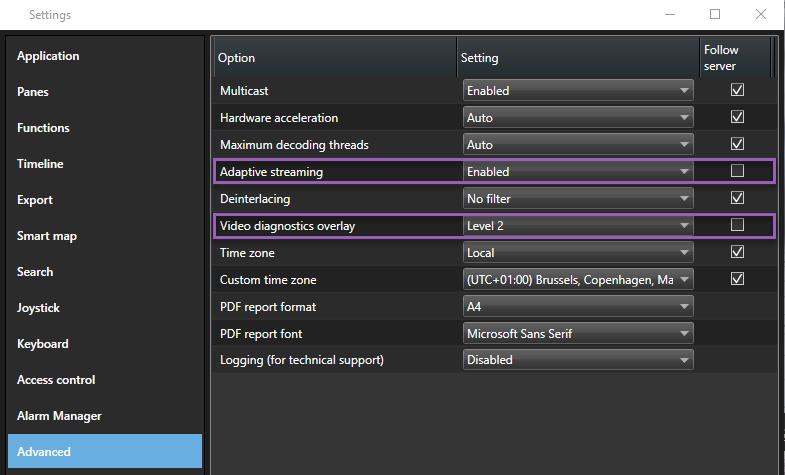
Go to Video diagnostics overlay.
To make the current video resolution of the stream visible, select Level 2.
Note
This setting applies to all view items. The default setting is Hide.
The video diagnostics overlay should now be Enabled.
Try to resize the view window from small to large, large to small and check if the Video resolution value changes.
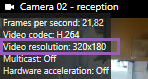
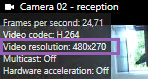
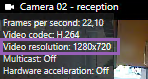
If the value doesn't change, continue to examine your available live video streams from your cameras so you can enable adaptive streaming, if possible.