Alarms
Note
This feature only works if you have XProtect event server installed.
This article describes how to set up alarms to appear in the system, triggered by events.
Based on functionality handled in the event server, the alarms feature provides central overview, control and scalability of alarms in any number of installations (including any other XProtect systems) throughout your organization. You can configure it to generate alarms based on either:
Internal system related events
For example, motion, server responding/not responding, archiving problems, lack of disk space and more.
External integrated events
Analytics events
Typically data received from an external third-party video content analysis (VCA) providers.
MIP plug-in events
Through the MIP SDK a third-party vendor can develop custom plug-ins (for example, integration to external access control systems or similar) to your system.
Note
Plug-ins that are exported from XProtect Smart Client should always be installed in the
C:\Program Files\Milestone\MIPPluginsfolder structure to ensure that only authorized users, including administrators, can access the location of the signed and trusted .dll files in your environment. This is to mitigate the risk of unauthorized modifications of .dll files.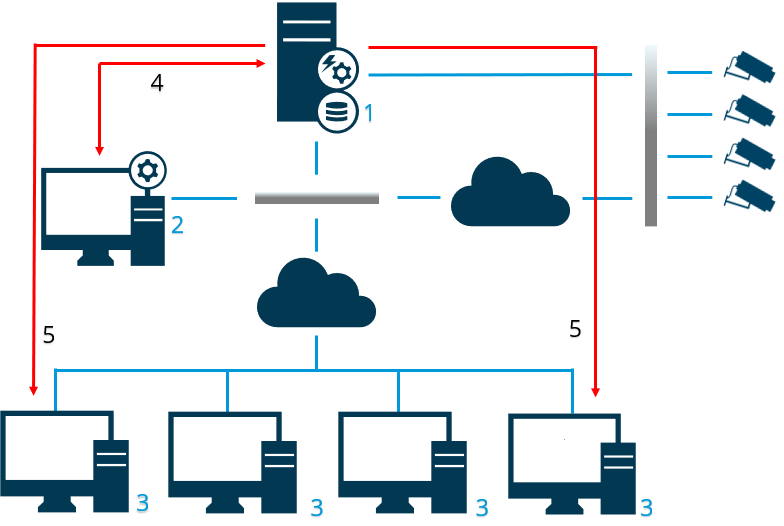
Legend:
Surveillance system
Management Client
XProtect Smart Client
Alarm configuration
Alarm data flow
You handle and assign alarms in the alarm list in XProtect Smart Client. You can also integrate alarms with the XProtect Smart Client's smart map and map functionality.
Alarm configuration
Alarm configuration includes:
Dynamic role-based setup of alarm handling
Central technical overview of all components: servers, cameras, and external units
Setup of central logging of all incoming alarms and system information
Handling of plug-ins, allowing customized integration of other systems, for example external access control or VCA-based systems
In general, alarms are controlled by the visibility of the object causing the alarm. This means that four possible aspects can play a role with regards to alarms and who can control/manage them and to what degree:
Name | Description |
|---|---|
Source/device visibility | If the device causing the alarm is not set to be visible to the user's role, the user cannot see the alarm in the alarm list in XProtect Smart Client. |
The right to trigger user-defined events | This permission determines if the user's role can trigger selected user-defined events in XProtect Smart Client. |
External plug-ins | If any external plug-ins are set up in your system, these might control users' permissions to handle alarms. |
General role rights | Determine whether the user is allowed to only view or also to manage alarms. What a user of Alarms can do with alarms depends on the user's role and on settings configured for that particular role. |
On the Alarms and Events tab in Options, you can specify settings for alarms, events and logs.